
How to create e-mail contact groups in Windows Vista
Wed, 10/03/2007 - 21:06 — George
 Some of our readers asked us how e-mail contact groups can be created in Windows Vista. To answer their question we have created this tutorial in which we will show you how to do it.
In Windows Vista, contacts can be managed by using the Windows Contacts application which replaces the old Address Book from Windows XP. In April 2007 we published a quick overview of the new Windows Contacts application. Before reading this tutorial you might want to check out our previous article to get yourself familiarized with the new application.
You can access Windows Contacts directly from Windows Mail or from the Start Menu. In Windows Mail, click on the Contacts button located in the menu bar, right after the "Send/Receive" button.

In the Start Menu you can find the Windows Contacts shortcut directly under All Programs.
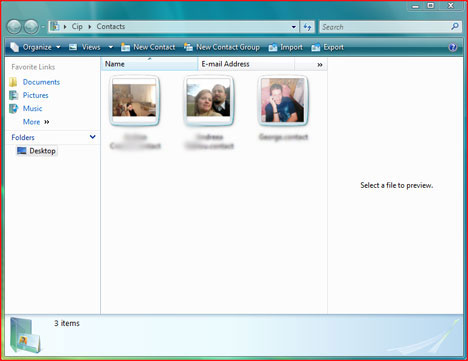
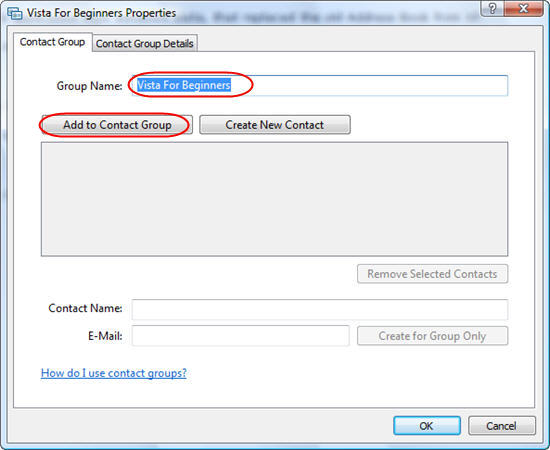
Once you open Windows Contacts, you will see in the upper menu bar the New Contact Group button. Click on it. In the Contact Group Properties window type the name of the new contact group and then click on the Add to Contact Group button.
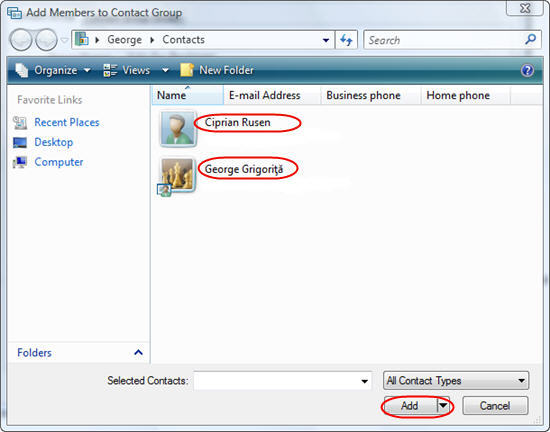
Select the contacts that you want to add to this group and click on the Add button.
If you want to create new contacts and add them directly to the contact group, click on Create New Contact, add all the contact details and click on OK. You can also add new people to the contact group without adding them to your individual contacts. To do this, type the appropriate information in the Contact Name and E‑Mail fields, and then click on the Create for Group Only button.
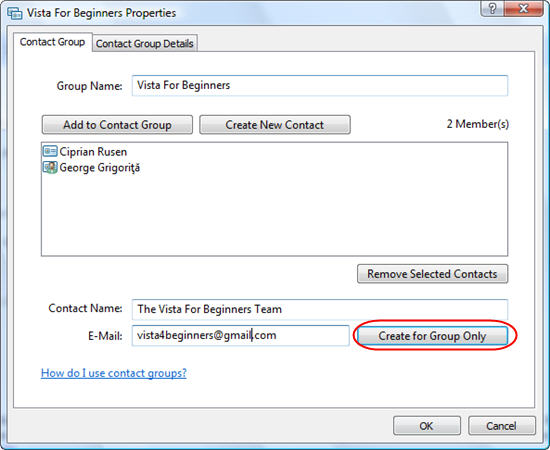
To remove a contact from the group, select it from the list and click on the Remove Selected Contacts button. If you want to remove more than one contact, press and hold the Ctrl key and with your mouse select the contacts. Afterwards click on the Remove Selected Contacts button.
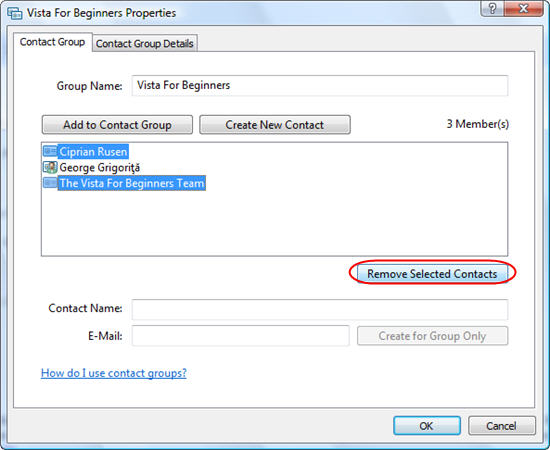
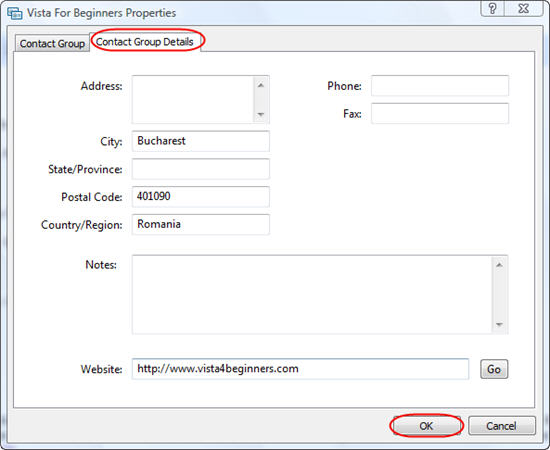
In the second tab of the Contact Group Properties window you can fill in some details about the group you created. Complete the fields you want and then click the OK button.
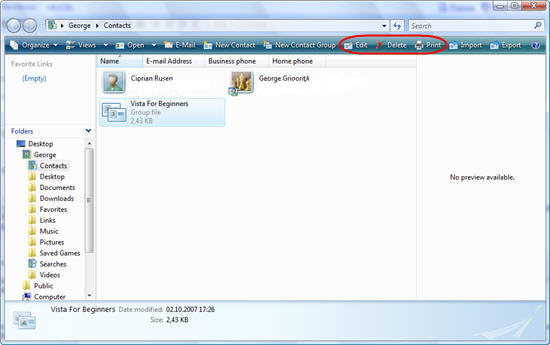
Now you will see the new group in the Windows Contacts list. If you want to make changes to the group, select it and click on the Edit, Delete or Print button.
Related articles:
Windows Contacts
Missing buttons from the Windows Contacts toolbar?
Windows Mail
The complete guide to the Windows Calendar - Part 1

This work is licensed under a Creative Commons Attribution-Noncommercial 3.0 License.
Microsoft, Windows and the Windows logo are either registered trademarks or trademarks of Microsoft Corporation in the United States and/or other countries. Microsoft Corporation in no way endorses or is affiliated with www.vista4beginners.com.
All other products mentioned are registered trademarks and/or trademarks of their respective companies.
Comments
Hiding email recipients list...
All:
We recently installed Vista in our agency. We make extenive use of our contact list and Vista's Contact Groups will go a long why with helping us manage our mailing list and email broadcast. Our issue is that we do not want to expose the email recipient list to each recipient (see MS Note below). How can we accomplish this.
Thank you and all help will be appreciated,
Bob
MS Note: When using contact groups, keep in mind that they do not hide the e‑mail addresses of the recipients. When you send a message to a contact group, all the recipients will be able to see the names and e‑mail addresses of the other recipients.
You can always put the group
You can always put the group in Bcc
Windows Mail Contacts
Not sure if I 'm being a dullard but my version of Windows Mail does not show the tabs "New Contacts , New Contact Group, etc". When I open up my contacts I only get the following options "Organise , Views, Slideshow & Burn" & I want to set up a group of contacts, can anyone help ?
Missing Tabs In Vista Contacts
G'day Pete, I had the same problem.
* Right click in the Contacts folder window (in the blank area at the bottom, not on an icon).
* Select "Customize This Folder" from the context menu to bring up the "Customize" tab of the "Contact Properties" window.
* Under "Use This Folder Type as A Template:" make sure "Contacts" is selected from the list.
*Click OK to apply.
This should hopefully fix it :)
Missing Tabs In Vista Contacts
Hey Chris that's spot on!
Many thanks
Upper Menu Bar Missing
Your response to Pete back in November was a lifesaver for me! I've spent hours trying to retrieve that menu bar which I had used previously to set up a couple of contact groups so I knew it was there somewhere. Thank you! Thank you!
You are the best! I would
You are the best! I would have NEVER figured it out. Sometimes I hate VISTA.
Thanks for the tip.
I was futilely trying to find the contacts toolbar. Thanks for the info. VISTA is far worse than XP. A huge step backwards.
I only have "organize, views
I only have "organize, views and burn on my task bar. I have been going nuts trying to find the icon to make a contact group.
Fix
Read this tutorials:
http://www.vista4beginners.com/Missing-buttons-from-Windows-Contacts-too...