
How to setup a Bluetooth connection
Fri, 01/19/2007 - 21:14 — George
 Today we will show you how to setup a Bluetooth connection in Windows Vista. This can be done either by connecting from an external device (like a mobile phone) to a laptop that has Bluetooth built-in, or by connecting from that external device to a laptop or PC with the help of a Bluetooth dongle.
If your PC doesn't have Bluetooth built-in, you must buy a special dongle and install it by following this procedure:
1. Insert your dongle into an USB port.
2. Wait for Windows Vista to detect and install the device driver software.

Windows Vista has drivers for most Bluetooth devices but if it is not able to find any suitable drivers for your device then you should install those that are bundled by the manufacturer. The following steps are the same for all Bluetooth connections (built-in or dongle):
1. Enable the Bluetooth connection to the device you want to connect.
2. If the connection is not already active, you'll have to enable Bluetooth on your PC/laptop. By default, the wireless and Bluetooth connections are active. If for some reason they are not active, look for a button on the front face or on the sideways of your laptop that should enable both wireless and Bluetooth connections. If you can't find that button please read the laptop's manual to find it.
3. Go to "Start" -> "Control Panel" -> "Network and Internet" and choose "Set up a Bluetooth enabled device".

4. In the Devices windows, click on "Add..."

5. Check the option "My device is set up and ready to be found" and click the "Next" button.

6. Windows Vista will show you all active devices. Select the device you want and click "Next".

7. Now, Windows Vista asks you to set a passkey. You can let Windows Vista choose one for you, you can enter the passkey found in the documentation of your device or you can enter your own. Also, you have the option of not using a passkey. A passkey is used to make the connection between the external device and your PC/laptop more secure.
Select the option you prefer and click the "Next" button.

8. On your external device a dialogue box should appear asking for permission to connect to the PC/laptop. Select "Yes" and enter the same passkey you have entered earlier.

9. A window will pop-up saying that new hardware was found. Choose "Locate and install driver software".


10. If you have a CD that came with your external Bluetooth device you will have to insert it in your CD-ROM or DVD-ROM. After you insert the CD, Windows Vista will be able to finish the driver installation. If you don't have a CD choose "I don't have a CD. Show me other options". Windows Vista will try to find a suitable driver for you. Even though it won't be able to find such drivers, don't worry too much, there is still a chance that your Bluetooth connection will work.

11. That's it. Click the "Finish" button and test your connection.

Testing Procedure
The best way to test your Bluetooth connection is to send a picture or a file from the external device to the laptop and then from the laptop to the device. To do that, just select the picture you want to send, right click on it and select "Send to" and then "Bluetooth device"..
The "Bluetooth File Transfer Wizard" will pop up. Click on "Browse".

Select the external device you want to send the picture to and click the "Next" button.

On your external device you will receive a warning saying that you are about to receive a file. Choose "Yes" and the transfer process will start.

After the transfer is complete, press the "Finish" button and that is it.

To send a picture from your external device to the PC/laptop, go to your taskbar and right click on the Bluetooth icon and then choose “Receive a file”.
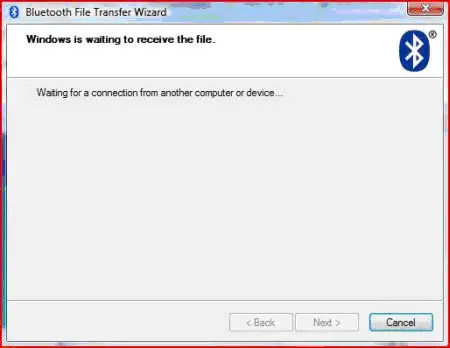
Now, from your device, find a picture or file and send it to your PC/laptop. The PC/laptop should be identified as an active terminal, select it and the transfer should start.

Note:
For this tutorial we used the following hardware: HP Compaq nx7400 with HP Integrated Bluetooth module, HP Compaq nx7400 with Hama Bluetooth USB Adapter Class 1, Nokia 6230i .
Related articles:
How to setup a wireless connection
How to check your Network Connection Status
Windows Network Diagnostic - diagnose network problems the easy way
How to enable network discovery and file sharing
Offline Files - How To Work With Network Files When Offline
Transfer Files Between Devices & Your Windows 7 PC via Bluetooth

This work is licensed under a Creative Commons Attribution-Noncommercial 3.0 License.
Microsoft, Windows and the Windows logo are either registered trademarks or trademarks of Microsoft Corporation in the United States and/or other countries. Microsoft Corporation in no way endorses or is affiliated with www.vista4beginners.com.
All other products mentioned are registered trademarks and/or trademarks of their respective companies.
Comments
Bluetooth configuration
It was very much helpful in configurating the bluetooth
WRONG INFO
what comes to vista network "Control Panel" -> "Network and Internet"
plz be more clear. there is no such a think in vista called network and internet
thank you
Network and Internet
Hello ArMan!
It depends. If you use the default view for the Control Panel in Windows Vista, you will find the section "Network and Internet". If you use the classic view in Windows Vista you won't see it.
I can't find Bluetooth in
I can't find Bluetooth in that list on my PC. There's everything else, it's just the Bluetooth thing that's missing. Is this normal? (I use Vista Ultimate)
Maybe...
Then maybe:
I have a Bluetooth device
I have a Bluetooth device which I connect to the computer through one of the USB ports. Vista says it installed all the drivers it needs, I can see it in the Device Manager and when I try to update the drivers, Win says they're up-to-date. The device is enabled. Can't find that Control Panel option anywhere, though...
Strange
That sure is strange. Try to reboot your PC after the Bluetooth Device is installed. Maybe, after the reboot Windows will load the Bluetooth applet in Control Panel.
Can't install my bluetooth device _ HELP!!!
Hi
I am having exactly the same problem as you -I have done everything you described and have updated drivers - when I check the properties of the dongle in the device maanger it says it is working but I do notehave the bleutooth option in the list on the Control Panel /Network - Internet page - it just stops after Synch Centre. Have you resolved your problem and could you - or someone - please help me resolve mine? I have already tried restart , whihc didn't help at all, except that there is a bluettoth icon on my desktop now.
Many thanks in advance
wrong info
There is an "Network and Internet" option in Control Panel in my version of Vista - maybe you are showing classic view, or perhaps you aren't looking in Control Panel. But I assure you it is there.
good
thanks for ur tutorials i enjoyed it