
Manage User Accounts
Tue, 05/08/2007 - 11:32 — Ciprian
 In this tutorial we will show you how to manage all the user accounts on your Windows Vista PC. You will learn how to change your password, your picture (avatar), your account name and account type. Also, you will learn how to remove your password and how to create and manage other user accounts.
Before we start, you should keep in mind that most of the important changes can be done only using an administrator account. If your account is a standard user you can only modify the password and the picture of your account.
Everything is done from the User Accounts control panel so first we will show you where to find it.
Find the User Accounts Control Panel
Start the control panel, type user accounts in the upper right search box and then click on the first search result (user accounts), as shown in the screenshot below.
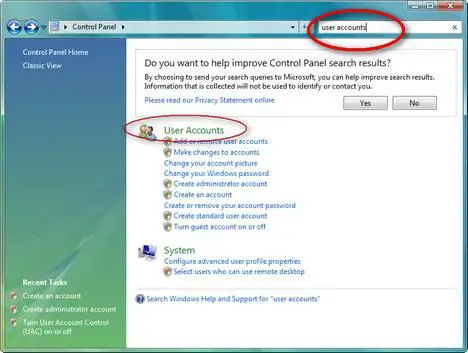
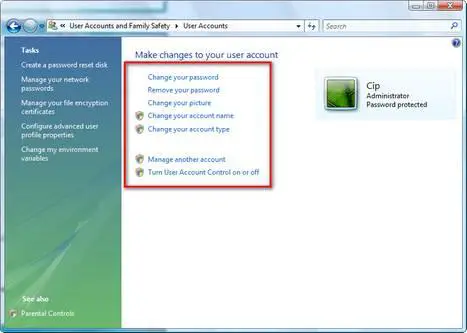
In the User Accounts control panel you can customize different aspects about your user and, if you have administrative rights, you can manage other user accounts as well.
Change your password
In the User Accounts control panel, click on the Change password link.
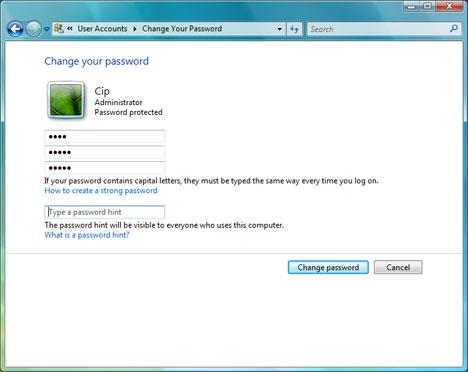
In the first box type your current password, in the next two boxes type the new password and then click the Change password button.
For security reasons it is better not to use simple passwords like "123" or "password" as they can be easily guessed by other people and can compromise the security of your system. Try to create more "complicated" passwords which have more than 3-4 characters and include numbers or alpha cases such as "#", "@" or "&".
If you would like to know more about how to create "safe" passwords, you should read this article regarding the strength of your passwords.
Remove your password
If you want to remove your current password, go to the User Accounts control panel and click on the Remove your password link.
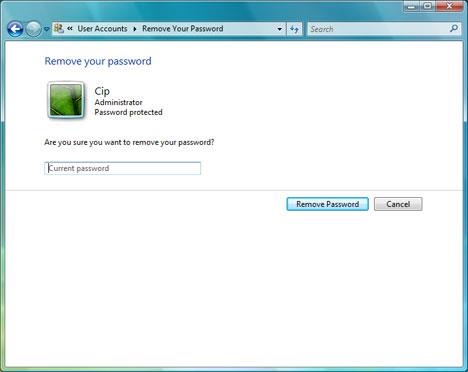
To remove your current password you have to type it and then press the Remove Password button.
Please remember that it is not advisable to remove your password. If you do that anybody can have unrestricted access to your PC and to all your data.
Change your picture
In case you want to change the picture (avatar) associated with your user , just click on the Change your picture link.
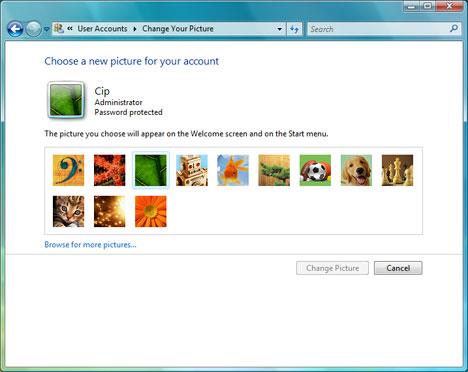
Windows Vista will load a list of standard pictures that you can use. If you like one of them, click on it and press the Change Picture button. Otherwise, you can click on Browse for more pictures and choose any other picture from your computer.
Change your account name
To change the account name, go to the User Accounts control panel and click on the Change your name link.
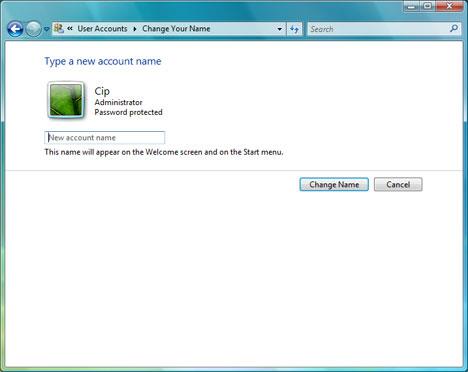
Now type the new account name and press the Change Name button.
Change you account type
To change your user type, click on the Change your account type link and then choose the preferred type of user: standard user or administrator.
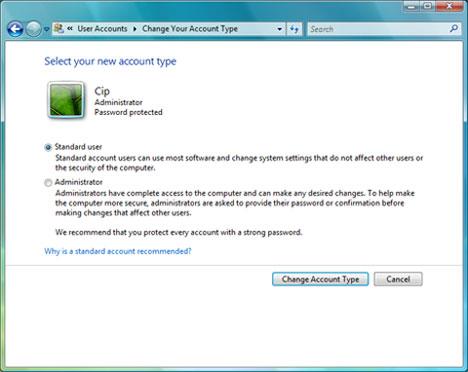
When you are done, press the Change Account Type button.
Create a new User Account
If you need to create a new user account on your Windows Vista PC, first go to the User Accounts control panel and then click on the Manage another account link.
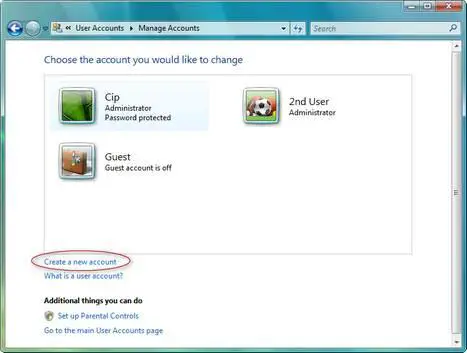
You will see a list with all the existing users. Below this list, there is a Create a new account link. Click on it and you can enter the name of the new user account and select its type.
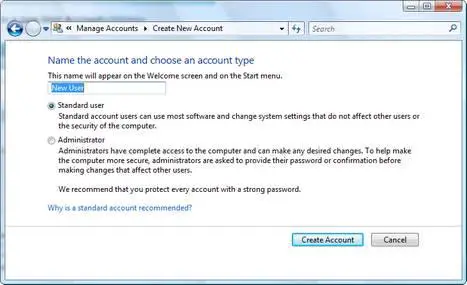
Now click on the Create Account button and the new user account is created.
Change another User Account
Go to the User Accounts control panel and then click on the Manage another account link. You will see a list with all the existing users. Double click on the user you want to change and the following window will open:
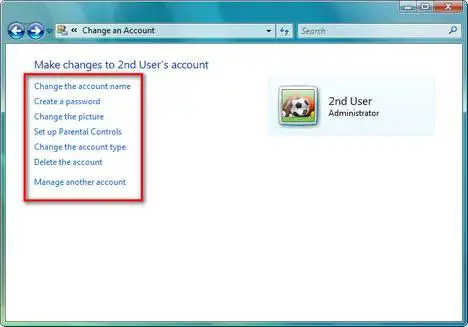
Here you can make the same changes as for your own user account.
Related articles:
How to reset your password
How to retrieve your Windows Vista password
Parental Controls
Change Owner v1.0
Change the permissions and take ownership of your files and folders
Recommended articles:
Log On Automatically To Windows 7 Without Typing Your Password

This work is licensed under a Creative Commons Attribution-Noncommercial 3.0 License.
Microsoft, Windows and the Windows logo are either registered trademarks or trademarks of Microsoft Corporation in the United States and/or other countries. Microsoft Corporation in no way endorses or is affiliated with www.vista4beginners.com.
All other products mentioned are registered trademarks and/or trademarks of their respective companies.
Comments
Bookmarked!
Nice job!
Bookmarked: http://securitygarden.blogspot.com/2007/05/vista-windows-calendar-and-ua...
Corrine
Microsoft MVP - Windows Security
Take a walk through my Security Garden -- http://securitygarden.blogspot.com/
Have Windows Vista? Get Bookmarks at http://vistabookmarks.blogspot.com/
Thank you!
Thank you very much for your support. We really appreciate it!
How do you DELETE a user profile???
IN vista I do not get an option to delete a user.
I performed an NT Offline Password Reset and afterwards have two users instead of the original one user.
It basically separated the main user from the administrator account.
I want to delete the "administrator" account and keep the main user (also an administrator).
No way to do it?
I am having the same
I am having the same problem. I created a user account because it was supposed to be safer. I am trying to run a command prompt from the administrator account. I get the error message "access denied because you do not have sufficient privileges. you have to invoke this utility in elevated mode". I thought that maybe if I completely delete any account but the administrator account vista will be able to keep them sorted out, but when I click on "add or remove user accounts" the only options I get are "turn on" or "cancel". I've tried turning on the account to see if I get more options there, but no, doesn't happen.
The "delete" option described above is not available on my version of completely updated vista ultimate at the step you describe where it should be available. wtf else can I do without buying a mac?
"Windows cannot change the password"
I just bought a new computer with vista (yeah, it's pretty.) but even though I have administrative access, I'm unable to create a password for my account. I'm simply prompted with an error, "Windows cannot change the password" on every attempt, and it's becoming frustrating.
Any thoughts?
having same problem...any help here?
tried everything. never had a password and now i need one as i caught my roomie reading my personal stuff. unable to create password. i get the same message. it's a vaio if they matters.
Same here
Same here.. Just got vista and only made one account, it's admin and I still can't set a password
Hi Press the Windows Logo Key
Hi
Press the Windows Logo Key and 'r'. This should give you the Run window.
Type lusrmgr.msc and press Enter. Click Continue if prompted for permission.
In Local Users and Groups, click Users, then on the right, double click the
account you are using.
Make sure there is no checkmark in "User cannot change password". If there
is, remove it and click OK, then close the Local Users and Groups window.
You should now be able to change your password.
If there was no checkmark, then I'm out of ideas.
HI Unable to set pwd even as admin Error-" Windows cannot chang"
I bought a new Laptop. It has Vista loaded in it.
But the problem is I am not able to set the password for the user ADMINIStrator itself
The error message is " Windows cannot change the password"
Will u please help me out in sending me the solution to my mentioned mail: [email protected]
admin
you need to be logged on as a full fleged admin not the one you created the BUILT IN one open start search cmd run as admin and type in
Net user administrator /active:yes
then hit enter