
How to Map a Network Drive
Tue, 05/22/2007 - 17:45 — Ciprian
 One of the most searched topics on our site is "how to map a drive". Unfortunately, until now, the searches on this topic didn't return any result for our users. As a consequence to this, we decided to create this article in which we show you how to create a drive mapping in Windows Vista.
For those of you who don't know it, a drive mapping is a letter assigned to a disk or drive. The most common drive mappings are A: for the floppy disk and C: for the primary hard disk. If you are on a network, a drive mapping can reference remote drives to which you can assign a letter of your choice. For example, you can use the letter Z: to refer drive C: or a network server or a specific shared folder to which you have access to.
As you will see for yourself, the procedure of creating a map drive in Windows Vista is very simple. Just follow these steps:
First, click on the Computer shortcut from your desktop or from the Start Menu. In the toolbar you will find several buttons, including one called Map network drive.
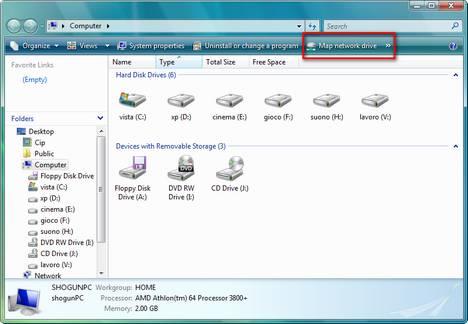
Click on it and the Map Network Drive window will open. Firstly, you need to assign a drive letter for the connection and then type the drive or the folder you want to connect to.
The folder can be located on a remote server or computer you have access to, a FTP site or a shared folder on your own computer.
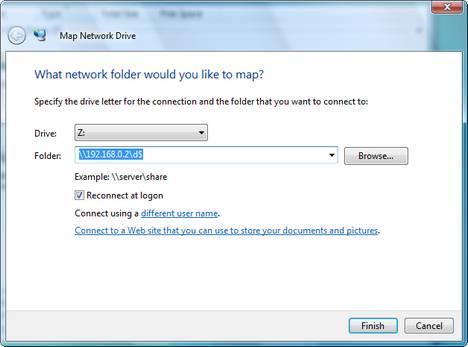
If you want to connect to a remote computer just type "\\" followed by the computer name or the IP address and then "\" followed by the location of the folder you want to connect to.
If you want to create a drive mapping to a folder on your own computer type "\\127.0.0.1\" (this stands for the local host) or "\\computer_name\" and then the path towards that folder.
Sometimes, when you create a drive mapping, you might need to use a special user name and password that allows you to connect to it. In this case, click on the Connect using a different user name link.
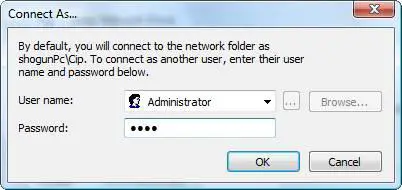
Type the appropriate user name and password and click on OK. Now you will return to the previous window. Click on Finish and the drive mapping will be created.
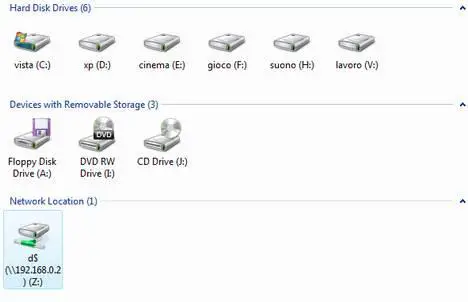
If you access the Computer shortcut again you will see that a new drive having the letter you assigned is listed and you can access it at anytime.
Related articles:
How to enable network discovery and file sharing
How to share files and folders
How to check your Network Connection Status
Windows Network Diagnostic - diagnose network problems the easy way
How to setup a wireless connection
Offline Files - How To Work With Network Files When Offline
Recommended articles:
ITsVISTA Tip 52: Map a Drive to an FTP site in Vista
Remove "Map Network Drive" Menu Item from Windows Vista or XP

This work is licensed under a Creative Commons Attribution-Noncommercial 3.0 License.
Microsoft, Windows and the Windows logo are either registered trademarks or trademarks of Microsoft Corporation in the United States and/or other countries. Microsoft Corporation in no way endorses or is affiliated with www.vista4beginners.com.
All other products mentioned are registered trademarks and/or trademarks of their respective companies.
Comments
Map a FTP folder
Hi,
How to map a FTP folder as a drive?
The NetDrive software (map a FTP folder as a drive) doesn't work with Windows Vista...
I dont seem to have a map
I dont seem to have a map network drive button? Just organize, views, and burn.
Map Network Drive Button
This button only appears when you are looking at "Computer" (as the instructions say).
If you are looking at a folder you will only see the buttons you say you can see.
problem installing software from mapped drive
According to other sites I've seen many others have had the same problems with other programs. I'm trying to install a program on a company computer. The setup files are located on the mapped network drive (on a server). When I try to run the setup it says something like "This application must be installed to a location specified by a drive letter and directory. It cannot be installed to a UNC path. It appears that \\servername\programs\blah does not contain a drive letter. If you browsed to the location usinga Network Neighboorhod please retry using a mapped drive letter."
The program will run the installation if setup files are copied to the computer running vista, however it won't run properly unless it's run from the networked location.
Any help?
Same Problem
I am getting the same error message even though I have he drive mapped to the letter P. I unmapped and remapped but still getting the same error. Did you get a fix for this?
A weird problem I face...
My Domain is a Windows 2003 Std. Server. I recently got a Dell laptop with Windows Vista Ultimate. I try to map a network drive, it maps successfully. The very first time on successful mapping it automatically pops up the drive. But, the next time if I have to use it, and I double click the mapped network drive, it gives me 2 different errors for 2 of my mapped drives...:\ Application not found...
1. That the drive cannot be loaded because of some permission issues and crap (This is bull shit)
2.
I get these 2 crappy errors... Interestingly, one of my mapping out of the 3 works! Also, The UNC paths work for the drives, which give me the above error...
Anyone who can help?
Re : A weird problem I face
I too am getting the 2nd error "Application not found" when I double click on the mapped network drive.
I am thinking Vista might be looking for a past drive letter instead of the drive letter your currently mapped to ??
Not sure but in any case this is bloody annoying !!!
Hopefully someone has an idea about this .
Cheers.
Spaces
The issue might be caused by the fact that the path you enter contains spaces.
For example: \\server100\program files\adober reader\. In this case you might need to put the path between ".
Like this: "\\server100\program files\adober reader\". Try it out. It might work!
Ok Im not sure if this is
Ok Im not sure if this is vista problem,I have a laptop (xp pro SP2)based one that just flat out refuses to connect to my vista based PC,I've got the vista based PC to connect to the laptop but not the other way around,I've map drives befor to other xp based PC from the laptop.
Disable the Firewall
Try to temporarily disable the Windows Vista Firewall. It might prevent you from accessing the Vista based PC from your laptop.
Post new comment