
Migrate from Outlook Express to Windows Mail
Sat, 04/14/2007 - 17:45 — Ciprian
 In our previous article we presented the new Windows Mail and its features. We also made a step by step tutorial on how to create your first e-mail account in Windows Mail. Today we will show you how to manually migrate all your e-mail accounts, messages and your address book from Outlook Express to Windows Mail. As you will see for yourself, the procedure is not very complicated even though it might take you some time to do it.
This article in split in two parts. The first part covers the export procedure that you need to perform in Outlook Express and the second one explains how to import everything in Windows Mail.
Outlook Express
First, you need to start Windows XP and launch Outlook Express. If you have a dual-boot configuration (Windows XP and Windows Vista) you should export everything to a location that is accessible from both operating systems. If you have Windows XP installed and you plan to erase it and upgrade to Windows Vista, we recommend that you save everything to a back-up disk and import from it later, after you install Windows Vista.
Exporting the Address Book
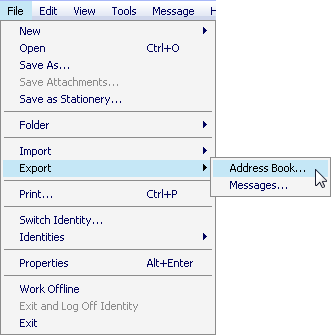
Go to the File menu, select Export and click on Address Book.
The Address Book Export Tool will be launched. Select the second option - Text File (Comma Separated Values) - and click on the Export button.
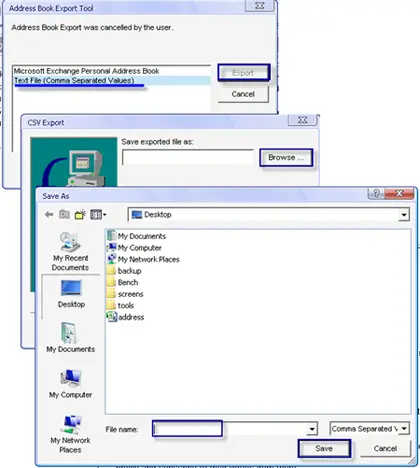
You will be asked to select the path where you want to export your Address Book. Click on Browse, go to the folder where you want to save your Address Book, type the name of the file in which it will be saved and click the Save button.
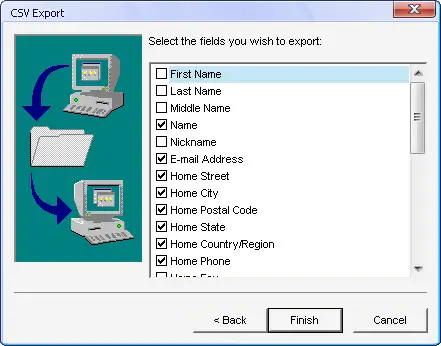
The CSV Export window will open. Here you will have to select which contact details you want to export. Select the ones you want or, for more safety, select all the fields and then press the Finish button.
The Address Book has now been exported to the chosen location.
Exporting E-mail Accounts Settings
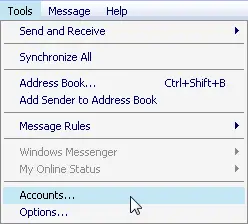
In Outlook Express, go to the Tools menu and then select Accounts.
A window with all your internet accounts will be opened. Go to the Mail tab and from the list of e-mail accounts select the first you want to export. Click on it and then press Export. You will choose the folder and the file name where your settings will be exported. After that, click on Save.
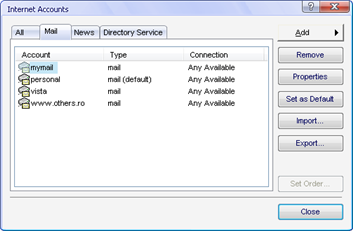
Repeat this procedure for all the e-mail accounts you want to export to Windows Mail.
Exporting E-mail Messages
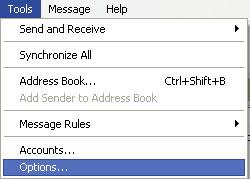
Go to Tools and then select Options.
Go to the Maintenance tab and click on the Store Folder button.
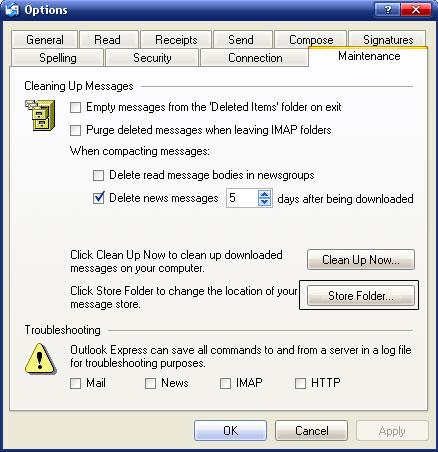
A small window will open and you will see the location where Outlook Express stores all your e-mail messages. Copy that location, close Outlook Express, open that location in Windows Explorer and then copy all the content to a different location.
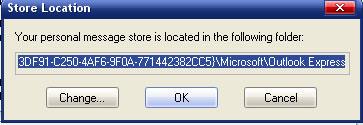
If you have a lot of messages, the process will take quite some time to finish.
IMPORTANT:Make sure none of the files you are backing up are "Read only" otherwise when you start the import, it will fail.
Windows Mail
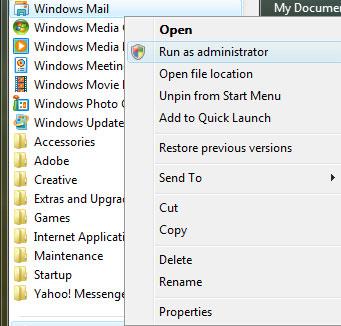
After you have finished the export process, reboot and start or install Windows Vista. When you are ready to import all your e-mail accounts, messages and address book to Windows Mail, go to the Start Menu - All Programs and launch its shortcut.
IMPORTANT: during the importing process we recommend that you run Windows Mail as an administrator. If you do not run it as an administrator the import process might fail.
Importing the Address Book
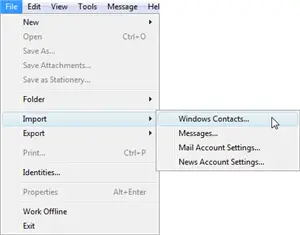
In Windows Mail, go to the File menu, select Import and then Windows Contacts.
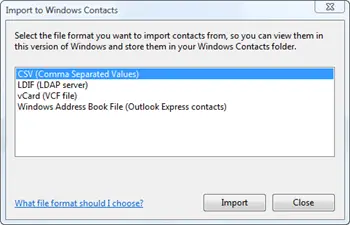
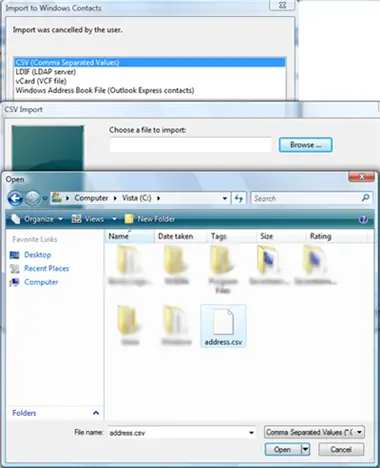
In the Import to Windows Contacts window, select the first option - CSV (Comma Separated Values) - and press the Import button.
Now you have to Browse to the file where you exported the Address Book from Outlook Express and then press Open. When you are done press Next.
In the CSV Import window choose the fields you want to import. If you are not sure which fields to select, select all of them and press the Finish button.
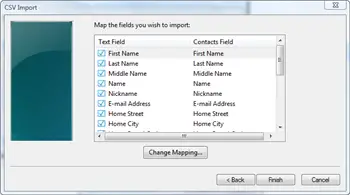
Now the Address Book has been moved from Outlook Express to Windows Mail.
Importing E-mail Accounts Settings
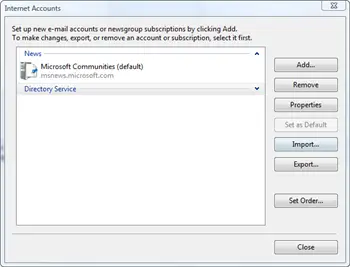
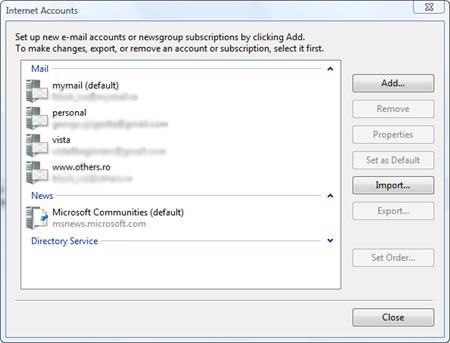
First, go to Tools -> Accounts. In the Internet Accounts window, press the Import button.
Now you have to browse to the location where you exported your e-mail accounts settings and select the file containing those settings.
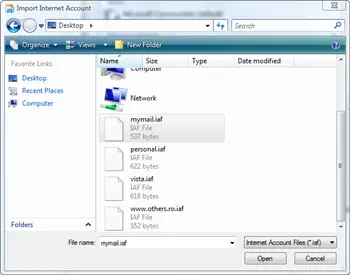
Repeat this procedure for all your e-mail accounts. All the restored accounts settings will be listed in the Internet Accounts window.
Importing E-mail Messages
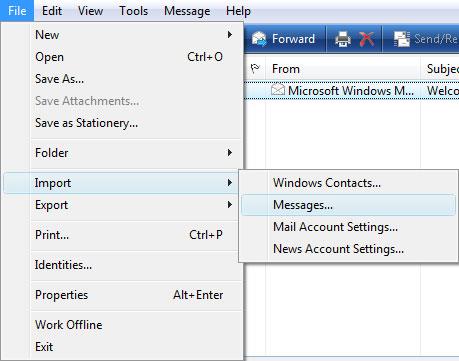
Go to the File menu, select Import and then click on Messages.
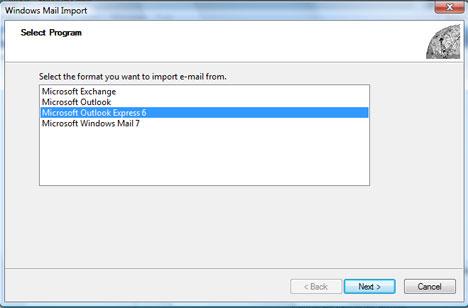
In the Windows Mail Import window, you need to select the third option - Microsoft Outlook Express 6 - and click on Next.
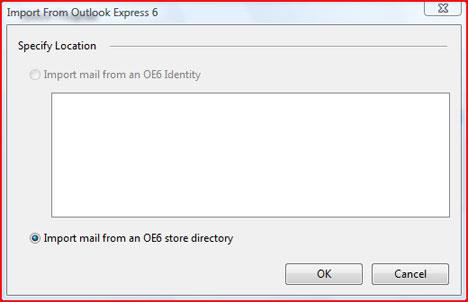
Select Import mail from an OE6 store directory and press the OK button.
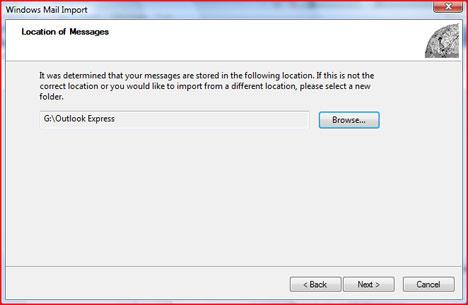
Now you have to browse to the folder where you exported all your e-mail messages, click the Select folder button which takes you to the next screen at which point you then press Next.
IMPORTANT: Some of our readers reported having a duplicate node problem. Before pressing Next, check that the folder displayed does not contain duplicate nodes.
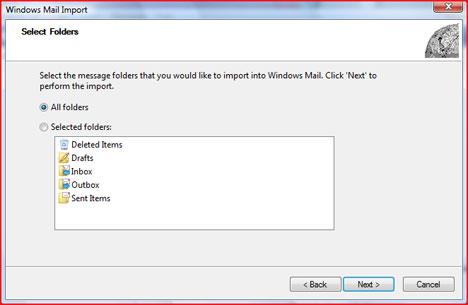
Select the message folders you want to import and press Next.
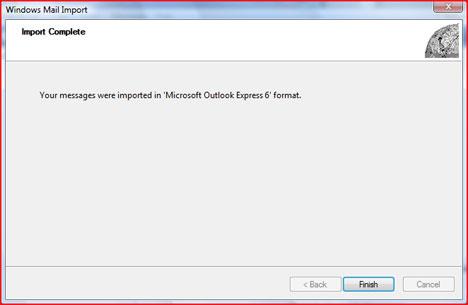
After the import is finished, the wizard will show a Import Complete message. Press the Finish button.
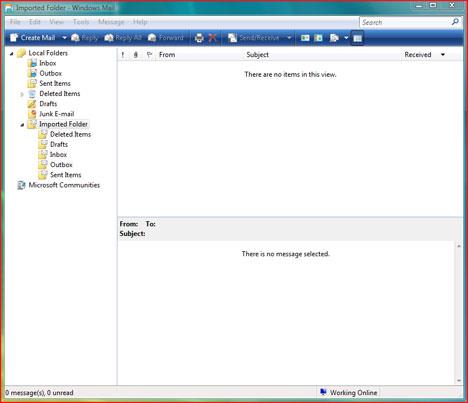
Now all your e-mail messages from Outlook Express will be available in Windows Mail. By default, all your imported messages will be placed in the Imported Folder. You can move them to any other folder using the drag and drop procedure.
UPDATE:Due to the huge numbers of comments on this article we removed the create comment option. If you need help or you want to post a comment please go to our forum and use the Outlook Express to Windows Mail - ISSUES Topic.
Related articles:
Windows Mail
Windows Mail keyboard shortcuts
Where are the e-mail identities?
How to migrate to Outlook 2007 & Windows Vista
Backup your Outlook Inbox
How to setup an e-mail account in Outlook 2007

This work is licensed under a Creative Commons Attribution-Noncommercial 3.0 License.
Microsoft, Windows and the Windows logo are either registered trademarks or trademarks of Microsoft Corporation in the United States and/or other countries. Microsoft Corporation in no way endorses or is affiliated with www.vista4beginners.com.
All other products mentioned are registered trademarks and/or trademarks of their respective companies.
Comments
Nice
Nice work. Those screenshots must be annoying to make.
Thank you!
It wasn't very annoying. We split the work in two. The hardest part was to put them together and make sure the numeration wasn't wrong.
Thanks
I have been through this before vista but I always need you guy's to come thru with step by step instructions...life is so busy I can't remeber every thing. Thank you for all your hard work
ghostdogg
Excellent
My only comment concerns the step when importing into Windows Mail, and you need to browse to the folder containing the email-messages. I found that you should not browse to the folder containing the exported .dbx files; but rather should you browse to the folder above it.
OMG THX!!!
Seriously you have no idea how much time I wasted f*^&ing about with Outlook and OE, then I realise I just want to use Windows Mail, find this page, it works and hey two months after I got my new PC I can actually get my old emails on it!!!!!!!!!!!!!!!
BIG thanks again.
Glad...
We are glad to be of help! Hopefully you will find other useful articles and tutorials on our site.
but when you have exported
but when you have exported your outlook express adressbook from xp to vista's microsoft mail they don't have the right order anymore and you can not find your adresses anymore......
YAY -- but importing messages
you need to browse to folder above the mbx files. That's the only problem I had after I found your wonderful instructions. THANK YOU.
Thanks....but add a note please
A note not to double click the last folder in the tree would be Very helpful.
One click too many and it looks like a folder that doesn't contain the right file type, or is empty.
Thanks
RM
Could you
Could you please mention the step where you found this problem? You are talking about the mail import or about something else?