
Change the amount of space used by System Restore
Mon, 03/12/2007 - 15:19 — Ciprian
 System Restore is a very useful feature of Windows Vista but it has one main drawback. After running for a few weeks, it can use a lot of your hard disk space. With the default settings turned on, System Restore might use up to 15 percent of the space on each disk. For example, if you have a 250GB hard disk drive, System Restore might end up using 37,5GB of it. That is a lot of space.
What can we do to limit the amount of space used by System Restore? In Windows XP making this kind of configuration was pretty easy. You had a slider in the System Properties window that you could move left or right to the desired percentage. Unfortunately this slider was removed from Windows Vista.
In order to configure the amount of space used by System Restore, you need to use a tool called Volume Shadow Copy Administrative Command-Line Tool (or vssadmin.exe).
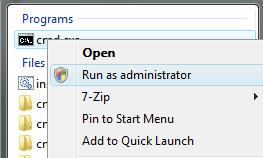
To access vssadmin.exe we will have to open the command prompt with administrative rights. In order to do that, type "cmd" or "command" in the Start Menu search field. The first result should be cmd.exe or the Command Prompt. If you have UAC turned on, right click on it and select Run as administrator.
The Command Prompt will open. The Volume Shadow Copy Service offers several configuration option. Type vssadmin /? and press Enter to see the list of available options.
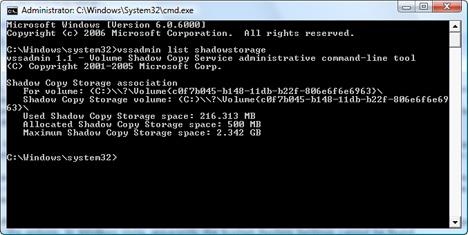
If you want to know how much space has been allocated and the maximum amount of space that can be used by System Restore, type vssadmin list shadowstorage and then hit the Enter key.
If you want to change the amount of space used by System Restore, you should use the following command:
vssadmin resize shadowstorage /on=[drive letter]: /For=[drive letter]: /Maxsize=[maximum size]
MaxSizeSpec must be 300MB or greater and accepts the following suffixes: KB (for kilobytes), MB (for megabytes), GB (for gigabytes), TB (for terabytes), PB (for petabytes) and EB (for exabytes). If a suffix is not supplied, MaxSizeSpec is in bytes. If MaxSizeSpec is not specified, then there will be no limit to the amount of space it may use.
For example, if you want System Restore to use a maximum of 1GB of space for the restore points on drive "C:", you should type the following:
vssadmin resize shadowstorage /On=C: /For=C: /Maxsize=1GB
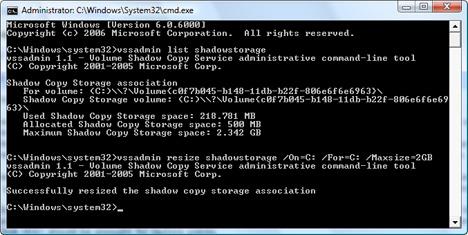
The maximum space used by System Restore has now been resized.
Related articles:
System Restore
Change the System Restore Frequency with CSRF v1.0.0.0
How to disable or enable System Restore

This work is licensed under a Creative Commons Attribution-Noncommercial 3.0 License.
Microsoft, Windows and the Windows logo are either registered trademarks or trademarks of Microsoft Corporation in the United States and/or other countries. Microsoft Corporation in no way endorses or is affiliated with www.vista4beginners.com.
All other products mentioned are registered trademarks and/or trademarks of their respective companies.
Comments
I followed all of the
I followed all of the instructions perfectly but it won't resize for me. I get an error saying '/For' is not recognizable as an internal or external command, operable program or batch file
check command line
Please check the complete command line. If you have additional spaces it won't work.
Yep, I hit the spaces
Yep, I hit the spaces exactly like it says
vssadmin resize shadowstorage /On=C: /For=C: /maxsize=2.5GB
But it still says the same error. I assume it's me doing something wrong but for the life of me I just can;t figure it out!
resizing shadowstorage (System Restore) space
try capitalizing the M in the word Maxsize!
Hope it helps!
I followed the instructions and had no problem.
copy paste and then change
copy paste and then change size
Batch File that runs vssadmin
Here's a batch file that codifies running the vssadmin command:
http://reliancepc.com/ReliancePC/Tips/restorepointmax/restorepointmax.html
OK, I got it. The problem
OK, I got it. The problem was that I wasn't running Command Prompt as Administrater. But I fiugured it out . Many thanks for all your help! - Allan
Deleting restore data
How do I clear the restore data? I have 15 gigs being used by this and shouldn't I delete the data before I resize it?
Disk Cleanup
Use the Disk Cleanup Wizard.
great post
Thanks for the info.
I have been fighting with mysterious disk space usage, after reading article I figured
Vista has reserved 60 GB and using all 60GB for system restore.
I used 'windir stat' which is a great tool to visualize disk usage on XP, but apparently it failed to recognize the
disk space used by Vista for Restore files.
Post new comment