
The complete guide to the Windows Calendar - Part 1
Fri, 04/27/2007 - 12:34 — George
 Windows Calendar is one of the new applications delivered with Windows Vista. This application looks like many other similar applications and offers all the expected features: support for the iCalendar file format, support for publishing or subscribing to web-based calendars, options for creating and managing tasks, several calendar views and so on. In fact many criticized this application for resembling with iCal - a personal calendar application available for MAC OS X users. Even if there is some resemblance, Windows Calendar is nonetheless a great application and the first calendar application to be included in a Microsoft Windows operating system.
We are currently working on a series of articles about Windows Calendar which will be published gradually these days. The series will serve as a complete guide on how to use and configure your Windows Calendar.
This first article covers the basic functionalities of Windows Calendar: creating personalized calendars, customizing them, creating appointments, tasks and reminders.
To open Windows Calendar go to Start Menu - All Programs and click on its shortcut. If you want to create a calendar you have to go to the File menu and select New Calendar. Then, you need to type the name of the new calendar and then press the Enter key.
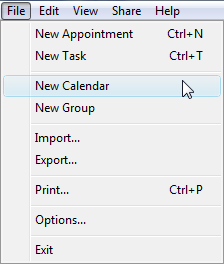
If you want to rename it, select the calendar, right click on it and then select Rename from the menu. You can create as many calendars as you like and you can even organize them in different groups. To create a group of calendars, select New Group from the File menu and type the name of the group. Then drag and drop all the calendars you want to include in this group and there you have it.
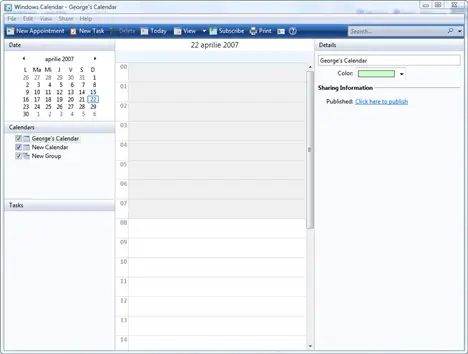
If you look at Windows Calendars' interface, you will notice that all the main functions are available directly in the top toolbar.
Appointments
To create a new appointment, click on the New Appointment button.

On the right side of the Windows Calendar window, a details section will appear. Here, you need to type the description and the location of the appointment. Then you need to select the calendar where the appointment will be listed, and choose the date and the time when it will take place. To make an all-day appointment, check the All-day Appointment box. If the appointment takes place at regular intervals, then go to the Recurrence list and select the appropriate type of recurrence.
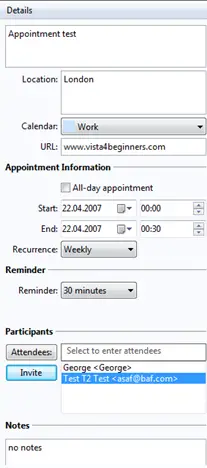
Now you need to set the reminder. To do that, go to the reminder list and select the time before the appointment you want to be reminded. To invite attendees to your appointment, click on the Attendees button and add the persons you want to invite from the contact list.
As you can see in the screenshot below, you can select the participants to the meeting and send them an invitation. Click on Attendees and double click on the names that you want to invite or select them with the mouse and click on the To button.
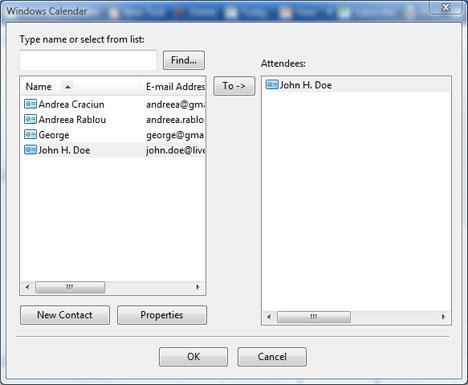
If you want to remove one of the attendees, click on his/her name and press Delete. Now you will see all the invited contacts in the Participants section of your appointment. If you want to invite them using e-mail, click the Invite button and send them an e-mail.
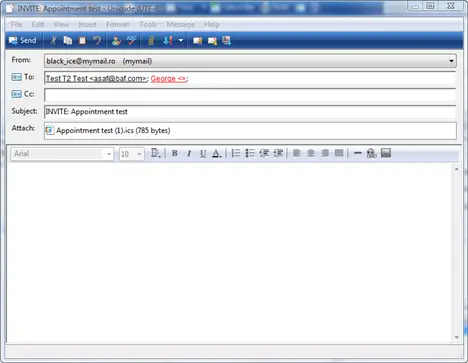
If the other attendees use Windows Vista they will be able to open the attachment file with Windows Calendar and see the appointments details.
Tasks
If you want to create a new task, click on the New task button from the toolbar.

In the Details section, type the description of the task, select the calendar where you want the task to appear, select the task priority, enter the start and due dates and then set the reminder. You also have the possibility to add some notes regarding the new task.
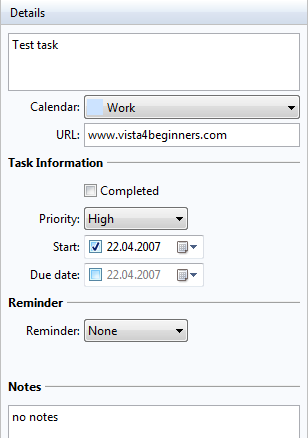
If you want to modify the details of a task at a later time, click on the appropriate task listed in the Tasks section of the Windows Calendar window. You can also right click on it and you will have access to further options from the right click menu: cut, copy/paste, delete, rename, sort or send by e-mail.
When you have completed a task, select it from the Tasks menu and check the Completed box in the Details section.
Reminders
After you have created tasks and appointments, all the reminders will pop-up at the designated time, informing you on what you have to do.
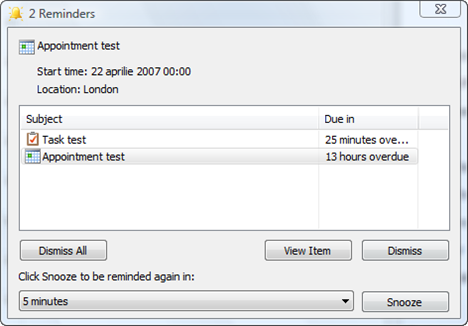
From the Reminders window you can view, snooze or dismiss your tasks or appointments.
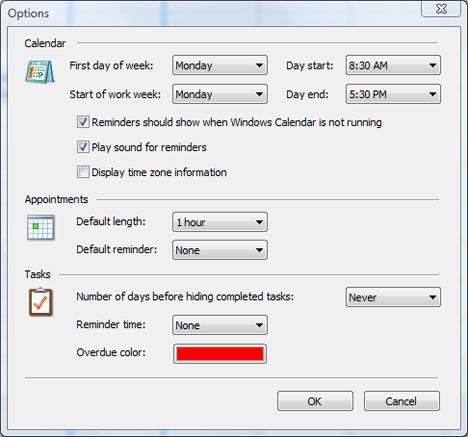
As you can see, Windows Calendar offers all the standard functionality required from this type of applications. If you want to configure it more to your liking, you have a limited set of configurations options. To find them, go to the File menu and click on Options.
Related articles:
The complete guide to the Windows Calendar - Part 2
The complete guide to the Windows Calendar - Part 3
Windows Mail
Windows Contacts

This work is licensed under a Creative Commons Attribution-Noncommercial 3.0 License.
Microsoft, Windows and the Windows logo are either registered trademarks or trademarks of Microsoft Corporation in the United States and/or other countries. Microsoft Corporation in no way endorses or is affiliated with www.vista4beginners.com.
All other products mentioned are registered trademarks and/or trademarks of their respective companies.
Comments
Publishing to iCal Exchange?
Does anyone have experience publishing Windows Calendar with the specific site: iCal Exchange.com? I've tried and the calendar is not allowing me to publish. It should be asking for a username and password, but it doesn't.
This is the error I receive after I try publishing:
"There was an error publishing your calendar Calendar 'NAME OF CALENDAR' was not published. An error occurred during the publishing process:the network path was not found."
The path was cut and pasted as supplied by iCal Exchange. Anyone have any ideas as to what I might be doing wrong?
windows calendar
http://www.calendardata.com/
works with windows calendar in vista
windows calendar
Could someone please tell me how to populate the calendar?? I have created a new task and cannot figure out for the life of me how to make it appear on the day that it is on.....help
Calendar shutdown
I find Windows Calendar continuously shuts down and restarts while entering and editing data. While it comes across as an easy programme to use, it never seems to work properly or stre the data when it does shutdown. I hoep the Vista patch will fix it.
Tasks in Calendar
I cannot get the Notes section to work in Calendar Tasks - it worked the first month (saved whatever I typed) but lately if I add notes they do not get saved - kind of makes this useless if the information added to assist in doing the task isn't there. Has anyone else had this problem and/or does anyone have a fix??
Savings Tasks in Calendar
I just got Vista and started using Calendar and have found the same problem. I was able to get around it by clicking on the empty space on the left side right above Tasks and below the listing of calendars except that this changes the focus back to the calendar view which is somewhat inconvenient.
I had the same problem
I had the same problem develop a couple of weeks ago. I stopped using Calendar. Now, two weeks later, I powered up Calendar and it seems to have corrected itself. But for how long? And what caused the problem in the first place? I too would love an answer to this...
Same problem here
I click on new task, it's there. I type the task and the details, and nothing is saved. When I click on anything else and I come back to the task, nothing was saved.
The only way I found to get around it is to check and uncheck "Completed." I don't think a calendar should need all that guessing. I'm just not using it again.
Calendar Shortcut has disappered
For some reason my Windows Calendar, Contacts and Mail shortcuts have all disappeared..are you have to tell me where the shortcuts point to?
Executables
Windows Calendar: "%ProgramFiles%\Windows Calendar\wincal.exe"
Windows Contacts: "%ProgramFiles%\Windows Mail\wab.exe"
Windows Mail:"C:\Program Files\Windows Mail\WinMail.exe"
Post new comment