
Windows Journal
Mon, 02/25/2008 - 22:02 — Ciprian
 Windows Journal is one of the applications designed for Tablet PCs. Users can handwrite notes and draw lines or shapes with it. Even though it is recommended to use a graphics tablet or a Tablet PC, you can compose handwritten notes using a normal mouse. However, this can be quite uncomfortable. In this article I will show you where to find and how to use Windows Journal.
The Windows Journal shortcut can be found in Start -> Accessories -> Tablet PC. Alternatively, you can type the word 'journal' in the Start Menu search box and click on the appropriate search result.

Windows Journal has the following tools: pen, highlighter and eraser. To use any of them, go to the Tools menu and select the one you prefer.

You can also click on the appropriate icon from the Pen toolbar.

To write something, just select the pen as well as the desired size and color and start handwriting.

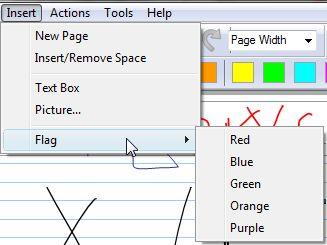
Windows Journal also allows you to insert text boxes (in which you type text using the keyboard), pictures or flags of different colors.
In case you want to send your notes to other people which do not have Windows Journal, you can export them in other formats such as web archives ('.mht' files) or '.tiff' images. Just go to File -> Export As, type the file name and select the desired format.

As you can see, Windows Journal is a very simple application. Working with it is a breeze even for novices.
Related articles:
Sticky Notes

This work is licensed under a Creative Commons Attribution-Noncommercial 3.0 License.
Microsoft, Windows and the Windows logo are either registered trademarks or trademarks of Microsoft Corporation in the United States and/or other countries. Microsoft Corporation in no way endorses or is affiliated with www.vista4beginners.com.
All other products mentioned are registered trademarks and/or trademarks of their respective companies.
Comments
MHtml 2 Gif Converter
Hello 'you',
I coded a MHtml 2 Gif Converter for the MHtml-Files (*.mht) exported from Windows Journal. It simply creates a series of gif-images.
http://www.alekto-programming.com/modules.php?name=News&file=article&sid=32
Regards,
Nicolas
Why graphics tablet?
Simply with the help of ordinary mouse it is possible to make hand written notes, then why should go for graphics tablet?
windows pad
does this necessarely we have to use a windows pad.. if soo where do we purchase and how do we use it. and what does it look at
Windows Journal
I don't have a Tablet PC but I would like to use the Windows Journal as a regular journal, using my keyboard. Is this possible? The text boxes are only so big
Wacom Bamboo Graphics Tablet
I primarily want to purchase the Bamboo Tablet to use its graphics capability, but I would also like to use it for handwritten notes. Will it work with Windows Journal without my having to purchase Office 2007? I have Vista Home Premium and an old version of Word (2002).
Journal not part of Office 2007
Windows Journal is part of Windows Vista, not part of Office 2007.
Therefore you can use it if you have Windows Vista installed.
yes it will work
yes it will work
I have just recently
I have just recently discovered Windows Journal. I created something that I would like to use as my desktop background. A few of my friends have done the same. When I try to do it, it tells me the format isn't supported. Is there any way I can make this happen?
Keyboard option
how to I turn off the pen and start typing using the keyboard to start maintaining my journal? thank you for your help.
the only way I found to enter
the only way I found to enter text was to INSERT a text box. It can be resized, so you can make an entry a day, and stretch it to fit your needs.
Chas
Post new comment