
Windows Sidebar - the complete guide
Sun, 03/25/2007 - 14:26 — George
 In this tutorial we will show you how to use the Windows Sidebar - a new application included in the Windows Vista operating system. You will learn how to tweak it, how to add or remove gadgets and where to find them on the internet.
Windows Sidebar is situated by default on the right side of your screen and initially it has three gadgets: Clock, SlideShow and Feed Headlines. It offers the following customization options: it can be hidden, kept on top of other windows, you can add and remove gadgets from it or detach gadgets to place them on your desktop.

Configure the Windows Sidebar
To configure your Windows Sidebar right click on the icon found in the notification area and choose Properties.

The Windows Sidebar Properties window will be launched. If you want to disable the Windows Sidebar, uncheck the "Start Sidebar when Windows starts" option.
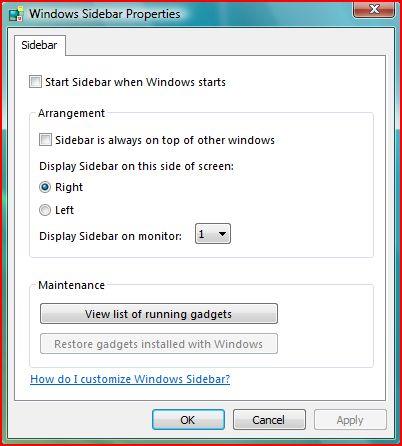
If you want to keep the Windows Sidebar on top of your open windows check the option that says: "Sidebar is always on top of other windows". If not, uncheck it and the sidebar will always be hidden behind the your maximized open windows.
Also, you have the possibility to change the location of the Windows Sidebar by selecting Left or Right, according to your preference.
How to add or remove gadgets
In the upper side of the Sidebar you can notice that there are three signs: a "+" and two arrows. To add another gadget to your Sidebar click the "+" sign.

Alternatively you can right click on the Sidebar and select Add Gadgets. A new window showing a list of all the gadgets installed on your system will be launched:

By default there are only eleven gadgets installed. To add one to the Windows Sidebar, double click on it or drag it to the desired position on your Sidebar. Also, you can move around the gadgets that are already displayed on the Windows Sidebar by dragging and dropping them to the desired positions.
To get more gadgets click on the Get more gadgets online link or go to the Windows Live Gallery. Also, you could check this article and see our list of suggestions.
When you have found a gadget you want to add to your Sidebar, click the Download to Sidebar button.

You will receive a small warning like the one shown below. Click the Install button and then choose the location where you want to download the gadget.

When the download is complete, click on the Open button or double click on the gadget you have just downloaded.

Before installing the new gadget, you will receive another warning and here you need to click on Allow. If you don't want to receive other warnings in the future, check the option that says "Do not show me the warning for this program again".

After that, your Windows Sidebar might prompt you with another security warning in case your gadget is made by an unsigned publisher.

Just click on Install and the gadget that you downloaded will be loaded on your Windows Sidebar.

If you want to remove a gadget, move your mouse above it and you will see that a set of three icons appears on the right. Click on the "x" icon and the gadget will be removed from your Windows Sidebar.

Alternatively, you can right click on the gadget and then choose Close Gadget.
How to detach a gadget
Gadgets can be run inside the Sidebar but also detached from it. To detach a gadget just drag it to the desired position on your desktop. Alternatively, you can right click on a gadget and select Detach from Sidebar.
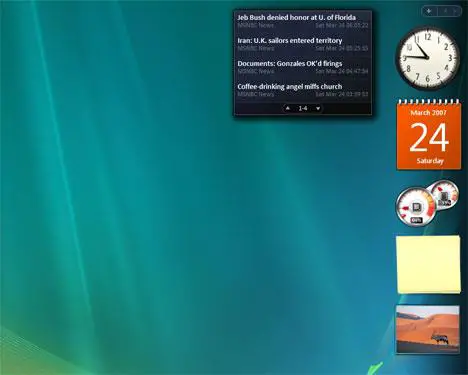
To put it back on the Windows Sidebar, right click on it and select Attach to Sidebar.
Note: when installing gadgets please make sure they are from trusted sources like the Windows Live Gallery.
Related articles:
7 gadgets for your Windows Sidebar
Checking the time for multiple time zones from the Windows Sidebar

This work is licensed under a Creative Commons Attribution-Noncommercial 3.0 License.
Microsoft, Windows and the Windows logo are either registered trademarks or trademarks of Microsoft Corporation in the United States and/or other countries. Microsoft Corporation in no way endorses or is affiliated with www.vista4beginners.com.
All other products mentioned are registered trademarks and/or trademarks of their respective companies.
Comments
bravo
bravo for destriptions, bravo, bravo it is it!!! bravo!
hello
hi i am nazeer from india.i heartly fully congratulate the very idea of starting the sidebar.it has given me the lot of flexibility .and its easy to use too.thanks to microsoft
Added to Windows Vista Bookmarks!
Nice tutorial. I hope to add additional links to your tutorials in Windows Vista Bookmarks (and the mirror at WindowsConnected.com). In the meantime, I added this one and also added the site to the general Blogs & Communities page.
Pingback: http://securitygarden.blogspot.com/2007/04/finally-vista-bookmark-update...
Corrine
Microsoft MVP - Windows Security
Nice
Nice work.
Submitted in queue @ tweako ( http://www.tweako.com )
Vista Sidebar
Is there a way to make the sidebar showing in the bottom of the computer screen? Thanks,
left or right
The sidebar can be placed only on the right or the left side of your screen. Not at the bottom.
How Do U Uninstall The
How Do U Uninstall The Windows Sidebar, Because It Is Slowing Down My Laptop!!
Read the tutorial
There is no uninstall option. However, you can disable it.
If you read the "Configure the Windows Sidebar" section of this tutorial you will learn how to disable the Sidebar.
Disabling sidebar not working....
I have read the tutorial, unchecked the box, right clicked on the icon and selected exit..... and the dreaded sidebar is still there...
Any ideas?????
Transparency
I noticed that in the begining my side bar, although a bit darker from the rest of the desktop, had a lot of transparency in it. Now it is still darker than the desktop but with almost now transparency at all, almost with a black background. Is there any way to add more transparency to it?
Post new comment