
How to connect a video camera and import a movie
 In today's guide we will show you how to connect a video camera to your Windows Vista PC and save your movies in a digital format. As you will see for yourself it is a simple procedure. Just follow these steps:
1. Connect your video camera to the power supply and then connect it to your PC using a Firewire or USB cable. If you have a choice, we recommend using a Firewire cable because the transfer rate is better.
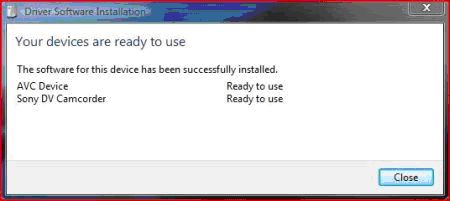
2. Turn on the camera and wait for Windows Vista to detect and install the appropriate drivers.
3. Don't forget to rewind the videotape to the beginning of the movie you want to save on your computer. From the "Autoplay" menu select "Import Video".

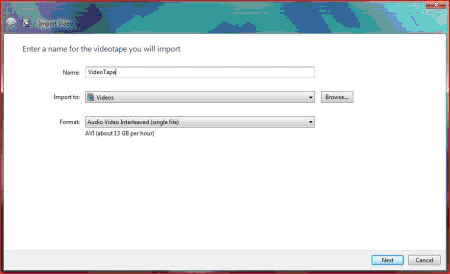
4. Now you have to enter the name, the import folder and the format of your movie. We recommend using AVI (single file) since it offers very good quality output for movies. Once you have finished entering all these details, click "Next".
5. Windows Vista will ask if you want to import the whole videotape or just parts of it. Choose the option that you prefer: "Import the entire videotape...", "Import the entire videotape and then burn it to a DVD" or "Import parts of the videotape...".
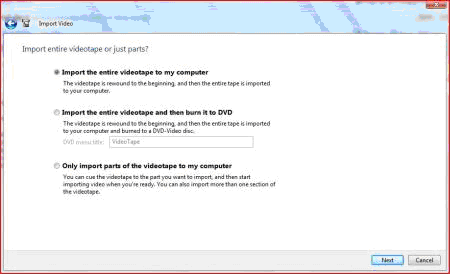
6. If you select the first or the second option, click "Next" and the transfer will start.
If you select the third option, after you click "Next" you will have to click the "Play" button. Windows Vista will start to import the movie until you hit the "Stop" button. If you want to record another part of the movie, rewind the tape to the starting point of that part and click the "Play" button again.

7. After the importing process is completed, you can see your movie by opening Windows Photo Gallery and selecting "Videos" from the left menu.

That's it. You should have all your movies listed on the right, just like in the above image. If in the previous menu you selected the second option ("Import the entire videotape and then burn it to a DVD") the burning process will start automatically.
Note: for this guide we used a HP Compaq nx7400 desktop and Sony Video Camera, model DCR-HC24.
Related articles:
Windows Movie Maker
How to import pictures from your digital camera
Recommended articles:
How I produce my videos with Windows Vista

This work is licensed under a Creative Commons Attribution-Noncommercial 3.0 License.
Microsoft, Windows and the Windows logo are either registered trademarks or trademarks of Microsoft Corporation in the United States and/or other countries. Microsoft Corporation in no way endorses or is affiliated with www.vista4beginners.com.
All other products mentioned are registered trademarks and/or trademarks of their respective companies.
Comments
Hello I bought a new laptop
Hello
I bought a new laptop with Vista and a new sony dcr-hc24 on the same day it was only went got home did i discover vista did not support my new camcoder. I followed your instructions but comes ujp saying usb invalid during easy handycam. what can I do
So I have Vista now, also.
So I have Vista now, also. I may not have a digital camera, but I suppose that this is part of my problem, other than Vista, itself. With my situation, I've got one USB Serial Cable for my camcorder. So it has VHS. So what? If now I've got it connected thru the USB2.0, then--in my opinion--that should be enough. This is not the case with Vista. From as much as I know when using Windows Movie Maker, there's only one option for camcorder source--digital camera, which I don't have. Perhaps, I might benefit from searching the web for other movie programs. Then, I'll try--again--with Vista. Good luck with your Sony situation... wish I could have been more help.
Problems with firewire
Hi,
I also bought a new PC with Vista and discovered it didn't support the Sony DCR-HC24.
i decided to get a firewire card and connect it this way.
the only problem is when i connect the camera to the PC, it only recognises it for about 1/2 a second before pinging that it's been disconnected
I've tried the software that came with the firewire card, Windows Movie Maker, and WinDV, all with the same result.
Please help with this as it's really annoying?
Could the type of firewire cable have anything to do with this?
Thanks.
I have had the same problem
I have had the same problem with the USB cable. Vista isn't detecting the camcorder at all with the firewire or USB.
I have the same problem.
I have had the same problem with the USB cable. Vista isn't detecting the camcorder at all with the firewire or USB.-that makes three of us. help!
vista and camcorders using firewire
I have discovered , from several cameras and PCs, that current vista home premium, does not support certain canon minidv camcorders on firewire (and probably others as well) but does support some older cameras. it is also critical what exact update level you are on. I had it working on one desktop fine, but then when i ran windows update as had not done for some months on that pc, and updated about 12 important updates, after that it stopped. I have been seaching all over the web but seems a very common problem. I can only hope microsoft do another update and cure the problem.
omfg i have a kinda problem
ok umm i kinda have a similar problem. i just got a vista laptop and you know how theres a camera at the top of it when you open it up?? well, ive tried EVERYTHING to make it work and i even plugged in my flip video camcorder that came with it but NOTHING happens!!!! SOMEONE!, HOW do i make the built in camcorder work?!?!?!?!? nobody i know has a vista computer and my parents are such idiots they barley know how to use vista and i really want to know how to use that camcorder again. SOMEBODY PLEASE HELP ME!!!!!!!!!!!!!!!!!!!!!!!!!!!!!!!!!!!!!!!!!!!!!!!!!!!!!!!!!!!!!!!!!!!!!!!!!!!!!!!!!!!!!!!!!!!!!!!!!!!!
Hi
I just got a FireWire and connected it to my camera and I have waited for about 10 minutes and nothing has popped up
what do I do and where does the PC side of the FireWire go? Into which slot on the PC? I found one that fits but I'm not exactly sure if it's the right one or not
This is how a FireWire slot
This is how a FireWire slot looks like:
http://www.hardware-one.com/reviews/Yamaha8824FXZ/images/FirewireSocket.jpg
What type of camera do you have (model, producer) ?
importing parts of a video from camcorder
Importing an entire videotape from my digital camcorder is no problem, but the option to import part of it does not appear. Any idea why not?
(Dell 9200; Vista HomePremium (courtesy of Dell); Canon HV20 (HiDef))
Mick