
How to migrate to Outlook 2007 & Windows Vista
Wed, 07/04/2007 - 09:00 — Ciprian
 As you probably know, Microsoft Office 2007 has never been the main focus of our site. Even so, many of our visitors requested a guide on how to migrate their e-mail to Microsoft Office Outlook 2007. We are trying to listen, as much as possible, to what our readers ask, so we decided to create this guide in order to help them with this request. This was not an easy task as there are many scenarios to cover.
This is why we limited the scope of this tutorial only on how to migrate your e-mail from Outlook Express, Windows Mail and other versions of Microsoft Office Outlook.
If you are already using Microsoft Outlook 2003 or 2007 and you want to upgrade to Windows Vista and/or Microsoft Office Outlook 2007, then you should first create a backup. To do that, read our guide on how to backup your Outlook inbox.
If you are using Windows 2000 or Windows XP and Outlook Express as your default e-mail client, the procedure is a bit complicated. That's because Outlook 2007 cannot import your e-mail from a backup folder. Outlook 2007 imports your e-mail only if it is installed on the same machine & operating system with Outlook Express. If you plan to migrate to Windows Vista and Outlook 2007, then you need to install Outlook 2007 on your Windows 2000/XP machine, migrate your e-mail and then create a backup from Outlook 2007. Only then you can install Windows Vista and Outlook 2007 and import your e-mail from the backup created in Windows 2000/XP.
Another solution would be to create a backup of your Outlook Express e-mail, install Windows Vista, migrate everything to Windows Mail and then import it to Outlook 2007.
Import your e-mail to Microsoft Office Outlook 2007
First, you need to go to the File menu and click on Import and Export.
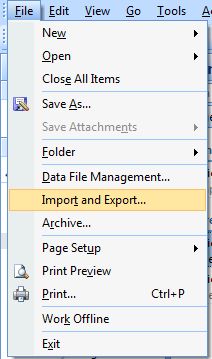
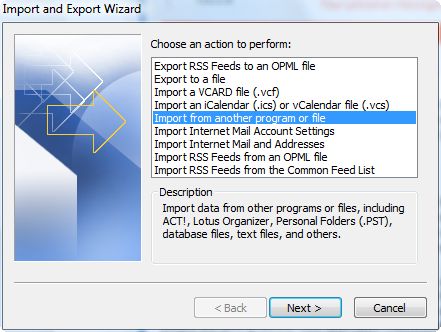
The Import and Export Wizard will open. Depending on the e-mail client you are importing from, you will have different options.
Importing your Outlook e-mail backup
If you had Microsoft Office Outlook 2003 or 2007 installed and you have created a backup before migrating, select Import from another program or file.
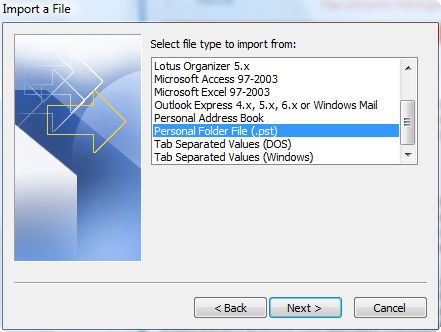
In the Import a File window, select Personal Folder File (.pst) and press Next.
In the Import Personal Folders window, click on Browse.
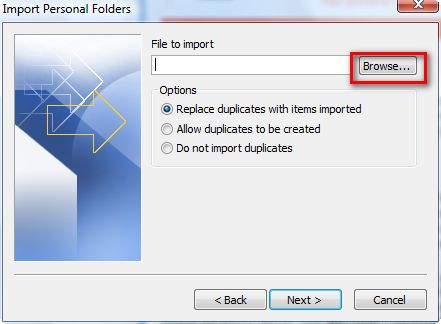
Navigate to the location where you have stored your e-mail backup, select the ".pst" file and press Open.
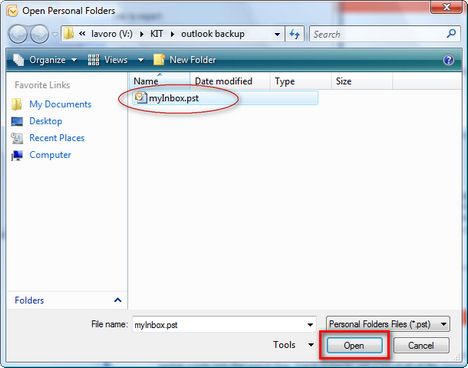
Now, you will return to the Import Personal Folders window. Press Next and the importing procedure will start.
Import your Windows Mail / Outlook Express inbox
If you want to import your Outlook Express/Windows Mail backup to Outlook 2007, then select Import Internet Mail and Addresses.
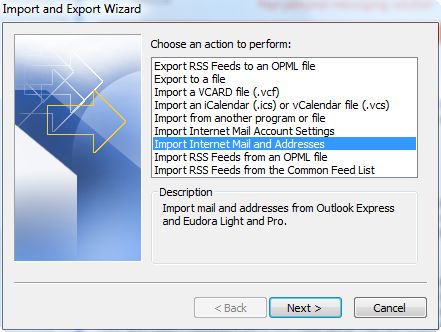
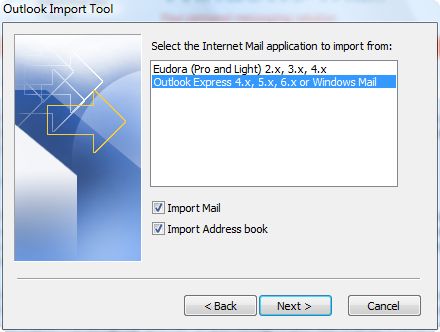
In the Outlook Import Tool window select Outlook Express 4.x, 5.x, 6.x or Windows Mail. Also, check the Import Mail and Import Address book boxes and press Next.
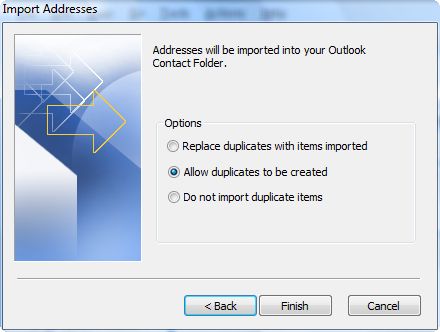
In the Import Addresses window you can set how you want duplicates to be handled. Select the option you prefer and press Finish.
The importing procedure will start and, depending on the size of your inbox, it may take from a few seconds to a few minutes to finish.
Import your Outlook Express / Windows Mail account settings
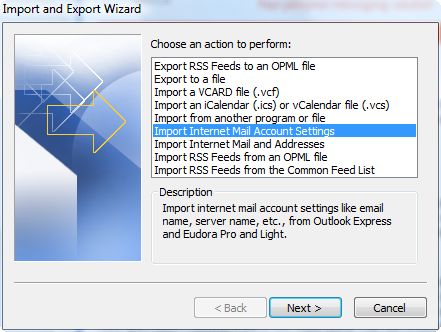
After you have imported your e-mail, you should import your account settings. To do that, in the Import and Export Wizard window, select Import Internet Mail Account Settings and press Next.
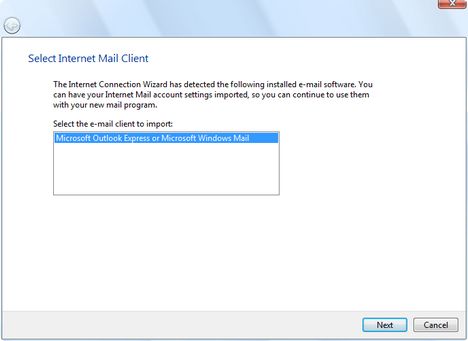
Now you will have to select the e-mail client you want to import from. Choose Microsoft Outlook Express or Microsoft Windows Mail and press Next.
The wizard will show you a number of windows where it loads the settings found in Outlook Express or Windows Mail. Press Next until all the settings are imported to Microsoft Office Outlook 2007.
Related articles:
How to setup an e-mail account in Outlook 2007
Backup your Outlook Inbox
Configure Microsoft Office 2007 to save files using the old Office 97-2003 format

This work is licensed under a Creative Commons Attribution-Noncommercial 3.0 License.
Microsoft, Windows and the Windows logo are either registered trademarks or trademarks of Microsoft Corporation in the United States and/or other countries. Microsoft Corporation in no way endorses or is affiliated with www.vista4beginners.com.
All other products mentioned are registered trademarks and/or trademarks of their respective companies.
Comments
Importing into Outlook on Windows Vista
Could Bill have made it anymore difficult? Thank you for showing the way.
Migrating Outlook data
In fact it's MUCH MUCH easier. On the old machine, with Outlook closed, copy the pst file. Move it to a folder on the Vista machine on which you have read/write permissions.
Open Outlook on Vista and do File-Open-Outlook Data File. Navigate to where you copied the file to.
That's all there is to it.
Migrating Outlook Data from 2003 XP - 2007 Vista
Thanks so much, Gordon. Your tip to use File>Open>Outlook Data File worked. Wish I'd read this post BEFORE migrating files from XP/Outlook 2003 to Vista / Outlook 2007 with Windows Easy Transfer.
My experience was similar to those in other user groups: Although Outlook contacts appeared, they were not appropriately associated with an address book, and the the checkbox "Show contacts as an Outlook Address Book" was grayed-out and could not be checked. By the way, using "Import/Export" functionality DID NOT solve my problem.
Since I'd already used my new machine for a few days, my data file had been augmented from that on the old machine, so I did not re-copy it. Instead, I worked soley with the Outlook 2007 data file. I copied it to my desktop, and deleted it from Outlooks default datafile location, deleted my user profile, created a new user profile, and then used File>Open>Outlook Data File from within Outlook to locate it. Ultimately, I moved the datafile back to the default location. Don't know if this was overkill, but my Contacts now function properly.
Migrating outlook contacts
Hi there.
I am using Outlook 2007 under Windows 7 and i am facing the same {"Show contacts as an Outlook Address Book" checkbox was grayed-out and could not be checked.}
i need a way to transfer my contacts to Outlook 2007 under windows 7. i tried what you did under Vista and did not succeed. . any other advices ?
Thanks
Khaled
trouble moving messages to Vista
moving my contacts went exactly as you described but,
when I get to end of moving messages(where you say "be sure no duplicate nodes" (have no idea what that means or how to accomplish this feat) I get the message........
"No messages can be found in this folder or another application is running that has the required files open.
Please select another folder or try closing applications that mayu have files open."
I can open the folder and see the messages are there but.....???/
any help would be appreciated
Thanks , Bill
Migration from outlook Express to Vista
I do have the same problem: I have followed the same procedure; all mails are transferred, the number of them is marked, but when I open them the file is completely empty. I have improted the folders several times, but I get each time no result.
Who can please help me out?
Outlookexpress to Vista
I tried to import my backup outlook express to Vista (window mail) many.many time, I just fail to import.
Is anybody, could help, I 'll appreciate
Thank you
Lawrence Han
trying configure my Windows Vista receive email into outlook 07
I am trying to configure my computer to receive my email through Outlook 2007. I have Windows Vista and I am trying to set up my email through Outlook ...can anyone HELP ME
tutorial in the making
We will create a tutorial about this and publish it in a few days.
Migrating email from Outlook Express to Outlook on a new PC
Nearly two years on from this article ....
Where is the wretched tutorial you promised in March 07 "in a few days" ?????
Why is a migration requirement that is as obvious as the one from your basic email package Outlook Express to a more grown up Office Outlook so difficult and inadequately explained???
I have over 40 years IT experience. I spent a good deal of time thinking about and explaining migration scenarios to customers. But Microsoft? Can't be bothered to think about the problems it seems.
Now I am trying to help a retired friend set up his new machine.
Post new comment