
How to enable AMD Cool'n'Quiet or Intel SpeedStep in Windows Vista
Thu, 03/01/2007 - 09:39 — Ciprian
 All modern processors have built-in power management features that allow you to lower the costs of your power bills. For their latest processors, AMD developed a technology called Cool'n'Quiet and Intel another one called SpeedStep. Both of them dynamically adjust the voltage and the core frequency of your processor, decreasing the average power consumption and average heat production.
Our systems are based on AMD processors and, after we installed Windows Vista, we tried to find Cool'n'Quiet drivers for it. We were surprised to see that there are none available on the AMD site. That's because Windows Vista has built-in power management features that do no require additional drivers.
To enable these features you must create or select an appropriate power plan. Just follow these steps:
Go to Control Panel and type the word "power" in the search box.

Click on Change power-saving settings.
Now you have the option to select the power plan you prefer from the default list or create a new one. In order to take advantage of the power management features of your system the Balanced and Power saver plans are good options. If you select High performance, Cool'n'Quiet or SpeedStep will be disabled.
If you are the type that prefers to customize his operating system to the very last detail, you could create your own power plan. To do that, click on the Create a power plan button.

Choose a standard plan as a base for the one you create and then type a name for it. Click Next.

First select when to turn off the display and when to put the computer to sleep. After that, click on the Create button.

After the plan is created you will be redirected to the Select a power plan window. Under the name of your newly created plan you will see a Change plan settings link. Click on it and then click on Change advanced power settings. Then, the Advanced settings window will open.
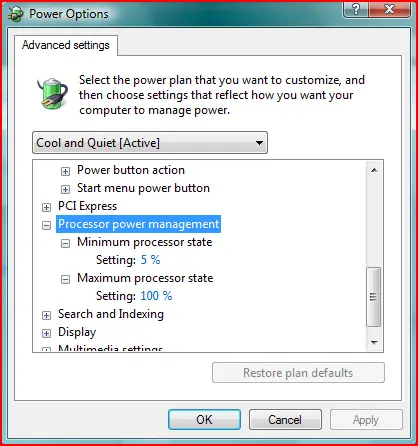
In this window you have the possibility to make advanced changes to your power plan. To take advantage of the power saving features offered by your processor, go to Processor power management. Here you can set the minimum and maximum states of your processor. Depending on the system load, your processor frequency and voltage will fluctuate according to these settings.
TIPS: If you don't see the Processor power management option and your processor supports this feature, try the following:
- download the latest Windows Vista drivers for your motherboard;
- check if the Cool'n'Quiet or SpeedStep feature is enabled in the BIOS of your motherboard;
- check if there are any BIOS updates available and install them. Many of our readers reported that a BIOS update resolved their problems.
Related articles:
Changing what the power button does
Put the Shut Down button back on your Start Menu
Prevent problems by disabling Hibernation File removal from Disk Cleanup

This work is licensed under a Creative Commons Attribution-Noncommercial 3.0 License.
Microsoft, Windows and the Windows logo are either registered trademarks or trademarks of Microsoft Corporation in the United States and/or other countries. Microsoft Corporation in no way endorses or is affiliated with www.vista4beginners.com.
All other products mentioned are registered trademarks and/or trademarks of their respective companies.
Comments
And I also didn't have the
And I also didn't have the Processor Power Management option. In my case it was matter of bios- I had to update it because in older version I didn't even have option about cool'n'quiet. After updating this option appeared and I enabled it, now everything is all right.
MSI K9A - Windows Vista - AMD Cool and Quiet
I have an MSI K9A and Cool and Quiet does not function on this motherboard so far.
Even though it is enabled in the BIOS and motherboard drivers are installed, the Processor Power Management section is missing in Windows Vista.
Cool@quiet
Its working for me now.Just downloaded a new bios for my motherboard.
So just wait for a new bios or check now if there are a new one out for your motherboard.
AMD 3200 +64
"Processor Power Management" is not an option under power management. I do have Cool n Quiet enabled in Bios, and the processor driver is up to date. I've tried installing cool n quiet in XP compatibility mode with no avail. My bios is the latest version from Asus, and the processor is properly identified there as well. Does anyone else have any ideas?
Try this
Vista drops support for ACPI v1.0 motherboards as far as I'm aware, so no matter what you do unless it currently works, or your mobo manufacturer brings out support for ACPI 2.0 I don't think you can make it work, I've not been able to after trying lots of things.
http://cpu.rightmark.org/products/rmclock.shtml - rmclock however does do exactly the same job and seems to work under vista, my 2.2Ghz athlon (on vista 32-bit) is running at 800Mhz at the moment.
rmclock does the job
rmclock does the job perfectly for those of us who for lord only knows what reason can get cool and quiet working.
make sure cool n quite is
make sure cool n quite is enabled on in your mainboards bios
steps to load cool and quiet in Vista, flash Bios
1. make a bootable floppy disk(formated with the start up option checked)
2. save the executable and bios files to another floppy disk (i.e executable file="abcde.exe", & bios
file="aaaa.120"
3. insert bootable floppy and restart the PC
4. when promt with "A:>" insert Floppy with exe and bios files.
5. type in: "abcde aaaa.120" (executes the exe file and bios file, note: ommit the "exe" extension for the execuatble)
6. carefull with power loss.
7. done. exit & restart the PC
8. go to settings in Bios and make sure to enable cool & quiet functionality
9. in Vista the power management field should pop-up now.!
I hope anyone in the past guided me in a clear way.!
viva el Junior
Update the bios, guys
It happened to me to, the button was missing but i updated the BIOS of my MB and suprise, the processor power management button is there now :)
similar trouble with core 2 duo [speedstep]
No 'processor power management' for me either, my E6750 2.66GHz is 'saving power' at 800MHz, even though speedstep is in the Bios — I've ordered a floppy drive though, to try updating the Bios; ASrock conroe 945g-dvi MoBo