
Manage your drive letters in a dual-boot configuration
Thu, 05/24/2007 - 21:54 — Ciprian
 As many other people, I installed Windows Vista on my system but I decided to keep Windows XP for gaming and other tasks which, at least for now, work better on XP. When you have multiple partitions and hard disks, one of the challenges of having a dual boot system is keeping the same drive letters in both operating systems.
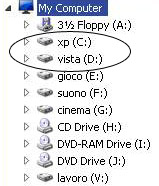
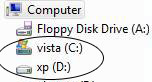
When I installed Windows Vista for the first time I did not pay attention to this detail and had them assigned in a confusing way. In Windows XP, the "cinema" partition had the letter G: and in Windows Vista "H:", while the "lavoro" (work) partition had the letter "D:" in Windows XP and "E:" in Windows Vista.
That confused not only myself but also the other users that worked on the same computer. So... what can you do to avoid such a scenario?
Learn how to assign your drive letters in a dual-boot configuration
When you decide to have a dual-boot configuration you should reserve two partitions (and two drive letters) for the operating systems. Windows XP will be placed on the drive with the letter "C:". When you install Windows Vista and log in, it will see itself as being installed on "C:" and Windows XP on another partition. The "problem" is that, while you can change the drive letter for the Windows Vista partition when you are in Windows XP, when you are in Windows Vista you cannot change the drive letter assigned for the XP partition.
It will always give you an error message saying: "Windows cannot modify the drive letter of your volume. This may happen if your volume is a system or boot volume, or has page files".
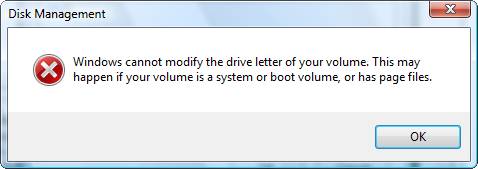
In this case you should write down the drive letter for the XP partition that was assigned in Windows Vista. Then you should boot back to Windows XP and change the drive letter for the Windows Vista partition to the same letter.
For example, if in Windows Vista, the XP partition has the letter "D:", then you should boot in Windows XP and assign the letter "D:" to the Windows Vista partition. Now, depending on the operating system you boot in, the letters "C:" and "D:" will represent the operating systems.
For the rest of your partitions you can change the drive letters and assign them in the same way for both operating systems. This way you will always know where your work, music or games are stored and you won't get confused every time you boot to a different Windows operating system.
How to change a drive letter in Windows Vista
Close all running applications, go to Control Panel and then to System and Maintenance. Now click on Administrative Tools.
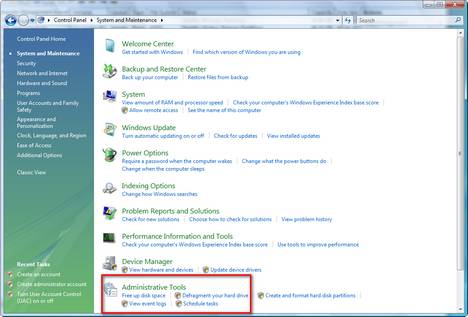
From the list of available tools, double-click on Computer Management.
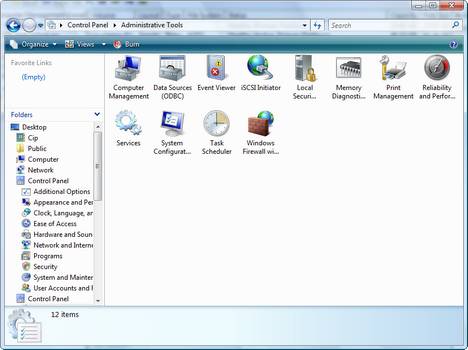
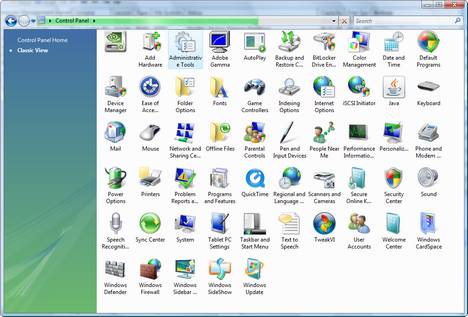
If you are using the Classic View for the Control Panel, just go directly to Administrative Tools and there you will find Computer Management.
Computer Management has several sections. Go to Storage and click on Disk Management.
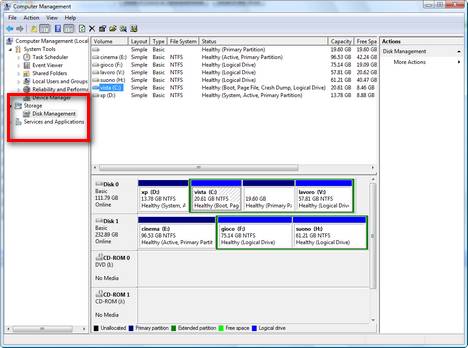
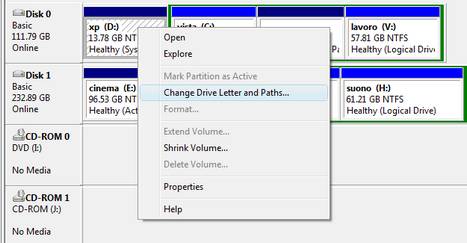
You will see a list with all the hard disk drives and all the partitions. Right-click on the partition you want to change and select Change Drive Letter and Paths.
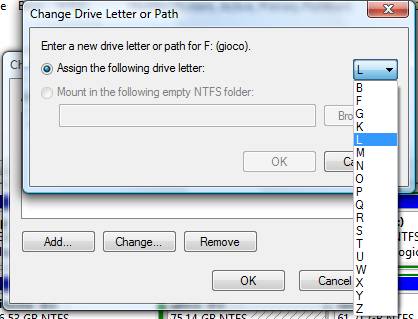
In the Change Drive Letter of Path window select the new drive letter that you want to assign and click on OK.
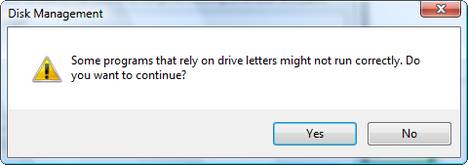
Now you will receive a warning like the one below. Click on Yes and the drive letter will be changed.
How to change a drive letter in Windows XP
The procedure is identical to the one for Windows Vista. Just go to Control Panel - Administrative Tools - Computer Management. From there you follow the same procedure and you are done.
Final Comments
If you follow this procedure, you should have the same drive letters for all your partitions except the ones where the operating systems are installed. For example, in Windows XP, you will see XP on drive "C:" and Windows Vista on drive "D:" and in Windows Vista you will see XP on drive "D:" and Windows Vista on drive "C:".
Related articles:
How to manage your disks using only Windows Vista's Disk Management tool
How to install Windows Vista
How To Uninstall Windows Vista Using EasyBCD

This work is licensed under a Creative Commons Attribution-Noncommercial 3.0 License.
Microsoft, Windows and the Windows logo are either registered trademarks or trademarks of Microsoft Corporation in the United States and/or other countries. Microsoft Corporation in no way endorses or is affiliated with www.vista4beginners.com.
All other products mentioned are registered trademarks and/or trademarks of their respective companies.
Comments
faster and easier way
To get to Disk Management, simply right click Computer, then choose "Management", and finally choose "Disk Management" - short and easy, and best of all, for an olde farte like me, easy to remember. Then reletter drives at will.
The interesting thing is how to get vista always on E:
In your final comment:
"... except the ones where the operating systems are installed. "
is my problem.
I want to have the following drive letters:
C: XP
D: my data partition
E: Vista
and it should remain the same if I boot Vista or XP.
The question is: how to prevent vista to say it's installed on C:
(= renaiming its drive E: to C: and shift my xp -> D: and my D: to E: )
(with win2k,winXp dual boot it worked)
Not...
Like I mentioned in this article, you cannot have that. Or I least I did not manage to find a solution...
What I think you should do is... change the drive letter of your data partition to E: in both Windows Vista and Windows XP.
In Vista you will have:
C: Vista
D: XP
E: your data partition
In XP you will have:
C: XP
D: Vista
E: your data partition.
You can keep vista on any drive you want.
I had the same problem but I fixed it.
You should install vista from windows xp and select new installation and install it on (for example) on drive E.
I have the same drive letters on both system xp and vista.
You should not install vista from boot cd or dvd.
If you do that you should format that vista drive and reinstall windows xp and then install vista form xp. Enjoy. bye.
It doesn't seem to work in
It doesn't seem to work in my case
On my primary parirtion I have Vista (so the first OS installed on my PC). It put itself on 'c:'.
I have now installed Xp on a second partition. In XP, my VISTA paritiion is on c: and my XP is on D.
However, in XP I cannot change my c or d drive ('cannot modify 'system' or 'boot' pariation, system begin the C-drive with vista, and boot being the D-drive with XP).
Any solutions?
Good
That is good. If Vista is on "c:" and XP on "d:" that is perfect. What do you want to do? Change them the other way around?
:) I would like that c: is
:)
I would like that c: is always the drive I boot from. Some programs always install somewhere on the c-drive. So when I am in XP (d:), it will start putting stuff on my vista-drive (c:).
So I want:
When I am in XP:
c: XP drive
d: my data
z: VISTA drive
When I am in VISTA:
c: Vista-drive
d: my date
z: XP-drive
Is this possible?
Tom
I have been playing with
I have been playing with this some latley and found an interesting item.
If you install XP first and then instal Vista as the secondary OS (this is the easiest way):
1.) vista will set up the dual boot screen for you and it should work
2.) Between opperating systems the drives will change letters, so make sure you are careful to only have the 2 drives so you can make sure they are C&D or close to that. IE: in Vista, drive C will contain Vista & D XP, in XP drive C will contain XP and D Vista
3.) Vista sees those XP boot and windows system files and WILL NOT LET YOU change the drive letter of the XP drive. Sorry.
If you install Vista First, and XP second:
1.) The drives set themselves up so they are static. IE: in Vista, drive C will contain Vista and D XP. In XP drive D will contain XP and C vista, still.
2.) You have to use the Vista install disk to repair the vista install after the XP install breaks the vista boot info.
3.) You have to use a boot manager app such as EasyBCD to edit the boot files to provide the option to boot into either OS.
4.) You can install Vista, change the drive letter you want to put XP on, then install XP on it and the drive will be the one you want in Vista. (problem here is that usually this causes the XP and Vista drives in XP to not allow you to change either of their letters after XP is installed)
Why do I know all this? Because I tried to install the system so C: was always the OS I was in, and make my other windows drive something down the line like W: and put my other hard drives up next to the main OS one. Alas, I was defeated by the Windows is smarter than you mentality. I surrender. Hope this helps someone out there.
This does not work!
My set up has 3 disks,
1st one primary, is XP and this was first installed
2nd one is onthe secondary channel and has vista
3rd disk is the data disk that I always want to be E !!!
I want: when Im on XP, xp to be C, vista to be any letter- I dont care, and data disk to be E
When I am on Vista I want vista to be C, xp to be anyt letter- I dont care, and data disk to be E.
Vista wants XP disk to be E and I cannot change that letter to something else do I can assign E to my data disk!
I tried your replace method but no go... I booted into XP and gave the letter E to vista, booted to vista, and tried to assign some other letter to the XP partition.. but no go.. same window saying you cannot do that.
Change the drive letter of your data partition
Then make your data partition "F:" or something else that works from both operating systems. It takes less time to do it, right?
Post new comment