
How to rip music from audio CD's
Fri, 01/19/2007 - 20:53 — George
 In this tutorial we will show you how to rip music from an audio CD so you can have it on your computer and listen to it at any time. As you will see, the process is very simple. Everyone can do it if these steps are followed.
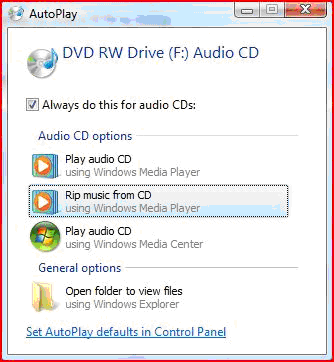
The first thing you have to do is to insert the audio CD in your drive. When the "AutoPlay" menu appears, select "Rip music from CD using Windows Media Player".
Media Player will open a new window and a dialogue box, asking if you want to add protection to your ripped music or not.
Choose what you prefer and then check the small box next to the "I understand [...]" text and click OK.
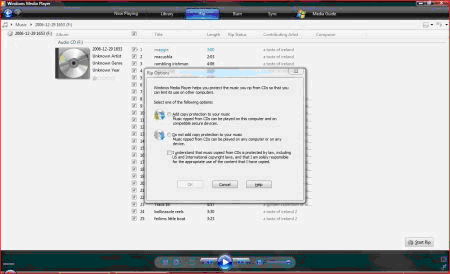
Before enabling the copy protection of your ripped music please remember that this will limit the way you share and play your music. You won't be able to play the same tune on another PC except your own and also you won't be able to make unlimited copies of your music, even if it is for your own personal use.
If you want to know more about copy protection and digital rights management check out this guide.
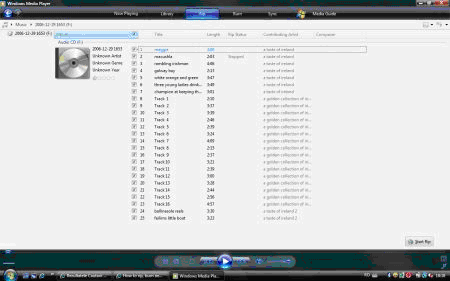
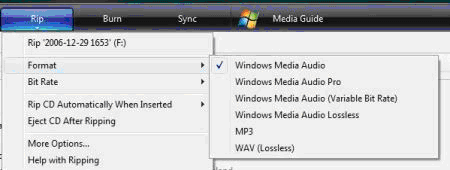
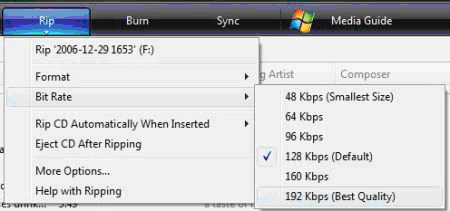
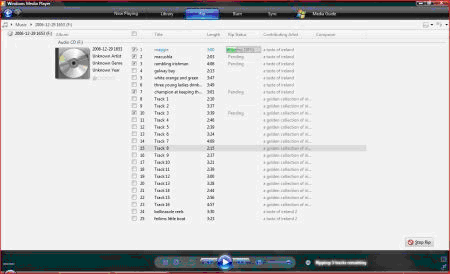
Windows Media Player will automatically start to rip all the files from the CD. If you want to stop the ripping process, uncheck the small box next to the "Album", from the top of the Windows Media Player window. Now you can select only the tracks you want to rip or you can set things like the format in which the tracks will be saved or the bit rate. By default, the format is set to Windows Media Audio and the bit rate to 128 Kbps. If you want the best quality output choose the WAV (lossless) or Windows Media Audio Lossless. If you do that you will get top sound quality but all the files will occupy quite a lot of space on your hard disk.
If you are not a very pretentious user, the MP3 and Windows Media Audio formats are good options, as they offer a good balance between space and sound quality. Also, a bit rate of 192 or 256 Kbps is just fine.
To set the Format and Bit Rate, click the "Rip" button, go to "Format" and select the desired format and then go to "Bit Rate" and select the bit rate you want.
By default, the music is saved in the users "Music" folder which is found in "C:\Users\[Username]\Music". If you want to change the default folder (Music) and the naming of your tracks, click the "Rip" button and select "More Options". Click on "Change" to change the default folder and browse to a new folder where your ripped music will be saved.
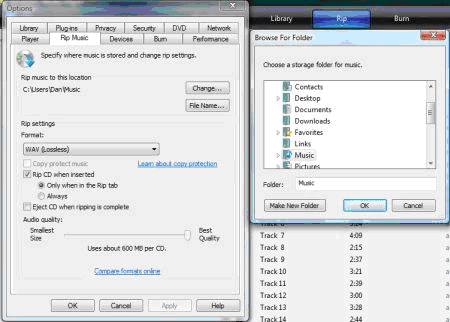
To change file naming convention used by Windows Media Player, click the "File Name" and select the details you want to include in the file names of your tracks.

When you are done, click on the "Start Rip" button from the lower left corner. If the button is disabled that means you did not select the tracks you want to be ripped. All you have to do is to check back the "Album" box or to individually select each track you want to rip.
Related articles:
How to play an audio CD in Windows Vista
How to burn an audio CD in Windows Vista
Windows Media Player 11
Windows Media Player 11 Keyboard shortcuts
How to add album art and update album information

This work is licensed under a Creative Commons Attribution-Noncommercial 3.0 License.
Microsoft, Windows and the Windows logo are either registered trademarks or trademarks of Microsoft Corporation in the United States and/or other countries. Microsoft Corporation in no way endorses or is affiliated with www.vista4beginners.com.
All other products mentioned are registered trademarks and/or trademarks of their respective companies.
Comments
Distortion in playback of ripped CDs
I have Vista on my new, fully-loaded, Dell Inspiron.
Whenever I rip a song or an entire CD, each and every song is severely distorted for about 10-15 seconds at the end of the song, just before the end of the song -- no matter what format I use or density, no matter if the song is new or old, 2 minutes or 10 minutes long...I just don't get it. What happens at the end of a song? What am I doing wrong? It's gotta be a software or procedure problem.
Frustrated!
Cliff Sutherland
Distortion in playback of ripped CDs
I have exactly the same problem on a new Dell Dimension E520 with Vista home premium. Any ideas much appreciated.
Equally frustrated!
James Thompson
Distortion on playback of ripped CDS
I have exactly same problem on a dell E521
Help
Distortion on playback of ripped cds
I think I have found sloution go to http://support.euro.dell.com/support/topics/topic.aspx/emea/shared/suppo...
Its one of the dell support documents just do a search for windows media player on dell support pages
WMP11 playback skips
Thanks ! That fixed my Dell Inspiron 1525 Windows Media Player 11 playback with Vista OS. Who would have thought the fix to disable sound enhancements !
Thanks again.
WMP11 playback skips
Cool, just fixed the same problem on my Dell Dimension 5150.
Artist editing
I'm haveing trouble editting the artists. I have made a compilation of my own, so it's not on the internet. Therefore I'm manually editing the tracks in MP 11 but when I change the artist, all the tracks switch to that same artist... When I change the artist in track 2 the same thing all tracks get that artist.
What button do I have to push to swith this off?
Thank you
Dave
Album Art + Track Listings
How do I get WMP 11 to automatically insert album art and track names when ripping?
Thanks
James
buring and copying music cd
I have some old music cd's that I want to copy, but am not able to do so, HOW, on Vista can you do it?
My Window Media Player 11 Won't Stop automatically ripping a CD
My Window Media Player 11 Won't Stop automatically ripping a CD every time I insert a new ablum, its getting annoying can you please tell me how to stop it I have try "More Options" and its not helping any other way I can shut the ripping progress off thank you.
Michelle
Post new comment