
How To Manage Internet Explorer 8 Add-ons
Sun, 04/05/2009 - 11:57 — Florin
 In this article I will discuss about Internet Explorer 8 Add-ons. I will show you the following: how to find add-ons, how to install and remove them, how to enable or disable them. I will also show you how to find more information about installed add-ons and how to configure the InPrivate filters and rules used by your Internet Explorer.
How To Install an Add-on
There are two ways you can find & install add-ons in Internet Explorer 8: you can browse directly to the Internet Explorer Add-ons Gallery page or you can click on the 'Get more Add-ons' web slice and, from the drop-down menu, click on the link highlighted below.

The gallery shows all add-ons by category. To find an add-on go to the desired category or simply search for it. For this example, I will select the Music category.

Once the selected category loads, check what the add-ons do, select the one you desire and click on the corresponding 'Add to Internet Explorer' button.

Once you have clicked on the 'Add to Internet Explorer' button, you will be prompted by the browser to select if you want to install the add-on or not. Before continuing, you are also given the option to set that add-on as the default for that specific category.

If you select it as default, it will be accessible from the main accelerator menu where all your important accelerators reside.

In the screenshot above, if I were to select the Weather.com add-on as default, every time I will use Accelerators, it will show up on the short list with default accelerators for each category.
How To Manage already Installed Add-ons
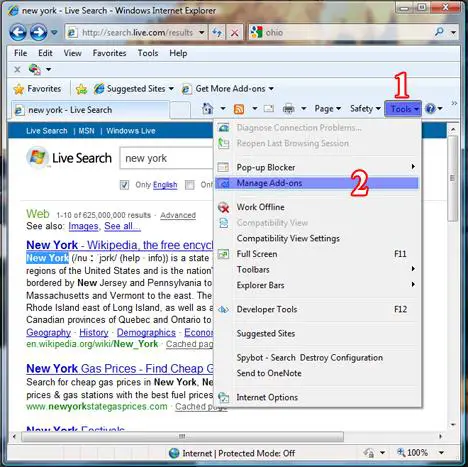
To access to all the installed add-ons, click on the Tools menu and select Manage Add-ons from the drop-down menu.
The Manage Add-ons window will appear.

In the Manage Add-ons window you can control which extension, toolbar, search providers, accelerators your browser is using. You can also configure InPrivate Filters.
How to Manage Toolbars and Extensions
In the Manage Add-ons window, select Toolbars and Extensions. There you can see the toolbars and extensions that you have currently installed. Select the add-on you want to modify. If the toolbar or extension is disabled, in the lower-right part of the window you will see the Enable button, just like in the screenshot below.

If the selected toolbar/extension is currently enabled, you will see the Disable button on lower-right part of the window. If you click on it, it will disable that toolbar/extension. To understand where a specific add-on resides and such information, just click on the More Information link located almost in the left side of the Manage Add-ons window.
How to Manage Search Providers
If you select Search Providers in the Manage Add-ons window, you can see the search providers that you have currently installed in Internet Explorer 8. To enable a search provider as the default one, you only need to select it and click on the Set as Default button highlighted below. You can also remove a search provider by selecting it and pressing the Remove button. Another option worth mentioning is the ability to enable or disable suggestions when typing in the search box. You can disable suggestions by clicking on the 'Disable Suggestions' link. If disabled, you can enable them back by clicking on 'Enable Suggestions'.

The search providers can also be changed directly from the search box on the upper-right side of the Internet Explorer window. This is an easier and faster way to do the transition between search providers. However, this will only change the search provider for the search box. The search provider for the address box can only be changed by using the method described above.

How to Manage Accelerators
In the Manage Add-ons window, select Accelerators. There you will see the list of all installed accelerators. When you select an accelerator, you are given the option to set it as default for its category or remove it as default. To do this, click on the appropriate button from the lower-right side of the window.
We can also disable an accelerator or enable it, by clicking on the button which has the same name as the action you want to perform.

To remove an accelerator, select it and click on the Remove button.
How to Manage InPrivate Filters
InPrivate Filtering is a new feature which provides users control and choice about the information that third party websites can potentially use to track browsing activity. So far there are not any pre-made filters on the Internet Explorer Add-ons Gallery. If you find some filters that you want to use, you can import them and change them from the Manage Add-ons window. Click on InPrivate Filtering and you will see the currently defined filters used by Internet Explorer.
To import filters, click on the Import button and select the '.xml' file containing the filters. To export your filters, click on Export, select the folder where you want to export them, type the filename and click on Save. To delete all filters, click on the Delete all button.

From this window you can also change the status of the selected filter. You can click on Allow and this will basically disable that filter/rule. To enable it back, select the filter and click on Allow. To remove only one filter/rule, select it and click on Remove.
NOTE: InPrivate Filtering is turned off by default and must be enabled on a per-session basis. To use this feature, select InPrivate Filtering from the Safety menu.
Conclusion
As you can see, managing add-ons in Internet Explorer 8 is very easy. If you already have used Internet Explorer 8 and you have other tips for manage add-ons, don't hesitate to share them by leaving a comment.
Related articles:
Internet Explorer 8 - What's in for the normal user
Top Add-ons for Internet Explorer 8
How To Keep InPrivate Filtering Enabled Forever
How To Use AdBlock Plus Filters In Internet Explorer 8
Easily Search for Tutorials in Internet Explorer 8
Internet Explorer 7
Top 10: Reasons why Internet Explorer 7 Add-ons suck

This work is licensed under a Creative Commons Attribution-Noncommercial 3.0 License.
Microsoft, Windows and the Windows logo are either registered trademarks or trademarks of Microsoft Corporation in the United States and/or other countries. Microsoft Corporation in no way endorses or is affiliated with www.vista4beginners.com.
All other products mentioned are registered trademarks and/or trademarks of their respective companies.
Comments
IE8, add-ons and Facebook
Suddenly, within the last week, I've started having problems with IE8 within Facebook and yahoo mail. When I try to view games I'm playing on Facebook or links within emails I get messages that I need to update flash player. I've done that 3-4 times, but it doesn't seem to help. I also tried running IE w/add=ons disabled but am getting more confused by the moment. I'm sure I have now I have duplicates of stuff on my computer that is causing problems, but I have no idea what to remove, disable, enable, etc. Can anyone
Deleted the 'Get add ons link'
Instead of deleting the add on under the links I deleted the 'Get more add ons' title from the command bar. I went to manage add ons to try and restore the above back to the bar and it doesn't mention how to do this.
Can anyone help me do this?
Removing add-ons from yor system
I just happened to have such a stubborn add-on. I do not have time to post full instructions here so use my info at your own risk: I assume you are are at least apower-user level.
Assuming you are dealing with an add-on for which there is no Programs & Features uninstall and the Remove button does not work - is disabled.
Go to the add-on manager just like if you tried to remove it. Copy the info by pressing the copy button. You will need the Class ID.
Now in the Search in Start Menu type regedit - it should bring up the regedit.exe. Now the disclaimer: EDITING THE REGISTRY CAN TOTALLY MESS UP YOUR COMPUTER. DO IT ONLY IF YOU ARE REALLY TECH-SAVVY.
The search option should be in the Edit Menu. Paste the CLass ID and fire away. There will be more than one entry for your Class ID in the registry - but only one is the main one. I do not remember the registry folder now but it will be something along the lines of Extensions for Internet Explorer.
This is where all the important info is. Make a note of any command instructions, folders, file names, etc. Sometimes the add-on is just a menu item with a command-line instruction and no uninstall data. That is what I was dealing with.
Investigate all the stuff to make sure you will wack all the necessary files if any exist. Then delete all the registry entries that pertain to your Class ID with impunity. Restart Windows - you are done.
If you are afraid of a crew up make a resotre point for your system - I assume you are using Windows Vista or Windows 7 like me. That is all folks!
All hail Pax Terminus! :) :) :)
add-on from dll file
Software are becomming easier to use for my mother but harder for experienced user.
I would like to simply install an add-on from a dll file on the computer. Where can I find this opion in IExplorer 8
Post new comment