
How To Manage Internet Explorer 8 Add-ons
Sun, 04/05/2009 - 11:57 — Florin
 In this article I will discuss about Internet Explorer 8 Add-ons. I will show you the following: how to find add-ons, how to install and remove them, how to enable or disable them. I will also show you how to find more information about installed add-ons and how to configure the InPrivate filters and rules used by your Internet Explorer.
How To Install an Add-on
There are two ways you can find & install add-ons in Internet Explorer 8: you can browse directly to the Internet Explorer Add-ons Gallery page or you can click on the 'Get more Add-ons' web slice and, from the drop-down menu, click on the link highlighted below.

The gallery shows all add-ons by category. To find an add-on go to the desired category or simply search for it. For this example, I will select the Music category.

Once the selected category loads, check what the add-ons do, select the one you desire and click on the corresponding 'Add to Internet Explorer' button.

Once you have clicked on the 'Add to Internet Explorer' button, you will be prompted by the browser to select if you want to install the add-on or not. Before continuing, you are also given the option to set that add-on as the default for that specific category.

If you select it as default, it will be accessible from the main accelerator menu where all your important accelerators reside.

In the screenshot above, if I were to select the Weather.com add-on as default, every time I will use Accelerators, it will show up on the short list with default accelerators for each category.
How To Manage already Installed Add-ons
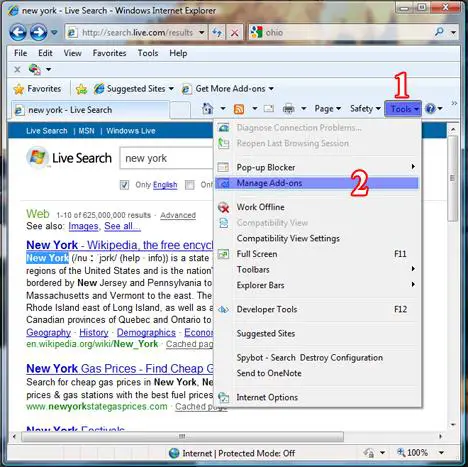
To access to all the installed add-ons, click on the Tools menu and select Manage Add-ons from the drop-down menu.
The Manage Add-ons window will appear.

In the Manage Add-ons window you can control which extension, toolbar, search providers, accelerators your browser is using. You can also configure InPrivate Filters.
How to Manage Toolbars and Extensions
In the Manage Add-ons window, select Toolbars and Extensions. There you can see the toolbars and extensions that you have currently installed. Select the add-on you want to modify. If the toolbar or extension is disabled, in the lower-right part of the window you will see the Enable button, just like in the screenshot below.

If the selected toolbar/extension is currently enabled, you will see the Disable button on lower-right part of the window. If you click on it, it will disable that toolbar/extension. To understand where a specific add-on resides and such information, just click on the More Information link located almost in the left side of the Manage Add-ons window.
How to Manage Search Providers
If you select Search Providers in the Manage Add-ons window, you can see the search providers that you have currently installed in Internet Explorer 8. To enable a search provider as the default one, you only need to select it and click on the Set as Default button highlighted below. You can also remove a search provider by selecting it and pressing the Remove button. Another option worth mentioning is the ability to enable or disable suggestions when typing in the search box. You can disable suggestions by clicking on the 'Disable Suggestions' link. If disabled, you can enable them back by clicking on 'Enable Suggestions'.

The search providers can also be changed directly from the search box on the upper-right side of the Internet Explorer window. This is an easier and faster way to do the transition between search providers. However, this will only change the search provider for the search box. The search provider for the address box can only be changed by using the method described above.

How to Manage Accelerators
In the Manage Add-ons window, select Accelerators. There you will see the list of all installed accelerators. When you select an accelerator, you are given the option to set it as default for its category or remove it as default. To do this, click on the appropriate button from the lower-right side of the window.
We can also disable an accelerator or enable it, by clicking on the button which has the same name as the action you want to perform.

To remove an accelerator, select it and click on the Remove button.
How to Manage InPrivate Filters
InPrivate Filtering is a new feature which provides users control and choice about the information that third party websites can potentially use to track browsing activity. So far there are not any pre-made filters on the Internet Explorer Add-ons Gallery. If you find some filters that you want to use, you can import them and change them from the Manage Add-ons window. Click on InPrivate Filtering and you will see the currently defined filters used by Internet Explorer.
To import filters, click on the Import button and select the '.xml' file containing the filters. To export your filters, click on Export, select the folder where you want to export them, type the filename and click on Save. To delete all filters, click on the Delete all button.

From this window you can also change the status of the selected filter. You can click on Allow and this will basically disable that filter/rule. To enable it back, select the filter and click on Allow. To remove only one filter/rule, select it and click on Remove.
NOTE: InPrivate Filtering is turned off by default and must be enabled on a per-session basis. To use this feature, select InPrivate Filtering from the Safety menu.
Conclusion
As you can see, managing add-ons in Internet Explorer 8 is very easy. If you already have used Internet Explorer 8 and you have other tips for manage add-ons, don't hesitate to share them by leaving a comment.
Related articles:
Internet Explorer 8 - What's in for the normal user
Top Add-ons for Internet Explorer 8
How To Keep InPrivate Filtering Enabled Forever
How To Use AdBlock Plus Filters In Internet Explorer 8
Easily Search for Tutorials in Internet Explorer 8
Internet Explorer 7
Top 10: Reasons why Internet Explorer 7 Add-ons suck

This work is licensed under a Creative Commons Attribution-Noncommercial 3.0 License.
Microsoft, Windows and the Windows logo are either registered trademarks or trademarks of Microsoft Corporation in the United States and/or other countries. Microsoft Corporation in no way endorses or is affiliated with www.vista4beginners.com.
All other products mentioned are registered trademarks and/or trademarks of their respective companies.
Comments
Remove, where is remove?
The articale starts with "and how to remove them completely from your system", yet there is nothing about how to remove. Disable is inadequate when the add-on proves to be garbage. I want it gone!
how to start IE 8 without the add-ons disabled
I found that when you start IE 8 in Vista you must do so by clicking on the actual green start button and then selecting Internet Explorer that way and your add-ons will be allowed. If you click on the IE button on your tool bar at the bottom of your windows screen, it automatically goes into that pop-ups blocked mode. Hope that helps
errata
I am assuming you are talking about toolbars and extensions.
First solution:
1. disable the addon
2. click on more information
3. see where the extension/toolbar is located
4. look for it in control panel (you will probably see it as "a name toolbar or extension).
(5. Although I highly don't recommend this you can go and delete the file manually or temporary move it in another place).
Second solution:
There are other choices when talking about browsers. In alphabetical order: Chrome, Firefox, Flock, Internet Explorer, Maxton, Opera, Safari (and others... search browser in wikipedia).
I like and use Firefox predominantly but you are going to use it so find one that suits your needs and is more to your liking.
PS: I was thinking about what I wrote and I still feel that the text is valid. When you open the window you are handling add-ons (the name of the window is Manage Add-ons) and not just toolbar/extensions.
Remove!!!!
No, the text is not "valid". Go to college and take an English course for crying out loud. Your article says (quote) "I will show you how to find and install add-ons, how to enable or disable them and how to remove them completely from your system."
"Them" is a pronoun referring to "add-ons", no matter how you you "feel".
The fact is, you do not show us how to remove add-ons completely from the system.
Modified
We've modified the intro a bit. I hope it sounds better now.
Regarding add-ons removal - we show you how to do that. It is actually mentioned twice in the article. What problems do you have with your add-ons? Maybe we can help.
there's nothing about removing add-ons
All due respect, your article does not include any information on removing add-ons. You discuss removing search providers, accelerators, and filters. But not add-ons.
The answer to the question "how do you remove an add-on" should be as simple as right-clicking on the add-on in the Manage Add-ons dialog, selecting "More Information", and clicking the "Remove" button. But that does not appear to work, at least not for me.
If you actually know how to remove an add-on, please include that information in your article. If you don't, please don't promise that the article will tell everyone how to do it.
Remove button under More Info is greyed out
I agree. I am also struggling with this, and search results which point to articles like this which do not provide a solution are VERY frustrating.
The fact that an application has automatically installed an IE add-on without asking me is frustrating enough. Now that addon is not compatible with IE 8 I can't get rid of the yellow info bar at the top of the screen: "IE is currently running with addons disabled" - it appears in every new window.
When I go into Manage Add-ons, I see a disable / enable button but no Remove button - If I then click More Information I see a Remove button but it is greyed out. Grrrr.
how i can disable the
how i can disable the message
"Internet Explorer is currently running with add-ons disabled.
Click here to manage, disable, or remove your add-ons."
add-ons disabled
I don't want to see this message when I push internet explorer again. How can I get rid of it?
the internet explorer window
the internet explorer window still shows the message" Internet Explorer is currently running with add-ons disabled.
Click here to manage, disable, or remove your add-ons." after implementing what you have just said in this article.how can i enable the add-ons for internet explorer window.
Post new comment