
Put the Volume Mixer icon back on your taskbar
Sun, 03/23/2008 - 10:57 — Ciprian
 Many of our readers asked us to help them put their Volume Mixer icon back to the notification area of their taskbar. Since this has been quite a common problem, we decided to publish this tutorial to help others having this issue.
First, right click on the taskbar and select Properties from the right click menu.

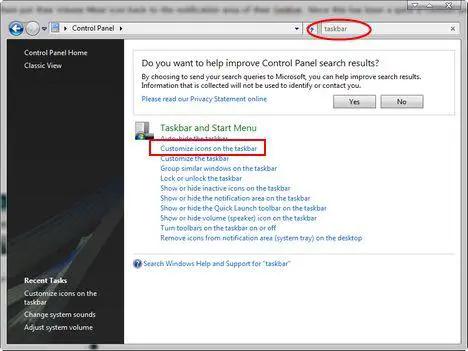
Alternatively, you can go to the Control Panel and type the word 'taskbar' in the search box from the upper-right side. Once the search results are loaded, click on the link that says 'Customize icons on the taskbar'.
The Taskbar and Start Menu Properties window will show up on your screen. Here, go to the tab called Notification Area. In the System icons section check the Volume box and click on OK.

The Volume Mixer icon will now show up in the notification area of your taskbar.
Related articles:
Volume Mixer
Disable the Windows Vista Startup Sound
How to configure the Taskbar and the Start Menu
Recommended articles:
Fix Network, Clock, Volume and Power (Battery) System Icons Missing with Disabled or Grayed Out Check Box Options
Fix for When Clock, Volume, Power or Network Icons are Missing and Grayed Out in Windows Vista

This work is licensed under a Creative Commons Attribution-Noncommercial 3.0 License.
Microsoft, Windows and the Windows logo are either registered trademarks or trademarks of Microsoft Corporation in the United States and/or other countries. Microsoft Corporation in no way endorses or is affiliated with www.vista4beginners.com.
All other products mentioned are registered trademarks and/or trademarks of their respective companies.
Comments
Volume
Hello,
Many thanks for this - one day, my volume icon just disappeared! Very easy to get it back with this tutorial.
Why does Vista do this though? :(
Thanks!
Help!!!
Hi my volume icon dissapeared from the bottom of my screen, i've followed the instructions and when you are suppose to click the volume box it doesn't give me the option to do this can anyone help?
volume icon dissapeared
I had the same problem i followed the intructions given but couldn't have the option to click on volume icon. Please could u help.
Thanks
no option or checkbox for volume AND network
I've been doing this for a while and just today, i saw my system icons were gone except for the battery. when I opened Properties like I always do, the option/checkboxes for Volume and Network were in gray (inactive). I couldn't check or click either. So what happened??
Gawd, Vista is sooooo annoying.
missing volume icon
I have followed the directions many times. The box for volume icon is gray(inactive). I can not check it. Can you help?
Thanks
Same!
The same thing happened to me! And the touch bar at the top of my keypad isn't letting me un-check the no-sound icon and I have to sound.
Retreive Your Notification
Retreive Your Notification Icons!
Control Panel--> Hardware and Sound--> Change System Sounds--> Sound Scheme ( Dropdown Menu )--> Windows Default Scheme--> Apply--> OK--> Shut Down--> Right Click on Taskbar--> Properties--> Notification Area--> CHECK AWAY!!!!!
The instructions are also illustrated above minus the shut down portion. Had to shut down, even after resetting the default sound sheme it wouldn't let me check it. Icons went away after an update on 1-12.
You should now be able to check 3 boxes or 4boxes if you're on a laptop.
Thanks who ever posted below??? it was pissing me off along with everyone else! lol
Mon, 06/09/2008 - 16:23 — Anonymous (not verified)
GET BACK THE MISSING ICON OF VOLUME MIXER
Hi,
I had the same problem. But you can find the volume mixer if you create another user on your window and log on as that.
Anyway I manage to put back the volume mixer again WITHOUT HAVING TO CREAT ANOTHER USER.. I went to the sounds, selected the default scheme and then again I went to the taSk bar and then clicking on properties, Iwas able to click on the volume check box and get the volume mixer back on my notification area.
sound icon disappeared from notification tray.
I tried the suggestion you made above and the icons are still grayed out when I go into "properties" after right-clicking on the notification bar. I don't know how to log on as another user....if I do that, will I still have access to all the programs & files?
thank you i've got my sound
thank you i've got my sound back
volume taskbar
I looked on several different websites and tried doing all the tasks they asked me to do, but nothing worked. So here's how I found a solution. Click Start. Click on Control Panel. I selected the classic view. Click on Taskbar and Start Menu. Then select Notification Area at the top. There should be a list called System Icons, and below are four options: Clock, Volume, Network, and Power. Click the box for Volume so there is a check mark; then click Apply and then OK. Problem Solved.
--> But here's where I had a problem. The box for volume was shaded gray and I was unable to check the box. All you need to do is restart your computer, re-do the steps above, and the Icon will show up back on your Taskbar.
Hope this helps!
Post new comment