
Configure Windows Mail to connect to Gmail
 Continuing our "How to" series on configuring Windows Mail for different e-mail providers, today we are going to show you, step by step, how to configure Windows Mail to connect to your Gmail account. As you might now, Gmail offers free POP3 support for all accounts. However, in order to use it, you might need to activate it from the Gmail web interface.
How to activate POP3 in Gmail
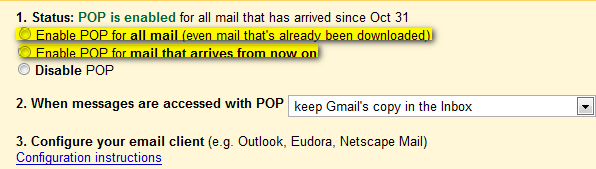
Before starting, please check if POP3 is activated for your Gmail account. To check, login to your account and go to Settings -> Forwarding and POP/IMAP.

Now activate your POP3 service by selecting one of these two options: Enable POP for all mail, or Enable POP for mail that arrives from now on.
How to configure Windows Mail
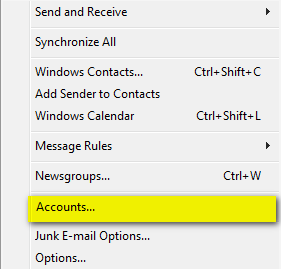
First, start Windows Mail. Go to the Tools menu and then click on the Accounts button as shown in the picture below.
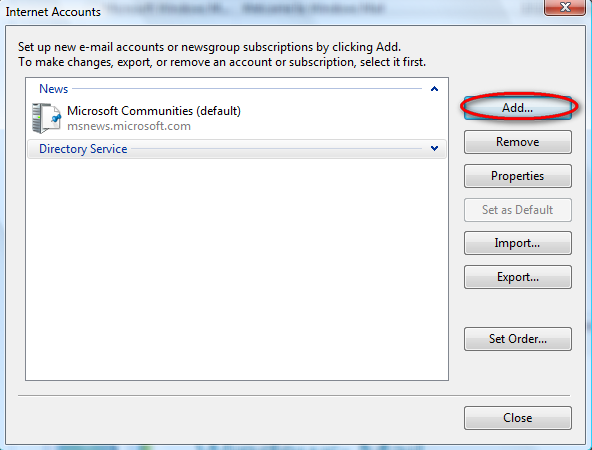
Then, click on the Add button.
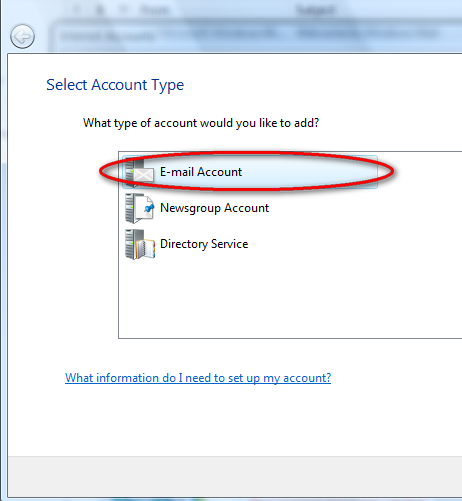
Select the E-mail Account option and click on Next.
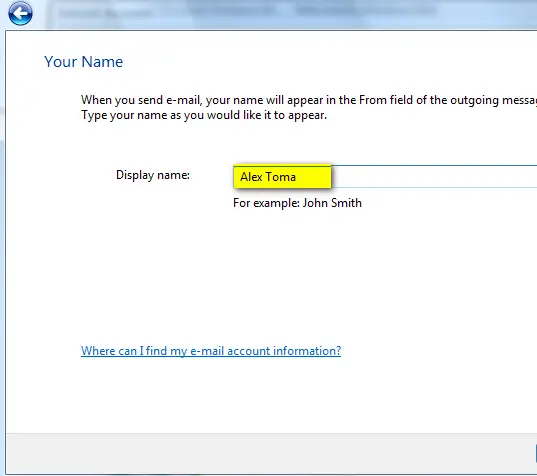
Next you can choose the display name that will be shown in every outgoing e-mail message. Type it and go to the next window.
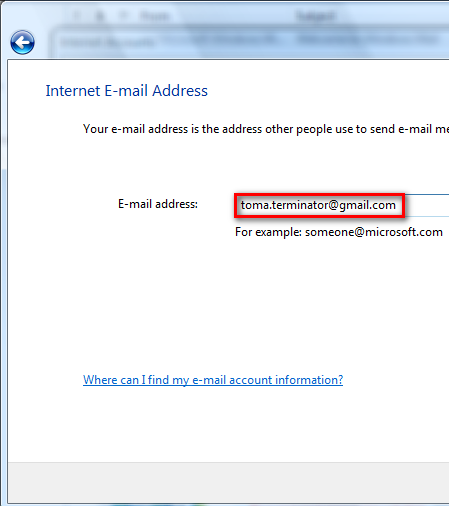
Now, you will be asked for your e-mail address. Type it and click on Next.
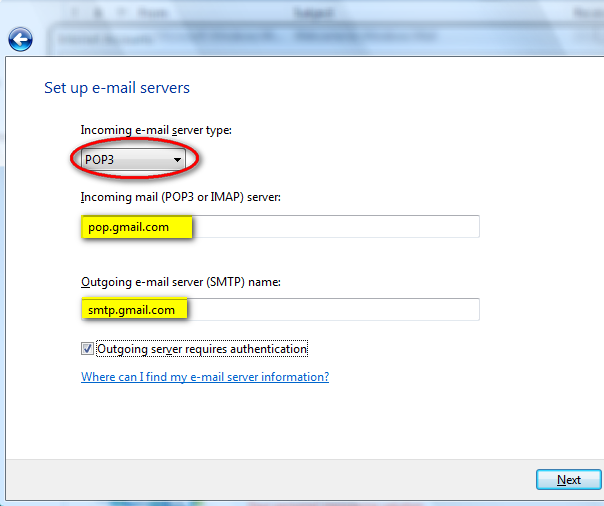
In the next window you have to setup the e-mail servers. From the Incoming e-mail server drop-down list, select POP3. Then, enter the Incoming & Outgoing server names as shown in the picture below and check the Outgoing server requires authentication option. When you are done, click on Next.
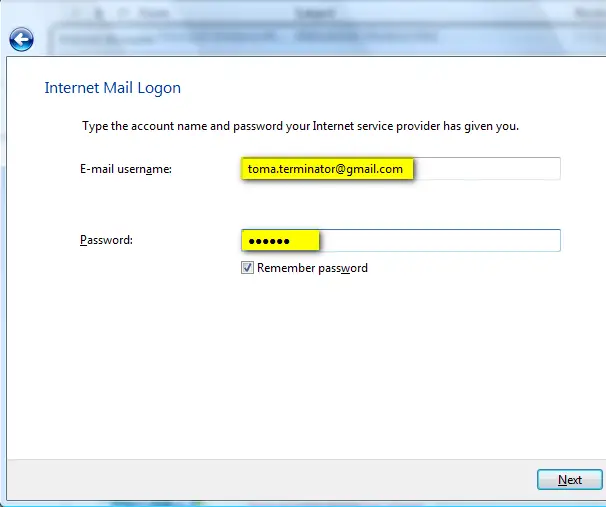
In the Internet Mail Logon window you have to enter your e-mail address and password. Also, for your ease-of-use, check the Remember password option and then click on Next.
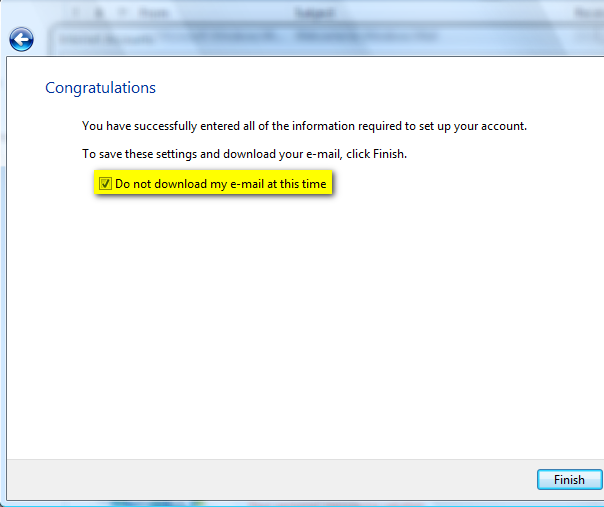
You are now almost done. Check the Do not download my e-mail at this time option as you will have to make some other minor adjustments. Then, click on the Finish button.
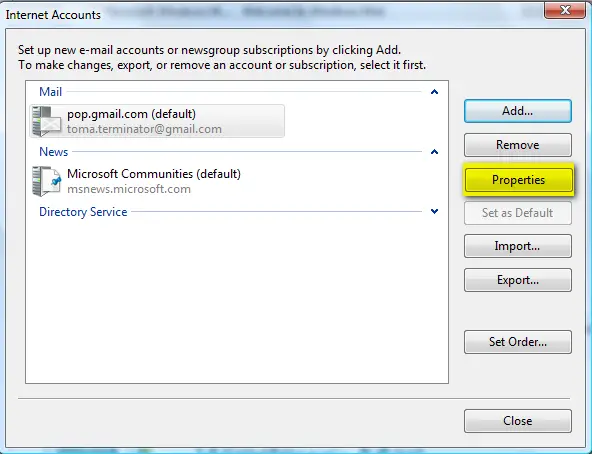
The Internet Accounts window should be opened. Select your Gmail account and click on Properties.
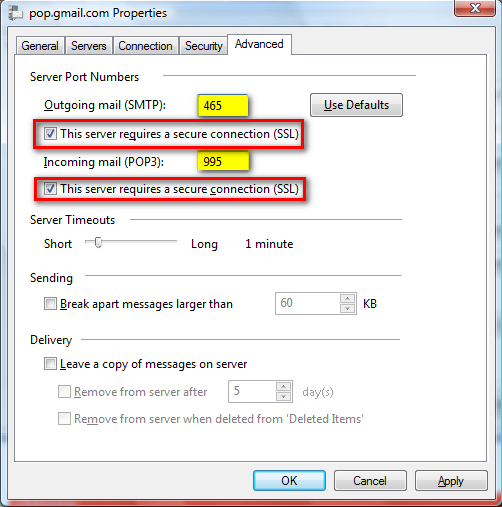
Go to the Advanced tab and type 465 as the port for the SMTP server and 995 for the POP3 server. Also, please note that you have to check the option that says "This server requires a secure connection (SSL)" for both POP3 and SMTP.
If you want your messages to be left on the Gmail servers as backup, then don't forget to check the option that says Leave a copy of messages on server. If you do not check it, when a message is downloaded it is automatically removed from the Gmail servers. When finished, click on OK.
Windows Mail is now configured to access your Gmail account and download your messages. Press the Send/Receive button and the download will start.
Related articles:
Windows Mail
Configure Windows Mail to connect to Yahoo Mail Plus
Where are the e-mail identities?

This work is licensed under a Creative Commons Attribution-Noncommercial 3.0 License.
Microsoft, Windows and the Windows logo are either registered trademarks or trademarks of Microsoft Corporation in the United States and/or other countries. Microsoft Corporation in no way endorses or is affiliated with www.vista4beginners.com.
All other products mentioned are registered trademarks and/or trademarks of their respective companies.
Comments
thank you
this helped out alot. thanks for the tut.
Thank you so much. IT
Thank you so much. IT WORKED!!!!!!!!!!!!!!!!!!!!!!!!!!!!!1
Question about windows mail
After you setup accounts in Windows Mail and send a test email but the test email for both accounts shows up in one inbox
Is that normal when sending a test email after setting up the accounts or does the test email suppose to show up in seperate inboxes for each account? If so, how do you seperate the accounts so that they have seperate inboxes?
Normal
All the mail from all your accounts will show up in the same Inbox folder. If you want to have them in separate folders you will need to create some rules that move the e-mails to different folders.
Thanks buddy you really
Thanks buddy you really helped me out. i was loking for the solution from the last 3 days but was helpless..............thank man once again.................WINDOWS VISTA -------ROCKS
Finger
I just configured windows mail to download my mails from gmail and everything went perfectly well but i use a HP Pavilion Entertainment PC it has a finger sensor which i use to long on and it seems to be asking me to swipe my finger each time a mail is about to be downloaded. What do i do to swipe once and have it download all my mails without asking again and again?
Thanks for the great
Thanks for the great instructions!
work fine to me
tks man....works fine in my windows vista ultimate....tks again ...
Gmail account not working with windows mail
Hi ,
I followed the instructions to configure my gmail account to windows mail. i use a broadbrand connection. After configuring the windows mail when i click send/receive i get the following error message :
The connection to the server has failed. Account: 'pop.gmail.com', Server: 'pop.gmail.com', Protocol: POP3, Port: 995, Secure(SSL): Yes, Socket Error: 10061, Error Number: 0x800CCC0E.
Kindle help me to resolve that and use windows mail with my gmail account. Expecting your support.
Thanks in advance,
Anisha
Unable to configure gmail into windows mail
The following error appearing whenever I push send/receive button.
The host 'pop.gmail.com' could not be found. Please verify that you have entered the server name correctly.
Account: 'pop.gmail.com', Server: 'pop.gmail.com', Protocol: POP3, Port: 995, Secure(SSL): Yes, Socket Error: 11001, Error Number: 0x800CCC0D
Please help