
Windows Mobility Center
Mon, 12/15/2008 - 22:30 — Ciprian
 Windows Mobility Center is a recently introduced application in Windows Vista, with the help of which you may easily access all the settings related to your mobile PC (laptop, notebook, Tablet PC). By using these settings you can improve the battery lifetime or system performance while working, without being connected to a power supply. In this article I will show you how to access this tool and how to work with it.
NOTE: the Mobility Center is installed by Windows Vista only on laptops, notebooks, tablet PCs and other 'mobile' devices. You will not find it on a normal desktop.
How to start Windows Mobility Center
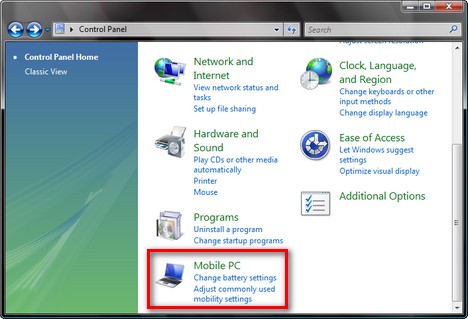
The Windows Mobility Center can be found using several methods. The easiest way is to press 'Windows logo key + X' keys on your keyboard. Also, if you go to the Control Panel you will find an applet called Mobile PC. Click on it.
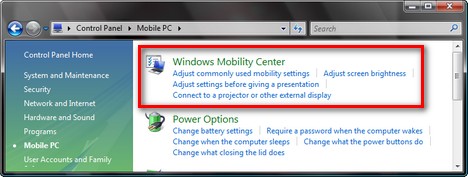
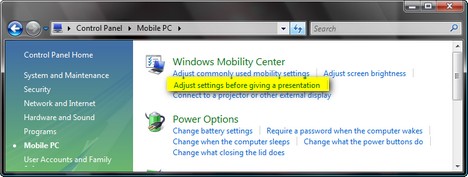
Next, you will see the Windows Mobility Center applet with several links below. Click on it and Windows Mobility Center will start.
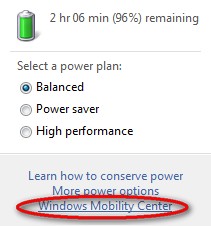
Another method is to click on the small battery that is usually being displayed in the taskbar.

Then click on the Windows Mobility Center link.
How to use the Windows Mobility Center
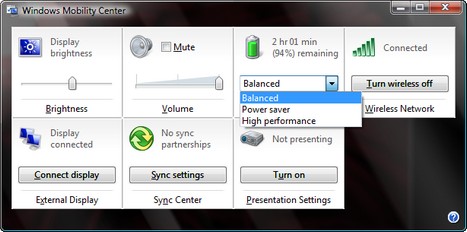
Depending on your system, the Windows Mobility Center window will look like in the screenshot below.
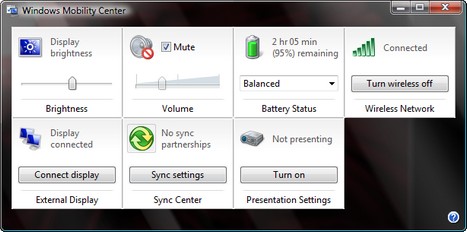
You have several options and settings which you can customize:
- Brightness - allows you to adjust the brightness of your display. Moving the slider to left will lower the brightness of your display and help you win additional battery life.
- Volume - you can customize it by moving the slider from left or right. Also, you can set the volume on Mute.
- Battery Status - here you will see how much battery time you have left. Also, you can select different power plans from the list, so to help you save even more battery power. This will increase the amount of time during which you can work on your laptop.
- Wireless Network - you can see if your wireless adapter is turned on or off. Also, if turned on, the coverage of the wireless connection will be displayed and continuoulsy updated. If you want to save some battery power and you do not use a wireless connection, it is advisable to turn off the wireless adapter by clicking on the 'Turn wireless off' button. NOTE: if the 'Turn Wireless On' button is unavailable, you may need to use the hardware switch on your laptop to turn the wireless adapter back on.
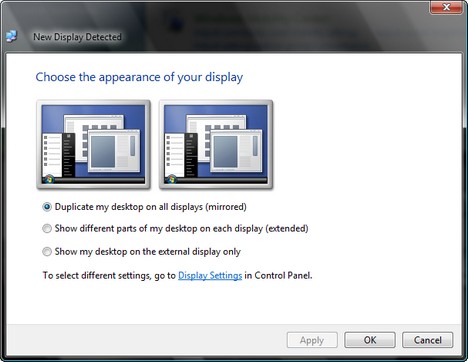
- External Display - helps you manage external displays attached to your laptop. When clicking on the Connect display button a wizard will pop-up helping you manage the desktop on your displays.
- Sync Center - is basically a shortcut towards the Sync Center. It allows you to see the status of any in-progress file sync, define new sync partnerships, etc.
- Presentation Settings - allows you to turn on or off the presentation mode. However, in order to adjust presentation settings, you need to go back to the Windows Mobility Center applet in Control Panel and click on the 'Adjust settings before giving a presentation' link.
In the Presentation Settings window you can turn off the screen saver, set the volume to a specific level, change the background, etc.
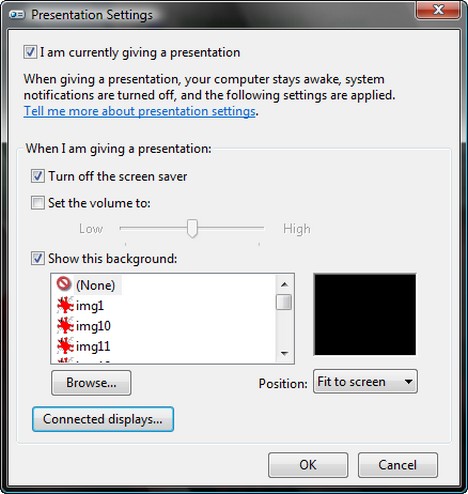
Once you turn on the presentation mode, all these settings will be applied automatically.
NOTE: In our screenshots, the Screen Rotation settings are missing. This is due to the fact that they show up only on Tablet PCs where you can change the rotation of the screen from portrait to landscape or reverse.
Related articles:
Tips and tools for saving battery power

This work is licensed under a Creative Commons Attribution-Noncommercial 3.0 License.
Microsoft, Windows and the Windows logo are either registered trademarks or trademarks of Microsoft Corporation in the United States and/or other countries. Microsoft Corporation in no way endorses or is affiliated with www.vista4beginners.com.
All other products mentioned are registered trademarks and/or trademarks of their respective companies.
Comments
Presentation Settings Tile missing
Widows Mobility Center does not display the Presentation Settings tile on my Fujitsu Siemens V5535 lap top. Is this a hardware, or Vista Home Basic limitation? Would it appear if I upgraded to Home premium?
Any advice would be welcome before spending on an upgrade.
Same problem but i got an acer
i am using a windows 7 home premium 64bit, and i have seen other laptops that have the presentation setting applet present but the common thing on them was that they had 32bit OS, so i don't think its directly relevant but it was worth mentioning
Tips & Tools for saving battery power
I'm glad I wondered off into your site, this is really helpful.
windows mobility center
In Windows Mobility Center, my wireless connection icon is gone. Now my computer will not, or does not have the ability to recognize wireless internet. I had the icon and ability to connect to the internet. How can I get the icon/program back onto Windows Mobility Center? Thanks for any help you can offer.
Kevin Westerhold
Wireless
Your wireless card might be disabled. Check if that is the case and enable it back.
brightness on windows mobility center
I had adjusted the brightness using the windows mobility center and shut the lid on my laptop and came back and the brightness was set back to normal. Now I can't find the icon/program. I can't change the brightness at all even using the keys on my keyboard, How do I get that back?
If the brightness setting disappears from Mobility Center
If the brightness setting fdisappears from Mobility Center, then close the lid for a few seconds, and on re-opening the brightness setting should have returned.
Just another bug on the Windows.
Not Opening
Windows Mobility Centre will not open for some reason...
Adjusting Screen Brightness
The tile to adjust the screen brightness is missing from my Windows Mobility Center. It was there yesterday and today it is missing. Is there any way I can get this tile back. Thank you.
Windows mobility network icon
My wireless icon is gone. I note that a post for a similar situation states to check if wireless card was disabled. How do I check ?
Post new comment