
How to configure your startup programs
Wed, 03/07/2007 - 10:06 — George
 Lots of people have the tendency to install their applications using the default installation options. When they have to choose between a "Typical" installation and a "Custom" one, they always choose the first option. Typical installations are easy and require less input from the user but they also install lots of additional modules and settings that are not needed.
The most common problem caused by the use of typical installation options is the fact that you have a big chance of having a bloated system that loads lots of useless programs at every startup. Even if you have powerful hardware, your system will become slower and less responsive with each new program added to the startup list.
However, this problem can be solved easily. If you look carefully in the configuration options of your installed applications, you might find an option that enables you to remove them from the programs startup list. If you don't, all you need to do is to edit the startup list manually using the System Configuration utility.
There are several ways to find the System Configuration utility. You can go to Control Panel, turn on the Classic View and then go to Administrative Tools.
Alternatively, you can type system configuration or msconfig in the Start Menu search field.
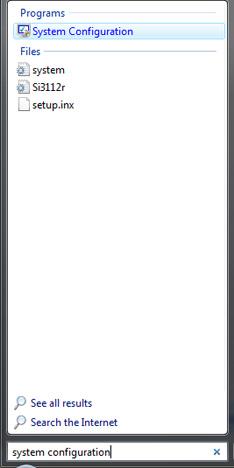
Open System Configuration by clicking on the search result or by pressing the Enter key. You will see several tabs: General, Boot, Services, Startup and Tools.
Click on the Startup tab and you will see the programs that are loaded at each Windows startup.
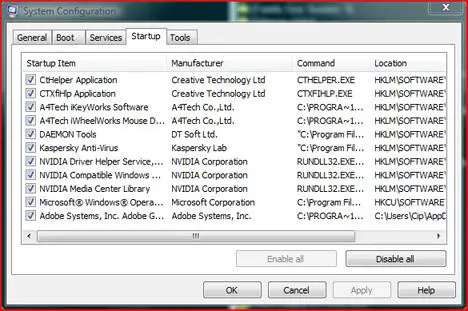
You can choose to disable some of these programs but before you do that please make sure you do not disable any important system components or drivers. You might damage the functionality of the operating system. If you are not sure on what you are doing it is better not to disable any startup programs.
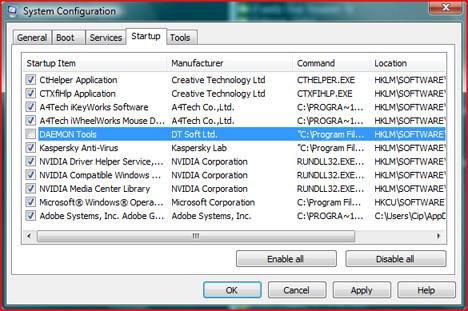
If you know what you are doing and which programs you want to disable, just uncheck the small box from the left side of the appropriate programs. When you have finished, click Apply and/or OK.
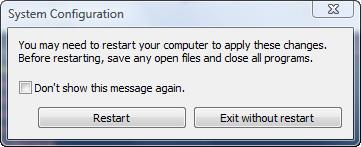
A new window will appear asking if you want to restart the computer. Choose the option you prefer.
After you reboot you will be warned that Windows blocked some start-up programs.
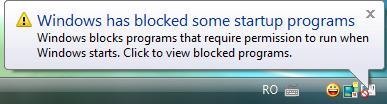
In order to remove this warning, click on the icon and then, from the pop-up menu, select Run blocked program and then click on System Configuration Utility. You will see a pop-up window, where you are warned once again that you have changed the way Windows starts. Select the option that says Don't show this message or start System Configuration when Windows starts and then click on OK.
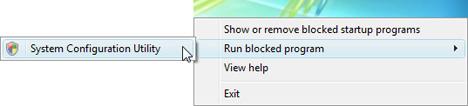
From now on, if you make other changes in the System Configuration utility, you won't be bothered by warnings anymore.
Related articles:
Streamline your Startup Applications & Improve Windows Performance
How To Disable Sync Center From Running At Startup
What software should I install on my PC?
How to boot in safe mode
The 9 commandments for an enjoyable computing experience

This work is licensed under a Creative Commons Attribution-Noncommercial 3.0 License.
Microsoft, Windows and the Windows logo are either registered trademarks or trademarks of Microsoft Corporation in the United States and/or other countries. Microsoft Corporation in no way endorses or is affiliated with www.vista4beginners.com.
All other products mentioned are registered trademarks and/or trademarks of their respective companies.

Comments
good article but not what we need
I find tons of articles how to get rid of unneeded files, and I know how to do that, but what we need is a list of
what we actually need at start up and what we can safely get rid of.
Streamline your Startup Applications & Improve Windows Performan
Now we have this kind of tips published on our site. Check out our article on how toStreamline your Startup Applications & Improve Windows Performance.
Thank you, good directions
Thank you, good directions and nice explaniation. 100% complete and good.
Hiya, Thanks for that! Great
Hiya,
Thanks for that! Great help.
Also i went to my system configuration to remove some startup applications and there was one app that really confused me!! Not too sure how it got there but its all in japanese or chinese writing???? Could it be a virus or something????
helpful... thanks!!
helpful... thanks!!
adding programs
Thanks, but how do you actually add a program to the list, rather than just deselecting a box? I wanted to get firefox in there because it loads slowly.
It will not work
If you add Firefox there it will launch the program at Windows start-up. In this case it will load even slower because other programs/services are loaded at the same time.
Wait for Firefox v3.5. It will be launched soon and it will seriously improve loading times and memory consumption.
A usefull site for finding
A usefull site for finding out which programs you can disable in windows start up.
http://www.sysinfo.org/startuplist.php?filter=lexmark+connect
Thanks, i was looking exactly
Thanks, i was looking exactly for a tutorial that didn't used the windows defender.
Vista startup options
Is there anyway of having multiple startup options, ie one set of startup programs for normal use and another list for gaming.
Seems a bit naff to have to go and deselect a number of programs you don't want to run in the background everytime you ant to play a game.
Post new comment