
How to configure your startup programs
Wed, 03/07/2007 - 10:06 — George
 Lots of people have the tendency to install their applications using the default installation options. When they have to choose between a "Typical" installation and a "Custom" one, they always choose the first option. Typical installations are easy and require less input from the user but they also install lots of additional modules and settings that are not needed.
The most common problem caused by the use of typical installation options is the fact that you have a big chance of having a bloated system that loads lots of useless programs at every startup. Even if you have powerful hardware, your system will become slower and less responsive with each new program added to the startup list.
However, this problem can be solved easily. If you look carefully in the configuration options of your installed applications, you might find an option that enables you to remove them from the programs startup list. If you don't, all you need to do is to edit the startup list manually using the System Configuration utility.
There are several ways to find the System Configuration utility. You can go to Control Panel, turn on the Classic View and then go to Administrative Tools.
Alternatively, you can type system configuration or msconfig in the Start Menu search field.
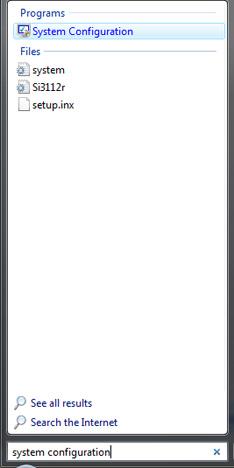
Open System Configuration by clicking on the search result or by pressing the Enter key. You will see several tabs: General, Boot, Services, Startup and Tools.
Click on the Startup tab and you will see the programs that are loaded at each Windows startup.
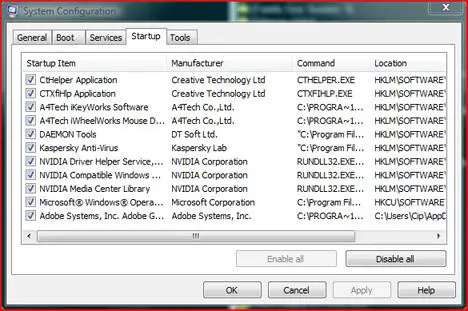
You can choose to disable some of these programs but before you do that please make sure you do not disable any important system components or drivers. You might damage the functionality of the operating system. If you are not sure on what you are doing it is better not to disable any startup programs.
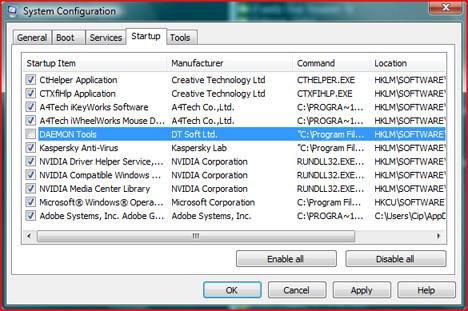
If you know what you are doing and which programs you want to disable, just uncheck the small box from the left side of the appropriate programs. When you have finished, click Apply and/or OK.
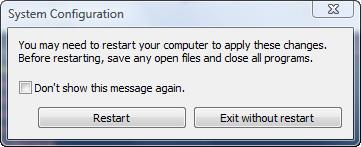
A new window will appear asking if you want to restart the computer. Choose the option you prefer.
After you reboot you will be warned that Windows blocked some start-up programs.
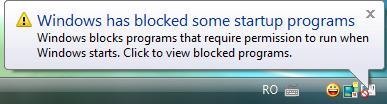
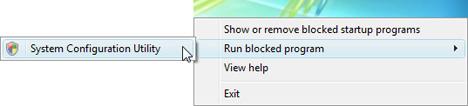
In order to remove this warning, click on the icon and then, from the pop-up menu, select Run blocked program and then click on System Configuration Utility. You will see a pop-up window, where you are warned once again that you have changed the way Windows starts. Select the option that says Don't show this message or start System Configuration when Windows starts and then click on OK.
From now on, if you make other changes in the System Configuration utility, you won't be bothered by warnings anymore.
Related articles:
Streamline your Startup Applications & Improve Windows Performance
How To Disable Sync Center From Running At Startup
What software should I install on my PC?
How to boot in safe mode
The 9 commandments for an enjoyable computing experience

This work is licensed under a Creative Commons Attribution-Noncommercial 3.0 License.
Microsoft, Windows and the Windows logo are either registered trademarks or trademarks of Microsoft Corporation in the United States and/or other countries. Microsoft Corporation in no way endorses or is affiliated with www.vista4beginners.com.
All other products mentioned are registered trademarks and/or trademarks of their respective companies.
Comments
thanks!
very helpful information! exactly what i was looking for!
gr8 article....just what is
gr8 article....just what is req and no blah blh...
keep it up
remove items(not unselect)from the system configuration startup
is there a way to remove items(not unselect)from the system configuration utility startup list, maybe using registry editor. would this work on xp pro as well? (i hav 2 computers)
Yes there is...
Yes there is: you need to manually edit the Windows Registry or to use a registry editor such as RegCleaner.
And yes... it works on Windows Vista and Windows XP.
Yes. After you have
Yes. After you have unchecked the item and rebooted, open REGEDIT and navigate to:
HKEY_LOCAL_MACHINE
SOFTWARE
MICROSOFT
SHARED TOOLS
MSCONFIG
STARTUPREG
You will see the list under the STARTUPREG folder of your unchecked entries. Simply delete those folders. To check success rerun MSCONFIG.
Thanks!
Perfect...this was EXACTLY what I wanted also, though I never asked the question!....also under MSCONFIG/ SERVICES there were some entries I wished to delete (found that folder as I was navigating to the one you mentioned)
MSCONFIG Missing
When I go to HKEY_LOCAL_MACHINE\SOFTWARE\Microsoft\Shared Tools I only see Msinfo and Stationary folders. There is no Msconfig folder. Any idea why?
THANXX
i really love your website ... its soooo much helpful for vista beginners :-)
keep up the gr8 work ...
vista premium home edition
What programs loaded on my computer (that were all factory installed) can I safely remove please? Vista is a hog and I'd like to do this soon and properly.
Basically, all I do is surf the Internet, get some feeds and newsletters and play my own store bought games, so I'm looking to completely uninstall as much as possible safely and need instructions. Please advise.
I have ESET Smart Security suite for my protection and hope that is sufficient, or do I also need Windows Defender? I hope not as I haven't read one good thing about it and have heard it's not good to run more than one anti-spyware program on a computer.
Thanks and happy new year!!! And a happy and prosperous one at that. : ^ )
Did you ever get a reply to
Did you ever get a reply to this?? I would really love to know which ones I can take off safely..
Post new comment