
Transform your Windows Vista into a Mac OS X Leopard - Part 2
Tue, 10/14/2008 - 17:44 — George
 This article continues our series about transforming Windows Vista to a Mac OS X Leopard look with instructions on how to do the following: move the title bar icons from right to left, emulate the MAC OS X ALT-TAB behavior and the dock, install Mac OS X icons, logon screens and boot screens. Once you have finished following all the instructions from this series you will have a Windows Vista which looks and feels very similar to a MAC OS X Leopard.
IMPORTANT: Before starting this procedure you should log on as an administrator. If your user is not administrator, the procedure will fail.
Before starting, it is recommended to create a System Restore snapshot. In case of failure, it will be very easy for you to revert to the initial state.
Also, keep in mind that this tutorial is published with no warranties. We are not responsible for any problems you might have with your system.
Move the title bar icons from right to left with LeftSider
To move the title bar icons from right to left, you need to install LeftSider. You can download the application from here or directly from our site. At the end of this article you will find the direct download link. Extract all files from the archive, then double click on 'leftsider.exe. If you receive a security warning message, click on Run and the application will start. You will find it in the notification area of your taskbar.

After LeftSider has started, the titlebar's icons are placed on the left side, just like in MAC OS X Leopard.

If you don't like how they look, you can change them back with just one click on the LeftSider icon from your taskbar.
There is one small problem with this application: it is set by default not to run at each Windows Vista startup. You have to run it manually each time you logon to your Windows Vista PC. However, you can fix this by adding it to the Startup folder of Windows Vista.
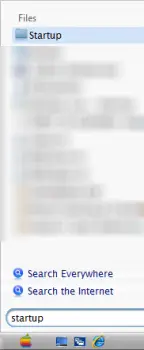
For doing this, search for the word startup in the Start Menu search box. The first result should be a folder called Startup. Open it and then open the folder which contains 'leftsider.exe.
Right click on the file and select 'Create shortcut'. A shortcut will be created in the same folder with 'leftsider.exe.
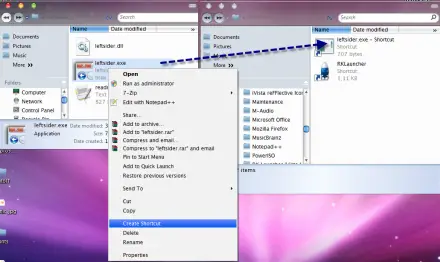
Move this shortcut to the startup folder by dragging it with the mouse. A pop-up window will appear on your screen saying that you need administrator permissions to move the shortcut to this folder. If you are logged on as an administrator, click on Continue. If not, you might need to provide the administrator password or log on again using an administrator account and repeat the procedure.
After the moving process is finished, LeftSider will start automatically each time you log on to Windows Vista.
Emulate the MAC OS X ALT-TAB behavior with Switcher
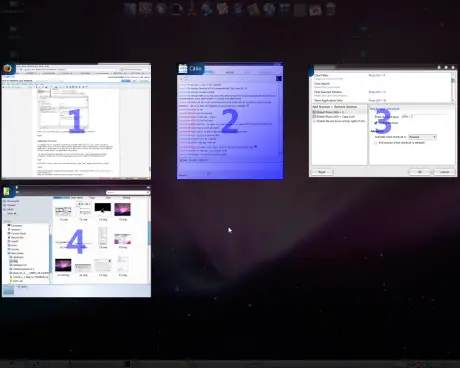
Switcher is a very powerful application which allows you to customize the way you switch between windows. With it you can change the ALT-TAB behavior to resemble the one from MAC OS X.
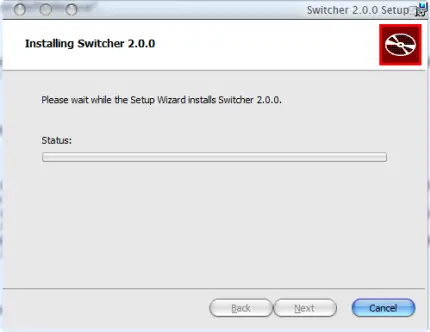
First, download Switcher and install it. During the installation you will receive a security warning message. To continue, click on Run.
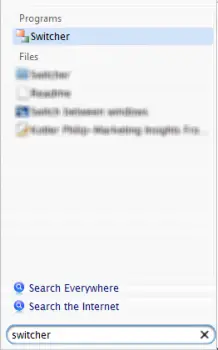
After the installation, look for Switcher in the Start menu and start it by clicking on its shortcut.
Open the application and while you are in the window with general settings for Switcher, select the preferred view of the windows. Also, make sure that the 'Automatically start at logon' and 'Show tray icon' options are checked.
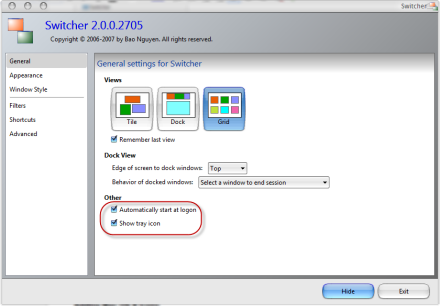
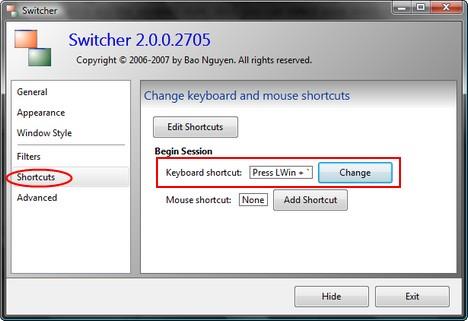
By default Switcher is activated when you press the left Windows key and CAPS LOCK on your keyboard. However, you can replace the default ALT-TAB functionality in Windows Vista with Switcher. To do this, go to the 'Shortcuts' tab and click on the Change button.
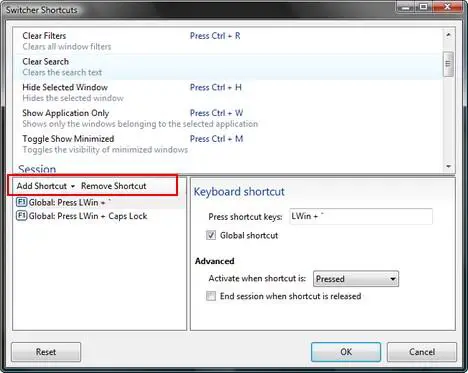
You will see a list with the two default shortcuts used for Switcher. You can remove them by selecting them and clicking on Remove Shortcut. To make ALT-TAB as the default shortcut for Switcher, click on Add Shortcut.
A new entry called 'Inactive shortcut' will be created and selected. Go to the right panel and check the box that says 'Global shortcut' then click on the 'Press shortcut keys' text box and press simultaneously your Alt and Tab keys.
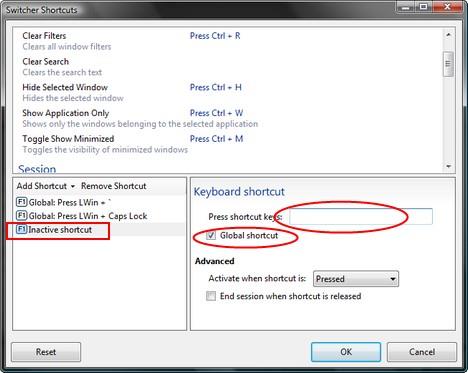
After you have done this, the 'Inactive shortcut' is renamed to 'Global: Press Alt + Tab'.
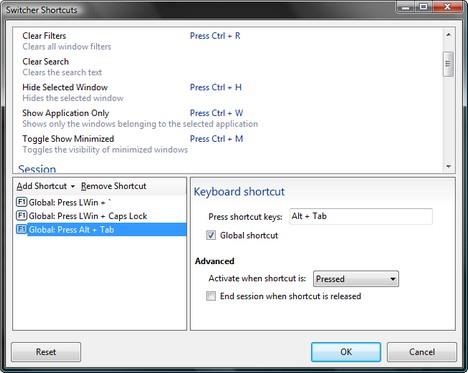
When finished, click on OK.
After you are satisfied with your settings, click on Hide and start using Switcher. If you want to know more about what Switcher can do and how to customize it, check out these pages: Switcher Overview and Switcher Questions.
Emulate the MAC OS X dock with RK Launcher
One of the most important visual parts of Mac OS X is the dock. For Windows Vista, the equivalent of the Mac OS X dock is an application called RK Launcher. If you download it from its homepage, you will find it as an archive with no installer. If you use this version you will need to do a lot of customization to make it run automatically and have the options you need.
We managed to find another version published on the Windows Edge forums. You can download it from here. This version comes with an installer which makes the application run automatically at startup. Also, it is preconfigured to include a lot more shortcuts than the version found on the RK Launcher homepage. For this article, we used this version.
Before you install RK Launcher, you have to change the position of the taskbar. It is recommended to do this because, after its installation, the RK Launcher will appear by default on the bottom part of the screen, right were the taskbar is. To change the taskbar position, right click on the taskbar and deselect the 'Lock taskbar' option.
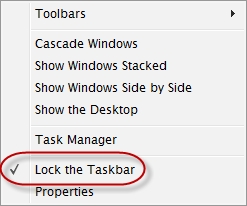
Then, drag the taskbar with your mouse to the right side or the upper side of your screen. Personally I recommend you to drag it to the upper side. This way it won't interfere with RK Launcher.
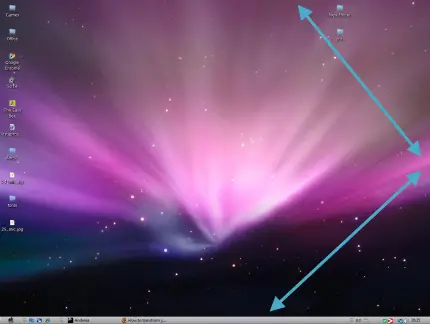
After doing this, run the 'RKLauncher(x86).exe' file and follow the installation steps.
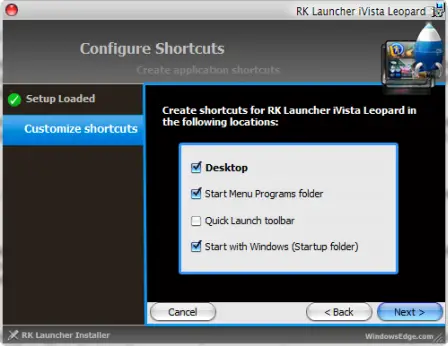
Once installed, the RK Launcher will appear on the lower part of the screen, right where the taskbar was.

The RK Launcher has many settings and customization possibilities. You can configure it in the way you want to, by right clicking on the empty space between icons and selecting Settings.
IMPORTANT: some people reported that RK Launcher has stability issues on some configurations and that it may cause a high processor usage rate. We tested it on two PCs and one of them had issues with high CPU usage. If you have problems with this application it is better to uninstall it and use RocketDock instead. This application is somehow similar to RK Launcher and seems to have less bugs. However, the look and feel is not that similar to MAC OS X.
Install Mac OS X icons
A complete Mac OS experience wouldn't be possible without the Mac OS X icons. In order to install these icons you need to use an application called IconPackager. Unfortunately, this application is a commercial one and you need to pay $19.95. However, there is a trial version that works for 30 days which can be downloaded from here. You can install this version, load the MAC OS X icons and uninstall it once the trial expires. The icons will remain as you have set them even if you uninstall the application or the trial expires.
After the download has been completed, double click on the 'iconpackager_public.exe' file to begin the installation wizard. Finish the installation process and launch IconPackager.
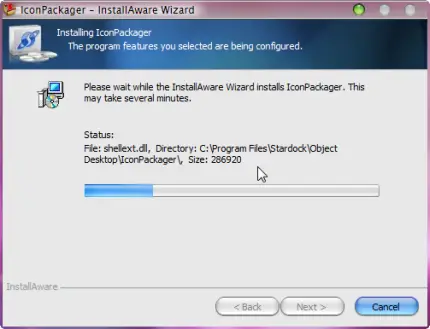
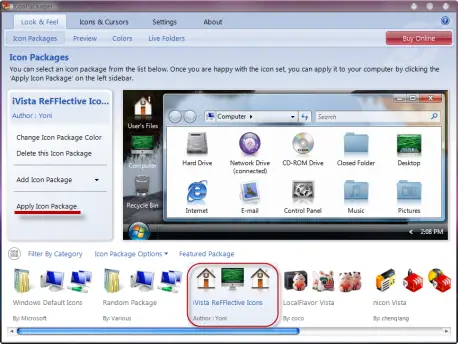
Now, download the Mac OS X icon pack from here. When the download finishes, just double click on the 'iVista ReFFlective icons.ip' file.
The IconPackager application will start and import the icon pack. It should be already selected. Now click on the 'Apply Icon Package' button.
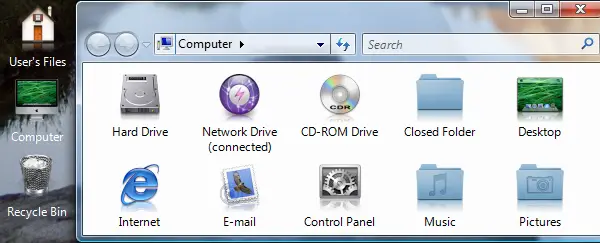
After a few seconds you should notice the new icons.
How to have a MAC OS X logon screen
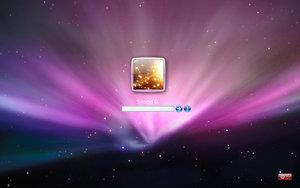
If you want to have a logon screen similar to the one from MAC OS X Leopard, download the Vista Leopard logon made by Gazz27.
Then, read our guide on How to change your logon screen and follow the instructions described there, using the above mentioned logon screen. After applying it, the logon screen will look like in the screenshot below.
How to have a MAC OS X boot screen
First you need to download Bootskin, a freeware application that allows you to change the default Windows Vista bootscreen. You can download it from here.
After the download has finished, double click on the setup file, begin the installation process and follow its instructions.
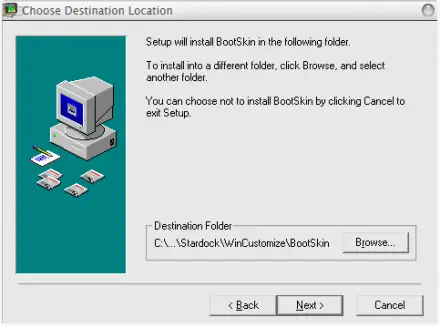
When the installation has finished, launch Bootskin.
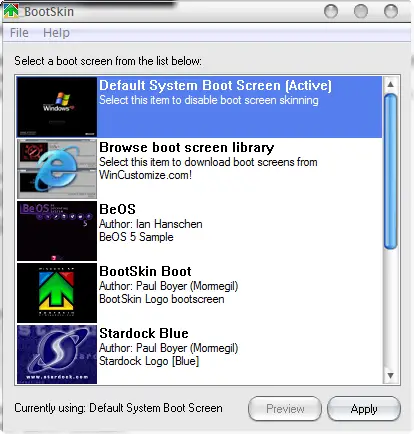
The next step is to find an appropriate boot skin which looks like the one from MAC OS X. The nicest ones we have found are: Aqua-Gero Official Bootskin and MacOSX Leopard.
Download the one you like most and extract the archive. Return to Bootskin and select 'File -> Import from file'.
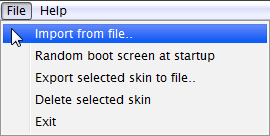
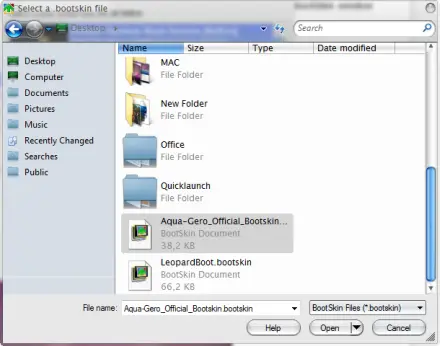
Browse to the folder where you extracted the boot skin you just downloaded, select the file with the '.bootskin' extension and click on Open.
Once the boot skin has been imported you will receive a notification like the one shown below.
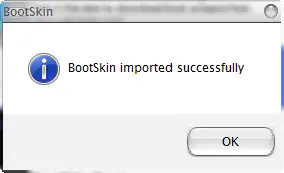
Click on OK and then Apply.
When you will restart your system you will be able see the new boot screen.
The end result
If you have followed the instructions from our tutorials on this topic, your desktop will look similar to the screenshot below.
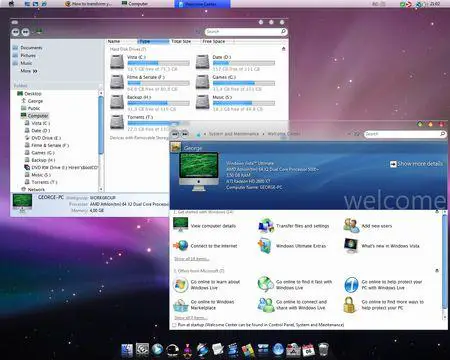
If you have any other ideas on how to customize your Windows Vista to make it look like MAC OS X Leopard, don't hesitate to leave a comment.
Related articles:
Transform your Windows Vista into a Mac OS X Leopard - Part 1
Pimp My Windows Vista: How to install new themes
Pimp My Windows Vista
Windows Vista Wallpapers Collection
Pimp My Windows Vista: How to change your sound scheme
Pimp My Windows Vista: How to change your logon screen
Use System File Checker To Repair Windows Vista System Files
System Restore
| Attachment | Size |
|---|---|
| leftsider103.zip | 29.08 KB |
| leftsider64_102.zip | 218.35 KB |

This work is licensed under a Creative Commons Attribution-Noncommercial 3.0 License.
Microsoft, Windows and the Windows logo are either registered trademarks or trademarks of Microsoft Corporation in the United States and/or other countries. Microsoft Corporation in no way endorses or is affiliated with www.vista4beginners.com.
All other products mentioned are registered trademarks and/or trademarks of their respective companies.
Comments
Switcher
Thanks for this tutorial!
I have just one problem with Switcher... Program says that work only with Aero theme, with my Zeus os X leopard Switcher does nothing.
3 things: 1- We can use a
3 things:
1- We can use a program called TuneUp Utilities (Shareware)
http://www.tune-up.com/products/tuneup-utilities/
to install de icons, skins and tune a lot of settings.
2- The skins don't work very well with the aero =\
the buttons get too separated and have some bugs at the borders of the windows.
3- So... after disable the aero we can use Y'z Shadow
http://www.softpedia.com/progDownload/Yz-Shadow-Download-1330.html
to get some transparency and really cool shadows... (Don't forget to use tuneup to turn off menu shadows or they'll get really dark.)
thanks for the tutorial!
Bootskin
Thanks a lot for the tutorial, am almost done... but I have a little problem,
I can't find the bootskin for vista, the free version is only for XP. Do I have to purchase object desktop to get the vista version? or I can use the XP version?
Thanks and hope to get a feedback!
re bootskin
you can just download windows vista master.. just gooogle it up its free and makes good bootskins in one click
Tutorial
I got what i ever wanted! This is one GREAT tutorial! Thank you!
that is a great application,
that is a great application, thnx guys
What about icon placement
Is there any tools for making your desktop icons and shortcuts goto the right side of the monitor vs always newly created on the left. I know you can drag and drop, by turning off auto arrange, but what I'm looking for is when Vista creates a new icon it is auto positioned on the right side of the screen.
I have a dock on the left side and I'm always having to hide the dock to get to any newly created icons put underneath my dock by the system and drag them to the other side.
tks
i am looking it 4 long time
fianlly i made it
Aussum....
whoooaaaa....
what a great tutorial....many many thanks man....
my "apple toshiba" thanks too....xD
in os x, scrolling up and
in os x, scrolling up and down browser windows is very smooth, almost floaty. is there any way to get windows to do that? (in windows it's kinda jerky) also when you drag things around in windows, you get a motion blur (can't read the text) in os x you don't get a motion blur, and it's real clean. any way for windows to do this?
Post new comment