
System Restore
Fri, 03/09/2007 - 09:29 — George
 System Restore is a feature that allows users to restore their system to a previous state. It offers a way to undo all the changes in the system files, registry keys, installed programs, etc, to a previous state, without affecting personal files such as documents, photos or e-mails. It was first implemented in Windows Me and since then it was included in both Windows XP and Windows Vista.
By default, Windows Vista creates the so called "restore points" every day. The restore points are created automatically, before any significant system event such as the installation of a program, device or system update. Also, restore points can be created manually by the user.
When something goes terribly wrong with your system you can restore it to a previous state and you will be able to use it again. In this tutorial we will show you how to do that using System Restore.
There are several ways to find System Restore. The easiest is to type "system restore" in the Start Menu search field and press Enter or click on the search result.
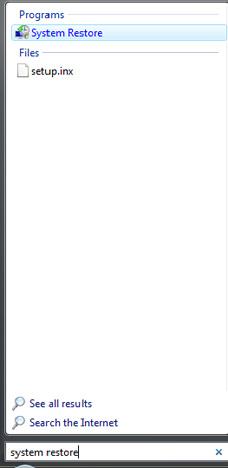
The main System Restore window will open. You have two options: to restore your system to a previous restore point or to create a new restore point.
First, we will show you how to create a restore point.
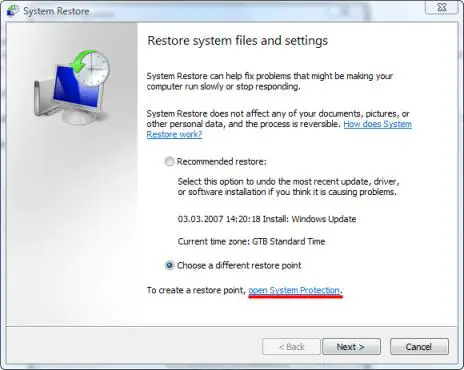
In the lower part of the System Restore window you should see a link saying open System Protection. Click on in.
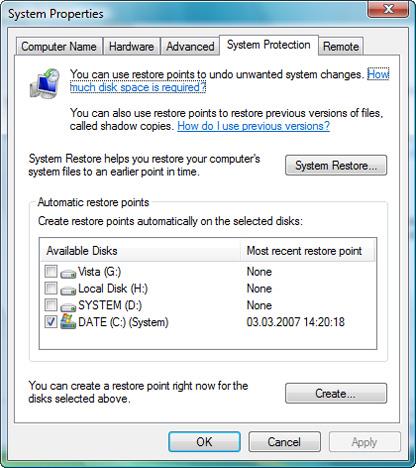
A new window called System Properties will pop-up. Here you can select the drives which will be included in the restore point. To select them, simply click in the appropriate check-boxes and then click the Apply button.
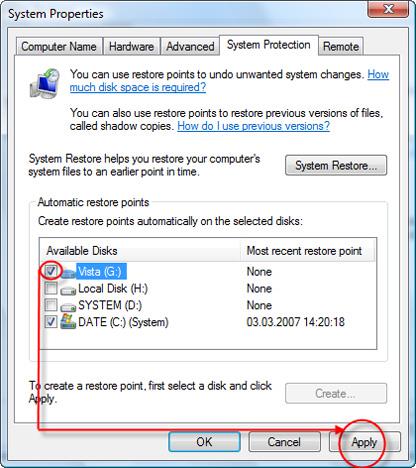
Now you can create a custom restore point for the selected drives. To do that, click the Create button, type the name for the restore point, and click the Create button once again.
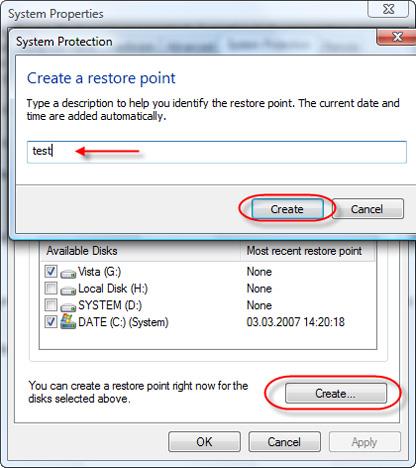
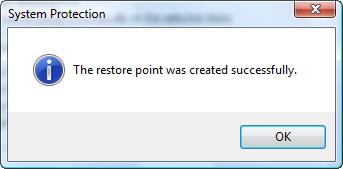
Windows Vista will create the restore point for the drives you selected. After a while you will receive the confirmation that the restore point was created.
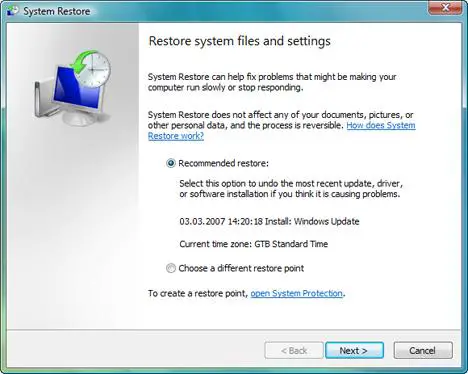
To restore your system to a previous state you can use the recommended restore point or you can choose a different one. The Recommended restore option will restore your system to the most recent restore point.
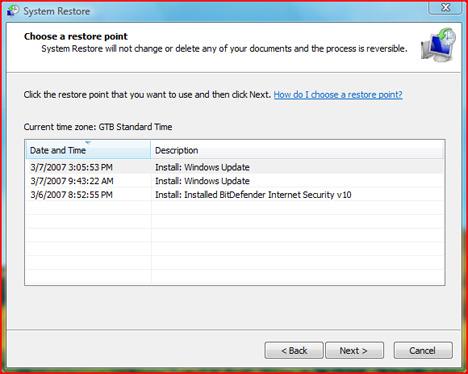
If you select the second option, after you press the Next button, you will see a list of available restore points. Select the one you prefer and press the Next button once again.
Now you are asked to confirm your restore point. Click the Finish button and System Restore will restart your computer to apply the necessary changes.
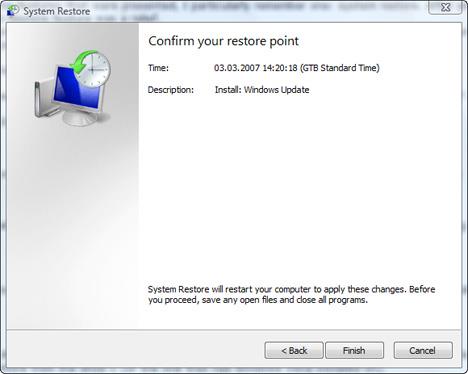
When the process is finished your system will be back to the state you selected.
Related articles:
Change the amount of space used by System Restore
Change the System Restore Frequency with CSRF v1.0.0.0
How to disable or enable System Restore
Use System File Checker To Repair Windows Vista System Files
GFI Backup 2009 Home Edition - a worthy alternative to the Backup and Restore Center
How to backup your data
How to restore your files

This work is licensed under a Creative Commons Attribution-Noncommercial 3.0 License.
Microsoft, Windows and the Windows logo are either registered trademarks or trademarks of Microsoft Corporation in the United States and/or other countries. Microsoft Corporation in no way endorses or is affiliated with www.vista4beginners.com.
All other products mentioned are registered trademarks and/or trademarks of their respective companies.
Comments
System Restore
I am trying to find out which third party utilities scrub all my restore points, I have found that Diskeeper is one of the programs that does just that. Also dual booting with XP affects the System Restore on Vista as XP does not recognise the Vista restore points and so deletes them, I would be interested in any further comments on conflicts that affect the System Restore on Vista. I've also read that defragmenting the drive which has the operating system on also deletes the System Restore files, would that be true using the Vista defragmenting tool?
Regards Paul
can anyone give me a hint on
can anyone give me a hint on this
topic: creating restore point
problem: I cannot create restore point. The CREATE tab of the restore point window was disabled. A note on the side ( Restore point was disabled by group policy)
question: what is group policy and how can i enabled the create restore tab.
Thank you in advance..
RE: CREATE is grayed out
Group Policy is a feature of Microsoft's Active Directory. It allows network administrators to
"push" out policies to computers, users and groups in a centralized, automated way.
Group policies are applied to either user accounts or computer accounts. I'm not sure without
looking it up which applies in this case but I would guess the computer account.
So, your computer is in an Organizational Unit (OU) and a policy is applied to that OU that
disables you ability to manually create a restore point.
Until the policy is disabled or the computer account is moved out of that OU, you will not be
able to manually create a restore point.
Hope that answers your question!
I also get this message but
I also get this message but my laptop is a home laptop and I am the administrator. In which case, shouldn't it be me who chooses the Group Policy rules?
After I got a bad update from Windows - which caused Windows to not even be able to start - my computer automatically system restored it but it went a couple of weeks back, not back to the day before when the bad update was installed. Thereby, my computer isn't creating restore points every day automatically. I would like to be able to manually create restore points like I could with Windows XP.
SYSTEM RSTORE PROBLEM? IM NOT SURE
Hi, my computer was "configuring updates" and requested i do not thun the computer off, once completed it automatically logged off, when i put in the password to log back in, it came up with the message "The User Profile service failed the logon. User profile cannot be loaded" can anyone tell me what this means and how to resolve the problem? thanks
solution
See if this helps: http://support.microsoft.com/kb/947215/en-us
Vista Home Basic
Hi
I have followed your really good instructions on how to create a system restore point but keep getting this message from system protection...
The restore point could not be created for the following reason:
Access is denied. (0x80070005) Please try again.
Now really microsoft - just how unhelpful is THAT. George I hope you have seen that message before and have an idea of what it might mean and how to get past it.
Regards
Joan.
seriously messed up my vista settings... pls help!!
hi all,
I bought a notebook 2.5 years back and it was running perfectly smoothly till a week ago when I installed avira antivirus software on my notebook and it detected 263 threats!! I got a Norton antivirus program pre-installed on my notebook and it wasn't updated so it hadn't detected the viruses that Avira picked... in an attempt to safeguard my 80 GB worth of data I messed up my Vista "Edit Permissions" settings that are available on the File or Folder Properties>Security tab. I later read on help and support that Microsoft does NOT recommend setting up file permissions bcoz it can result in unexpected errors and access problems! but now I've already messed those up plus my virus problem too is still not solved becoz it seems that Avira antivirus program deleted the entire infected file and not just the virus within it.... so I haven't deleted any of the infected files yet. Now I have 4 main problems.... (1) viruses (2) messed up file permission settings (3) system restore stops responding after initializing (4) the CHECK DISK feature to detect bad sectors etc does not work. Pls help?? I don't want to lose my 80 GB worth of data. I'm a student and right now I don't hav any way to create backup of so much data other than buying an external harddisk which I cant afford right now. Also, pls sumbody tell me whether using SYSTEM RECOVERY for an HP notebook with Windows Vista Home installed will erase all the data on my NON-BOOT PARTITIONS?? I've partitioned my harddisk and saved the data on the other partition, not on the boot partition. pls reply...
System Restore problem (NO second option)
I know I have many restore points but I m not getting the second option to choose different restore point. I can only pick last restore point which is when vista downloaded an update.. I want to choose even older date before the update took place.
Please help
Question regarding trojan horse and windows restore
If knows the date on which the worm was launched, is it possible to restore the computer to (let's say) a month before the attack and get rid of the malware in the process. I understand squat about computers and would really appreciate your help...thanks
Post new comment