
How to restore your files
Sun, 02/10/2008 - 16:03 — George
 A few months ago I wrote a tutorial showing you how to backup your files in Windows Vista. In this article I will show you how to restore those backups using the Backup and Restore Center.
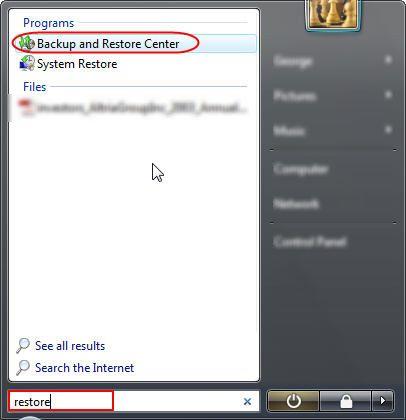
In the search field of the Start Menu type the word 'restore' and then click on the Backup and Restore Center shortcut. Alternatively, you can go to Control Panel -> System and Maintenance -> Backup and Restore Center.
In the Restore files section, you have two options: Restore files and Restore computer. In this tutorial, I will cover the Restore files procedure.
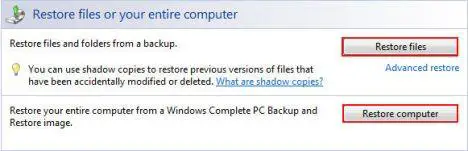
How to restore files
After clicking on the Restore files button, the wizard will ask if you want to restore files from the latest backup or from an older one.
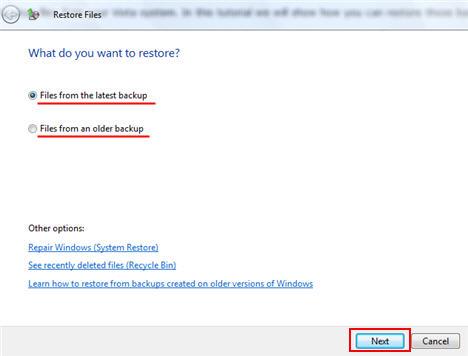
Choose the option you prefer and then click Next.
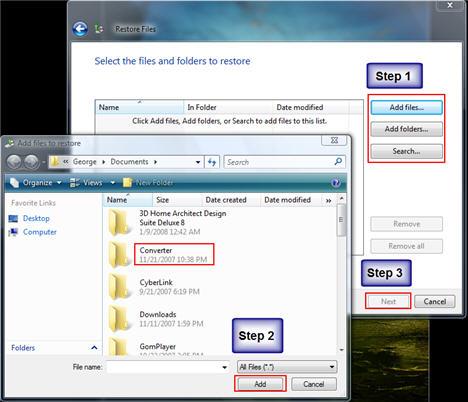
Now you have to browse and add the files and folders that you want to restore.
First, click on the Add files or Add folders button. Then, find the files or folders that you want to restore, select them and click on the Add button. Repeat this procedure until all the files or folders that you want to restore are present in the Restore Files window.
Notice: You are allowed to browse only through files and folders that were previously backed-up.
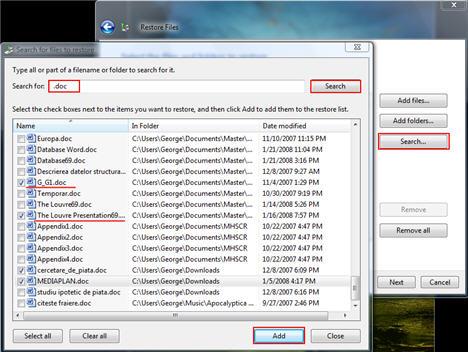
If you can't find a specific file or folder click on the Search button. Then, type the name of the folder/file in the search field and click on the Search button. If the folder/file has been found, select it and click on the Add button.
Tip: If you don't know the name of the file you are looking for, but you do know what the file type, you can search for all the files that have the same extension (.doc, .mp3, .xls, etc.) as the file you are looking for. For example, type '.doc' in the search box and click on the Search button.
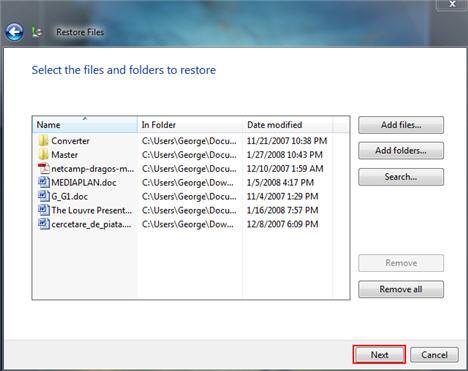
After you have finished adding the files or folders that you want to restore, click on the Next button.
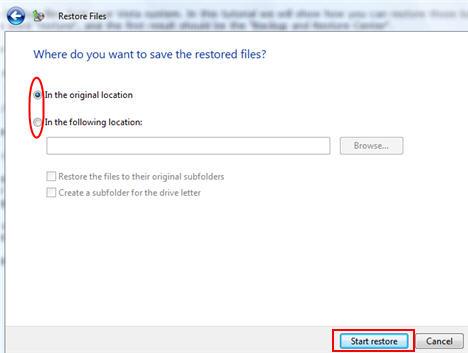
Now, you will be asked if you want to restore the files in their original location or in a different one. Choose the option you prefer and then click on the Start restore button.
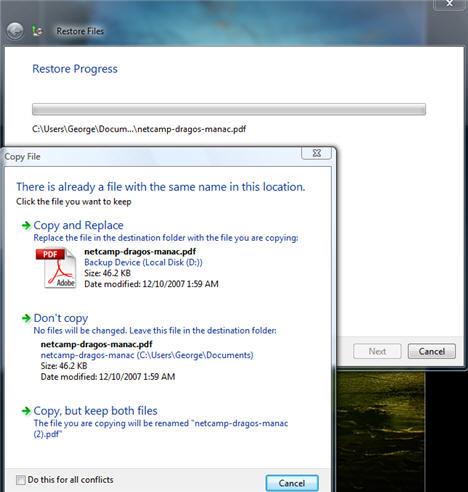
Notice: If the same file that you want to restore is found in the same location, you will be notified and you will have to choose one of the following options: 'Copy and Replace', 'Don't copy', 'Copy, but keep both files'.
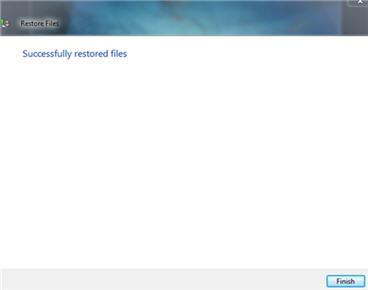
After a while, the restore process will be completed. Once you are notified that the files were restored, click on Finish.
NOTE: Windows Complete PC Backup and Restore is not included in Windows Vista Home Basic or Windows Vista Home Premium.
Related articles:
How to backup your data
GFI Backup 2009 Home Edition - a worthy alternative to the Backup and Restore Center
System Restore
Backup your Outlook Inbox
How To Backup and Restore Your Windows Speech Recognition Profile
Use System File Checker To Repair Windows Vista System Files
Recommended articles:
Restore Complete Computer
Recover Files with Shadow Copies on Any Version of Windows Vista

This work is licensed under a Creative Commons Attribution-Noncommercial 3.0 License.
Microsoft, Windows and the Windows logo are either registered trademarks or trademarks of Microsoft Corporation in the United States and/or other countries. Microsoft Corporation in no way endorses or is affiliated with www.vista4beginners.com.
All other products mentioned are registered trademarks and/or trademarks of their respective companies.
Comments
it worked it wasa good one
it worked it wasa good one
Backup centre
Just never delete all but the most recent Restore Point, no matter how many Gig of space Vista is taking up on your hard disk or no backups will be found and then you will not be able to delete the useless backups except on an XP machine and you won't be able to carry out any further backups either until they are deleted
How do i restore my files from the CD i backed them up to??
I tried to restore them but i couldn't. how do i do it?????
Backup and restore Center froze
Right now I am facing a dilemma. My backup and restore center had frozen for some unknown reasons and this issue has not been addressed anywhere. I have been web surfing for a day and a half now and I don't seem to find a solution anywhere. Can anyone help me with that?
restore vista imagebackup into hyper-v
Hi All,
I have a vista image backup taken earlier, now my motherboard becomes dead.Can i restore this image backup into Hyper-V
running on a windows 2008 server ?
Regards
Gopal
Restoring
Hi im dx - i just wanna need help in restoring my backup files in my VISTA.... before i bacup all my files and it finished ok... its a split type backup files i had but when im trying now to restore all my backup in the middle of the process it ask to insert a second disc, i dont have any second disc to insert.... im worried i need to restore some of my files pls help ASAP tnx in advance.....
dx
As lots of others, I have
As lots of others, I have used this but now have problems restoring my backups and am witnessing the "A valid backup location could not be found" message. This utliity seems poor at best. It is not very user friendly. I have read that the user needs to put the last DVD in first when restoring from such media which will confuse quite a few. My issue is related to an external HDD and the application provides little info about what the issue is.
Backup works fine - restore needs work or a tool!
When is a backup most needed? When there has been a disaster of sorts. As in complete os reload. Backups are then unworkable as the original locations may not be available and this stops the entire restore process. Working through the back up zip files is tedious at best, and completely impractical for back up sets running more than a few months.
If there is a tool for exploring back up sets please can you promote that on your "information" pages for the back up and restore tool?
Cant restore files from backup made on external hard drive
Im currently using windows vista home basic and cant restore files from a backup that i made on an external hard drive.If i try it sais "There was an unexpected error: the data area passed to a system is too small (8007007A). Backup will now close.Please Help!!!!!!!!!!!!
Wizard won't detect most recent backup on ext HD using Vista HP
I'm using Vista Home Premium. It wasn't booting up right and so I went ahead and did a backup to my external hard drive of all files. I then did a system recover and reloaded all of the system files. When I went to reload the most recent backup, the wizard was unable to detect the backup on the external drive. It could find several older ones but not the most recent one, which is missing a lot of files and pictures. It does show up if I run Windows Explorer and it shows a file size of 31 Gb, so it's not empty. How do I recover these files? Everytime I try, the Wizard shows me the same older backup files.
Post new comment