
Windows Memory Diagnostics Tool
 Windows Memory Diagnostics Tool is a very useful troubleshooting application included in the Windows Vista operating system. There are times when your computer might start to fail and freeze or reboot on its own. This tool can help you to detect if these problems are caused by memory errors or not. It tests the Random Access Memory (RAM) on your computer and reports the errors that are found.
In this guide we will show you how to use this tool for troubleshooting memory problems.
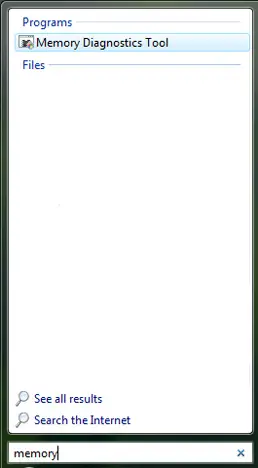
Windows Memory Diagnostics Tool can be found by typing the word "memory" or "MdSched.exe" in the Start Menu search field.
Also, the mdsched.exe file can be found in the C:\Windows\System32 folder.
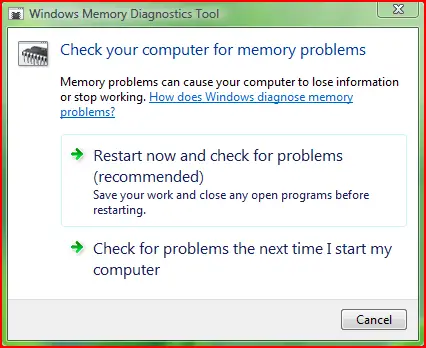
When the program starts you have two options: Restart now and check for problems or Check for problems the next time I start my computer. Choose the option you prefer.
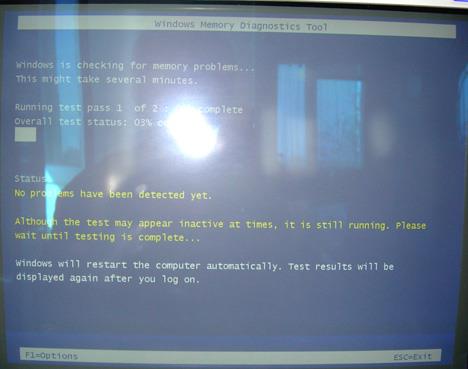
When the computer is restarted the Windows Memory Diagnostics Tool starts automatically. While the tool runs, you will see a progress bar indicating the status of the test.
Windows Memory Diagnostics Tool offers some configuration options. To access them, press F1 and the following screen will be loaded.
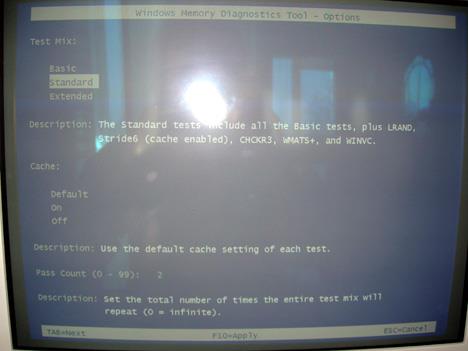
Here you can adjust the following settings:
- Test mix - Choose what type of test you want to run: basic, standard or extended.
- Cache - Choose the cache setting you want for each test.
- Pass count - Type the number of times you want to repeat the tests.
To apply the selected configuration options, press the F10 key and Windows Memory Diagnostics Tool will make the memory test according to your options.
Once the test is done, Windows Vista will restart automatically.
If the Memory Diagnostics Tool does not find any errors, you'll get a message that no errors were found. If the Memory Diagnostics Tool detects problems with your computer's memory, contact your computer or memory manufacturer for information about fixing the problem.
Related articles:
Check your system health with the Reliability and Performance Monitor
Check your System Stability Index
Solve your computing problems with Problem Reports and Solutions
Troubleshoot Driver Problems Using DPC Latency Checker

This work is licensed under a Creative Commons Attribution-Noncommercial 3.0 License.
Microsoft, Windows and the Windows logo are either registered trademarks or trademarks of Microsoft Corporation in the United States and/or other countries. Microsoft Corporation in no way endorses or is affiliated with www.vista4beginners.com.
All other products mentioned are registered trademarks and/or trademarks of their respective companies.
Comments
Where are the results?
Knowing exactly what Vista's Memory Diagnostics Tool found would be extremely useful, especially if I have to contact somebody to fix it. Telling them, "Gee, I don't know what the problem is, but Vista's Memory Diagnostics Tool said I should call you to fix it" puts a strain on my credibility.
Results are..
It's simple, either it is working 100% or the memory is faulty. As simple as that, there cannot be 98% working memory since DIMM modules(actual RAM) is addressed RANDOMLY, so you don't need to know any more specific information. So even when you have single bit of a RAM module faulty, you need to replace your RAM.
Which BANK the faulty RAM is actually is another story...
I used the memory
I used the memory diagnostics tool and now every time I turn on my computer it shows up and runs again, I didn't get any results after the test and now there is a memory diagnostics tool tray icon showing on my taskbar. ??????? Somebody help please!
Me too.
Same thing for me, it runs in my taskbar all the time I can't turn it off I want it gone my memory is fine , did you get any info on this?
Vista Memory Diagnostics Tool Results
Does anyone know how to find the results of this test? I ran it thinking that a message would popup when Vista rebooted as the instructions seem to suggest. No such message appeared. I do not know if it passed or failed. Knowing which address failed would make it possible to determine which memory SODIMM to replace in my laptop, if any. BTW - I did not get an icon in the Task Notification area nor does the test run every time I start my machine, as others have reported. I am on Vista SP1.
Diagnostics tool on tray
I did the test, and watched the test as it went along while the test said "didn't find any problems yet". It said that all the way up until the computer rebooted.. so you would figure It didn't find anything, and you would get a report like it said when you log back on.
Well, logging back on, the diagnostics tool is in the system tray, and you can try to click on it or whatever, but it doesn't open, it doesn't do anything.
What the heck is this. No one has posted a response to this problem. Did anyone figure anything out???!
Email me at "[email protected]"
Thanks/
Winows diagnostic tool
When finished windows rebooted and in the system tray a notice flashed for about 10secs No Problems Found
Test results in system logs
I also couldn't find the Memory Diagnostics Tool results in the system tray, but I did find them in the system logs.
My Computer>Manage>Event Viewer>Windows Logs>System
From there you can browse for the results or use "Find..." to search for "Memory".
>"The Windows Memory Diagnostics Tool tested the computer's memory and detected no errors"
Good Luck
Results - Here They Are
To find the results of your Windows Memory Diagnostic Tool after the computer restarts, do this:
1) Right-click on COMPUTER in your Vista start menu and choose MANAGE.
2) In the Computer Management screen that pops up, expand the EVENT VIEWER in the left-hand panel by clicking on the little arrow to the left of the words EVENT VIEWER.
3) From this expanded menu, expand WINDOWS LOGS.
4) On this expanded menu, left-click on SYSTEM.
5) Now, the middle panel will be populated with a huge number of events. To find the one you're looking for, click on FIND in the right panel.
6) In the Find window, type "MemoryDiagnostics" (all one word, but without the quotes) and click the FIND NEXT button. (Note: you could just type "memory" and still find what you're looking for.)
7) Now, in the panel below, you'll see two tabs: GENERAL and DETAILS. Click on DETAILS.
8) Now, you'll see data about your test. If the test passed, you'll see the word PASS on about the fifth line down next to COMPLETION TYPE.
NOTE: I ran this test using the EXTENDED option and two passes. On my Vista 64-bit machine with 4GB of memory, it took 3 hours and 28 minutes to finish. If you want to time yours, compare the time next to MemoryDiagnostics-Results with the time next to MemoryDiagnostics-Schedule.
Alan
www.PhotoCitizen.com
Information for Traveling Photographers
Memory Diagnostics Results
Running MDRes.Exe in System32 causes a message with the basic result (pass/fail) to appear briefly in the Notification Area but for the details the suggested search of the system log seems to be the answer.
Post new comment