
How to change Window Color and Appearance
Fri, 06/20/2008 - 22:09 — George
 One of the graphical changes in Windows Vista is the fact that, if Aero is enabled, the titlebars and borders of each window are translucent. By default, all your windows will have a light blue color. However, it can be changed at any time so that it fits your taste. In this article I will show you how to do it.
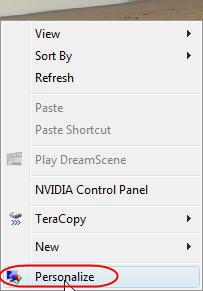
The first step is to right-click on your desktop and click on 'Personalize'.
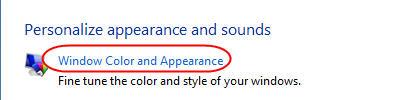
Then click on 'Window Color and Appearance'.
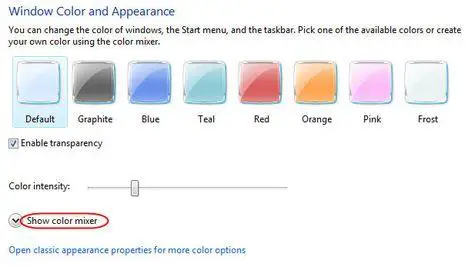
In this window you can change the color of the windows, start menu and taskbar. If you don't like the available options, you can click on 'Show color mixer' to create your custom colors.
A small roll-out menu will reveal three options: hue, saturation and brightness. If you move the sliders right or left you will see the color of the windows and taskbar changing.
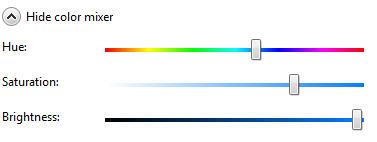
However there is a slight 'problem' that might annoy you: unless you pick out a very bright color, the color of the taskbar and all maximized windows will continue to have a shade of black. Unless you change the theme of your desktop, that shade of black will always remain.
After you have decided the color that you prefer, click on the OK button and the new color will be applied.
POSSIBLE PROBLEM: Many users reported that, after they click on 'Window Color and Appearance', they see a window like the one below.
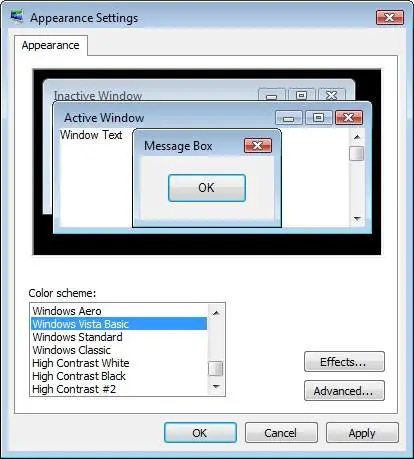
If this applies to you, then choose Windows Aero in the Color scheme list, click on OK and restart the procedure described above. You will now find all the menus and options described above.
NOTE: Windows Aero is not included in Windows Vista Home Basic. If you have this version, you won't be able to enable Aero and use it. You must upgrade to at least Windows Vista Home Premium.
Related articles:
Windows Aero
Pimp My Windows Vista
Windows DreamScene
Windows Vista Wallpapers Collection
How to configure the Taskbar and the Start Menu
How to change the font size in Windows Vista
Customize your desktop icons
How to change the size of your icons

This work is licensed under a Creative Commons Attribution-Noncommercial 3.0 License.
Microsoft, Windows and the Windows logo are either registered trademarks or trademarks of Microsoft Corporation in the United States and/or other countries. Microsoft Corporation in no way endorses or is affiliated with www.vista4beginners.com.
All other products mentioned are registered trademarks and/or trademarks of their respective companies.
Comments
Different Window
I followed your steps up to the "Window Color and Appearance," but once that window opened, it didn't have any of the features you listed. I looked nothing like your screen shots.
Do you know why this would be? Help?
[ screen shot: http://i80.photobucket.com/albums/j165/Koji_Mitsukai/Vista_issue.jpg ]
Solution!!
Found the solution to this prob!
In the window "Appearance Settings" which opens on your screen when you click on "Window Colour and Appearance", choose the colour scheme "Window Vista STANDARD"! [Yours..or rather ours..were set to Windows Vista BASIC...]
Then press ok..
You shud now be able to find the features like colour mixer and the different available colours!
Hope zis will b of help!
Cya!
Fixed~!
Thank very much for your help~! That was the solution, my computer is showing the same options at the tutorial now.
GHANGING AERO BACK TO ORIGINAL COLOR SCHEME
THANKS IT WAS TOO EASY JUST DIDNT KNOW HOW TO THANK YOU
Not Working
I did what you said, but it doesn't add any new options.
And I have Ultimate.
PS:It worked before.
:(
window color change
hey i did the thing u said to change it to standard and i applied a clicked ok but for some reason when i pull it up again im still on the vista basic :/ can you tell me why?
Different window too!! :(
The "window colour and appearance" window used to be as the one shown on the screenshot! But now..it's no longer ze same.. Am havin same problem as Mitsukai!! Don't know wat i did for this to happen!
Any idea wat is ze prob! Thx..
Will to make task bar pure black
Hi can you tell me how to make my taskbar very black.... it still have a light shadow,.....
thanks
transparency
How do you adjust the transparency of the start menu/windows etc (not turn it on or off).
Help
When I click on window color and appearance it asks me what program I want to open the file control.exe with. I tried clicking on everything but it doesn't work. I recently had a virus on my computer that I had fixed. Is there anyway of changing the appearance???
Post new comment