
How to change the font size in Windows Vista
Sun, 09/23/2007 - 21:10 — Ciprian
 Some people might have problems reading the text of the icons and menus in Windows Vista. The font size can be too small and making it bigger might help. Windows Vista gives users the possibility to make the text and other items easier to see by making them larger.
This can be done by increasing the so called Dots per inch scale or DPI. To adjust it, just follow the steps outlined below.
First, right click on your desktop and click on Personalize. Alternatively, you can go to Control Panel -> Appearance and Personalization -> Personalization.

In the Personalization window, go to the left pane and click on Adjust font size (DPI).

If UAC is turned on you will need to make an additional confirmation so that the DPI Scaling window will launch. You can choose the default scale of 96 DPI or a larger one of 120 DPI, which makes the text more readable. If these two options are not enough you can click on the Custom DPI button and choose another size (DPI).

In the Custom DPI Setting window you can select the desired percentage for the DPI increase. You have the following options: 100% for the normal size of 96 DPI, 125% for 120 DPI, 150% for 144 DPI and 200% for 192 DPI.

If you set the DPI higher than 96, and you are running Windows Aero, the text and other items on the screen might appear blurry in some programs that are not designed for high–DPI display in Windows Vista. You can avoid this issue by using Windows XP style DPI scaling. Just check the appropriate option and press on OK.
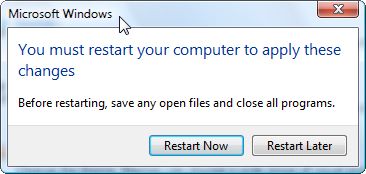
The change can be applied only after a system restart. Close all the running applications, save your open documents and then press on Restart Now. After a reboot, the font size will be changed.
Related articles:
How to change the size of your icons
How to change Window Color and Appearance
Remove the arrow and the "shortcut" text from your Windows Vista shortcuts
Want larger Quick Launch icons in the Taskbar?
How to configure the Screen Saver

This work is licensed under a Creative Commons Attribution-Noncommercial 3.0 License.
Microsoft, Windows and the Windows logo are either registered trademarks or trademarks of Microsoft Corporation in the United States and/or other countries. Microsoft Corporation in no way endorses or is affiliated with www.vista4beginners.com.
All other products mentioned are registered trademarks and/or trademarks of their respective companies.
Comments
Per User Settings
Someone please tell me why, in 2008, with a 3 way battle for OS Supremacy (I grant Ubuntu that it's a strong enough Linux distro to matter) - why why why can't I set font size and/or screen resolution PER USER?
/rant
how to change font sizes
I am amazed that you can no longer (it appears) make the font sizes smaller on your screen. Fine if you want to make them larger as this tutorial explains (I had found this out anyway from my Desktop), but I wanted to make them smaller and also reduce the size of the huge icons, but I can't. At least I have not found a way to do it. On my old PC (Windows ME) it was no trouble at all. There are several things about Vista which is driving me up the wall and this is one of them.
Related articles.
Check the related articles mentioned at the end of this tutorial.
Does this help
You can often go smaller by using higher screen resolution, however there is a sweet spot for performance for each monitor.
You also can change icon size. See link below. One of the solutions shown allows you to change just the icon size independent of the font size
http://www.mydigitallife.info/2007/12/09/how-to-resize-and-change-vista-...
Also see this link from this web site
It shows how to.
http://www.vista4beginners.com/How-to-change-the-size-of-your-icons
Reducing font size in Vista
I agree, this is crazy that the fonts cant be reduced - the fonts, at least in AutoCAD drive the dialog box size and they have taken over the screen.
All I can say it our children will ask what Microsoft was if they keep up this kind of idiocy.
I have XP machines with no issue, but the "new" Vista machines are a joke.
Anyone have any ideas?
Just enter a custom value
Under the Custom DPI window try entering something like "75%" in the box. It's a ComboBox, a text field with a set of preset options but you can also enter a value of your choice. Microsoft just figures that if you're changing the system DPI you're trying to make it more accessible to users that need such accommodations.
And if that doesn't work, I'm sure it's stored as a Registry entry somewhere. Just hunt around on Google, it shouldn't take too long to find.
(Disclaimer: I use Fedora Linux so I don't have problems like this. It's been 6 months since I've used Vista any farther than assisting others with their computers infected with it. These instructions may or may not work for you.)
--Dan
Doesn't Work
Neither approach works. If you type a value less than 100%, Vista changes it back to 100%. If you change the value of HKCU\Control Panel\Desktop\WindowMetrics\AppliedDPI to less than 96 DPI, Vista changes it back to 96 DPI when you log on.
It's incredibly stupid that I can no longer change my custom font DPI to the actual DPI of my monitor. I like to have a 10-point font actually display in 10-point size on my monitor. I could do it on XP, but it's impossible in Vista.
You might be able to take Vista's permission from this reg. key.
*I can't guarantee this won't crash your system*
Backup your computer first.
Go into regedit and navigate to the said key (make sure you select the key on the right, not the "folder" in the left pane.
Right click it and go into Edit-Permissions.
In the list, click System and Deny all permissions.
Make your changes and reboot.
Please tell me if it works or not if you try it!
you can reduce the size of
you can reduce the size of the icons by holding down cntl key and sliding the scroll dial on the mouse
Post new comment