
VistaBootPro - Manage multiple operating systems the easy way
 Windows Vista brought a big number of changes, including a new startup process. The Windows Vista boot manager is pretty different compared to the one in Windows XP, therefore managing your boot configuration is more complicated. Fortunately for us, the "PROnetworks" team developed VistaBootPRO - a tool that allows users to manage their boot configuration without getting their hands dirty with the technical stuff. Unfortunately, VistaBootPro has a fee of $9.95 for personal use.
In this article we will show you how VistaBootPRO works and how easy it is to manage your operating systems.
The installation procedure
First, go to the VistaBootPRO page and download it. Launch the setup file and, if you receive an User Account Control prompt, press the Continue button.

In the first setup window, click on Next.

Select "I accept the terms in the License Agreement" and click on Next again.

Select "Yes, remove older version" and then press Next.

Press the Install button and wait until the end of the installation process.

Select the option you prefer and press the Finish button.
The backup procedure
When you start VistaBootPro for the first time, you will be prompted to perform a backup of your BCD (Boot Configuration Data). Click on OK.

If you don't see this prompt, just press the Backup/Restore Center button.

Here you can backup and restore you BCD settings. To create a backup click on Browse, select the folder where you want to save it, type the file name and click on Save.
The restore procedure
If you want to restore your BCD settings to a previously saved backup, go to the Backup/Restore Center, press the Open button, browse and select your backup file and then press the Restore button.

You will receive a Restore Complete pop-up and then you will see an overview of your BCD settings.
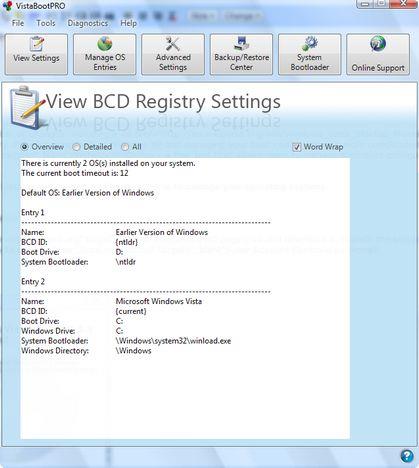
Manage your boot OS entries
In the Manage BCD OS Entries category you can modify your boot OS entries.

You can change the display order of your operating systems or delete some of the entries from the boot menu.

Also, you can rename all the entries and change the default operating system.

Other options include: changing the boot drive of an OS (simply select from the drop-down menu the drive letter you want) and the boot timeout. By default, the default OS is loaded after 30 seconds. You can easily lower the timeout by typing the desired value in seconds.
Adding a new OS in your boot screen list can be done very easily: check the Add New OS Entry, type its name, select the type and the drive where it is installed.

When you have finished making all the desired changes, press the Apply Updates and wait for a few seconds.
NOTE: if you want to use VistaBootPro in Windows XP you must have .NET Framework 2.0 installed.
Related articles:
Manage your drive letters in a dual-boot configuration
How to install Windows Vista
How to uninstall Windows Vista
How To Uninstall Windows Vista Using EasyBCD

This work is licensed under a Creative Commons Attribution-Noncommercial 3.0 License.
Microsoft, Windows and the Windows logo are either registered trademarks or trademarks of Microsoft Corporation in the United States and/or other countries. Microsoft Corporation in no way endorses or is affiliated with www.vista4beginners.com.
All other products mentioned are registered trademarks and/or trademarks of their respective companies.
Comments
Excellent article
Excellent article!
I have translated it into Chinese!
http://www.lucienchiong.cn/article.asp?id=77
BTW:VistaBootPro needs .NET Framework to support, but in this article I found nothing about this.
Thank you
Thank you! I have added a note at the end of the article.
error messages
Sorry I have problems with VistaBootPro, using v.3.3.0.0.
After every step i have error messages, and after restart nothing happens.
The error messages are:
VistaBootPRO Error
VistaBootPRO detected an error while attempting to run the following command: /export "c:/bcd_backup.bcd"
[the event completed succesfully]*or something, I have a hungarian XP SP2
Would you like to open the Events log?
YES - NO
and the same error after every steps, only the command part of it changes
Please help me
Thanks
BxL from Hungary
Sorry
Hello,
I'm afraid you won't be able to find the help you need here. Try posting your problems on the VistaBooPro forums.
Someone from the team developing this tool (or someone more knowledgeable then us) might be able to help you there.
Pls. Help Me
Hi,
When I go to Manage BCD, it only displays Windows Vista. What should I do after this? I really want to get Windows Vista out of my Toshiba laptop and run the recovery CD that it came with so that I can just go back to square one and input the old Windows Xp. Pls. help me..
Thank you
Format C:
This means you have only Windows Vista installed.
Just format the partition with Windows Vista, start the Windows XP setup and install it back on.
you first add windows xp in next option
you can add windows xp in option and direct d drive as default drive,
upply settings.
it will add xp in your lsit.
save and exit.
repeat the same steps.
tht will solve your problem
reg,
Abu thahir
Oman
00968 95149188
...
Hi again,
Here is the whole scenario of what happen to my Toshiba Satellite U200/U205, My brother was sent a newer laptop simillar to mine and he had two Window Vista Cds, one that came with the laptop, and the other one that had to be purchased separately for the upgrade license. He lent me the wrong cd, the one that came for free with his laptop, windows vista installed fine. (But I didn't know that it would go that deep into my system) I didn't like Vista, so I put in my original Toshiba Satellite U200/U205 recovery cd in and it doesn't work, stating WRONG MACHINE! So I downloaded the VistaBoot Pro and tried to switch to Windows XP but I think it didn't work because it's still on Windows Vista. So I got my brother's Recovery CD which is different from my but works.. Put my laptop on Windows Vista, what should I do? How do I make my laptop go back to square one. Pls. Help me..
Thank you so much..
My laptop
Ok, now my laptop says:
BOOTMGR is missing
Press Ctrl+Alt+Del to restart
and that's it..
What do I do?
boot screen
thanx for you
Post new comment