
VistaBootPro - Manage multiple operating systems the easy way
Mon, 07/09/2007 - 20:58 — George
 Windows Vista brought a big number of changes, including a new startup process. The Windows Vista boot manager is pretty different compared to the one in Windows XP, therefore managing your boot configuration is more complicated. Fortunately for us, the "PROnetworks" team developed VistaBootPRO - a tool that allows users to manage their boot configuration without getting their hands dirty with the technical stuff. Unfortunately, VistaBootPro has a fee of $9.95 for personal use.
In this article we will show you how VistaBootPRO works and how easy it is to manage your operating systems.
The installation procedure
First, go to the VistaBootPRO page and download it. Launch the setup file and, if you receive an User Account Control prompt, press the Continue button.

In the first setup window, click on Next.

Select "I accept the terms in the License Agreement" and click on Next again.

Select "Yes, remove older version" and then press Next.

Press the Install button and wait until the end of the installation process.

Select the option you prefer and press the Finish button.
The backup procedure
When you start VistaBootPro for the first time, you will be prompted to perform a backup of your BCD (Boot Configuration Data). Click on OK.

If you don't see this prompt, just press the Backup/Restore Center button.

Here you can backup and restore you BCD settings. To create a backup click on Browse, select the folder where you want to save it, type the file name and click on Save.
The restore procedure
If you want to restore your BCD settings to a previously saved backup, go to the Backup/Restore Center, press the Open button, browse and select your backup file and then press the Restore button.

You will receive a Restore Complete pop-up and then you will see an overview of your BCD settings.
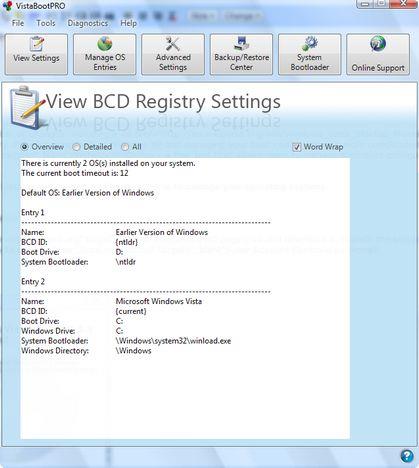
Manage your boot OS entries
In the Manage BCD OS Entries category you can modify your boot OS entries.

You can change the display order of your operating systems or delete some of the entries from the boot menu.

Also, you can rename all the entries and change the default operating system.

Other options include: changing the boot drive of an OS (simply select from the drop-down menu the drive letter you want) and the boot timeout. By default, the default OS is loaded after 30 seconds. You can easily lower the timeout by typing the desired value in seconds.
Adding a new OS in your boot screen list can be done very easily: check the Add New OS Entry, type its name, select the type and the drive where it is installed.

When you have finished making all the desired changes, press the Apply Updates and wait for a few seconds.
NOTE: if you want to use VistaBootPro in Windows XP you must have .NET Framework 2.0 installed.
Related articles:
Manage your drive letters in a dual-boot configuration
How to install Windows Vista
How to uninstall Windows Vista
How To Uninstall Windows Vista Using EasyBCD

This work is licensed under a Creative Commons Attribution-Noncommercial 3.0 License.
Microsoft, Windows and the Windows logo are either registered trademarks or trademarks of Microsoft Corporation in the United States and/or other countries. Microsoft Corporation in no way endorses or is affiliated with www.vista4beginners.com.
All other products mentioned are registered trademarks and/or trademarks of their respective companies.

Comments
Thanks for the inputs, but I
Thanks for the inputs, but I have a wierd situation for which I am not able to find help anywhere. I have HP pavilion laptop with preinstalled Vista. I did the usual thing of shrinking partition C to create a room for XP. But it also has a d:drive with HP recovery file. I installed XP into E:drive(shrinked partition) and rebooted into XP.
Now when I run vistabootpro, it would only show me Vista and HP recovery file(on D:drive) but not XP at all. How do I get out of this situation. Please help.
Setting dualboot failed
I have two different drive with two OS, Vista and XP in the same computers. I need to make them dualboot. I have tried this suggestions, but failed. I make them both master drive. What should I do?
DELETE OTHER VERSIONS AND FILES FROM MY COMP?
Hi , i have installed windows "vista home basic" with "vsta home premium" which has left the old version on my "c"drive and the new version on my "d"drive, which i believe is called (dual boot) i have deleted the older version from the "Manage BCD OS Entries folder" but it still seams to have all the files and folders in "c" drive how can i delete these files and folders just leaving my other ones on my "d" drive plz help.
thanks abu thahir
my problem has solved by applying your idea....
thank you very much abu thahir
sachu
Unistalling Vista (Miserable *$#@ OS)
I received my 1st laptop receiently. a Gateway 32 Bit AMD With Vista.
Since Vista will not allow the installation of my XP Programs (Office XP, OCRs, VRPs, etc.), I really would like to uninstall VISTA!!!
I have attempted to do a multi-boot and have even been able to partition a Drive for XP. However, when I attempt to install XP o the blue screen, I get, "XP did not find any hard dick drives installed on this computer. Set up can not continue.
I get the same message when I hit "R" for repair.
I would prefer to completely uninstall VISTA, but woult accept a duel boot scenerio. Help??? Thundermug
thunder mug, u must go to
thunder mug, u must go to the BIOS setting nd switch ur IDE to comapyible frm enhanced.
I am experinecing problems with the vistaboot pro, i can only boot the Vista OS, why is that?
When i switch to XP or earlier versions of windows, the warning says that it cannot boot to XP. Maybe someone can help me. I have followed all the procedures.
Vista/Ubuntu dual boot
I first installed XPPro on my laptop. Then Ubuntu on the second partition. GRUB worked OK and could boot either OS easily.
Dedcided to migrate to Vista which I then installed on the NTFS partition where XP resided. Left XP on which has remained as windows.old ( I will soon delete this!!).
Now when I boot there is no opprortunity to access Ubuntu which I know still exists on the second partition. Vista only shows its partition as local disc C: when I open the computer file.
Have downloaded VistaBootPro but cannot get it to do the job.
How do I get GRUB back to access either programme.
Dual Boot - Existing Windows Vista + Windows XP
I used VistaBootPro 3.3 in my ACER ASPIRE 4720Z Laptop to manage my OS. I successfully backup the BCD. My problem is when I add a new OS (windowsXP Pro SP2) the latter OS would not boot. Please see the VIEW SETTINGS below
===============================================
There is currently 2 OS(s) installed on your system.
The current boot timeout is: 30
Default OS: WindowsXP Professional SP2
Entry 1 ----------------------------------------------------------------------
Name: Microsoft Windows Vista
BCD ID: {current}
Boot Drive: C:
Windows Drive: C:
System Bootloader: \Windows\system32\winload.exe
Windows Directory: \Windows
Entry 2----------------------------------------------------------------
Name: WindowsXP Professional SP2
BCD ID: {default}
Boot Drive: D:
System Bootloader: \ntldr
===========================================
I tried to locate this NTLDR file in my HDD but I can't find it.
Please Help me to solve this problem.
THANKS!!!!
No dual boot option
I installed Win Xp onto a Dell laptop that came with Vista. It boots to XP now. I installed VistaBootPro so I could boot either operating system but I don't get the option to pick the system to boot to. Please help!
evryone seems to have real good intentions ...
George
Your job seems like a good tutorial ....( every time step by step takes place is a god send!)
But unles you did not re visted their page ..the "VistaBootPRO" its NOT a FREE tool ...
:((
anyhow keep up the good work!
Marius
Post new comment