
VistaBootPro - Manage multiple operating systems the easy way
Mon, 07/09/2007 - 20:58 — George
 Windows Vista brought a big number of changes, including a new startup process. The Windows Vista boot manager is pretty different compared to the one in Windows XP, therefore managing your boot configuration is more complicated. Fortunately for us, the "PROnetworks" team developed VistaBootPRO - a tool that allows users to manage their boot configuration without getting their hands dirty with the technical stuff. Unfortunately, VistaBootPro has a fee of $9.95 for personal use.
In this article we will show you how VistaBootPRO works and how easy it is to manage your operating systems.
The installation procedure
First, go to the VistaBootPRO page and download it. Launch the setup file and, if you receive an User Account Control prompt, press the Continue button.

In the first setup window, click on Next.

Select "I accept the terms in the License Agreement" and click on Next again.

Select "Yes, remove older version" and then press Next.

Press the Install button and wait until the end of the installation process.

Select the option you prefer and press the Finish button.
The backup procedure
When you start VistaBootPro for the first time, you will be prompted to perform a backup of your BCD (Boot Configuration Data). Click on OK.

If you don't see this prompt, just press the Backup/Restore Center button.

Here you can backup and restore you BCD settings. To create a backup click on Browse, select the folder where you want to save it, type the file name and click on Save.
The restore procedure
If you want to restore your BCD settings to a previously saved backup, go to the Backup/Restore Center, press the Open button, browse and select your backup file and then press the Restore button.

You will receive a Restore Complete pop-up and then you will see an overview of your BCD settings.
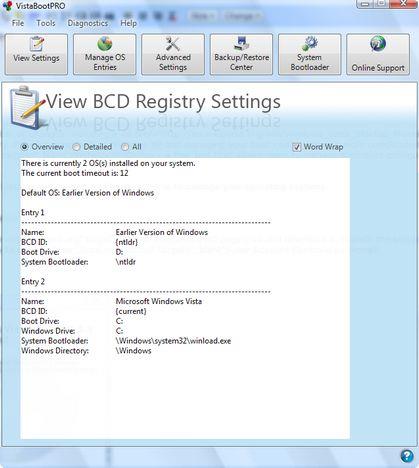
Manage your boot OS entries
In the Manage BCD OS Entries category you can modify your boot OS entries.

You can change the display order of your operating systems or delete some of the entries from the boot menu.

Also, you can rename all the entries and change the default operating system.

Other options include: changing the boot drive of an OS (simply select from the drop-down menu the drive letter you want) and the boot timeout. By default, the default OS is loaded after 30 seconds. You can easily lower the timeout by typing the desired value in seconds.
Adding a new OS in your boot screen list can be done very easily: check the Add New OS Entry, type its name, select the type and the drive where it is installed.

When you have finished making all the desired changes, press the Apply Updates and wait for a few seconds.
NOTE: if you want to use VistaBootPro in Windows XP you must have .NET Framework 2.0 installed.
Related articles:
Manage your drive letters in a dual-boot configuration
How to install Windows Vista
How to uninstall Windows Vista
How To Uninstall Windows Vista Using EasyBCD

This work is licensed under a Creative Commons Attribution-Noncommercial 3.0 License.
Microsoft, Windows and the Windows logo are either registered trademarks or trademarks of Microsoft Corporation in the United States and/or other countries. Microsoft Corporation in no way endorses or is affiliated with www.vista4beginners.com.
All other products mentioned are registered trademarks and/or trademarks of their respective companies.

Comments
Can't get past the Lincense Agreement
I'm trying to install XP, and I get as far as the License Agreement and I press F8 to accept it, and nothing happens. AT ALL. NOTHING. And when I go to vistapro's homepage to download it, it wants $10 before it will let me. I thought it was free?? HELP!!!!! PLEASE!!!! THANK YOU!!!!
VistaBootPro free?
Well it's not free anymore.
Alternative
At the time it was free, now it's not. We will update the article using another (free) tool.
How to activate os choice menu with windows xp/vista installed?
Dear Sir,
I have installed windows xp professional in the windows vistas laptop.xp has been installed on the laptop,but now i am not able to operate the vista as this is not visible in os choice menu.How i can get setting to take both os?
Post new comment