
What is Windows Malicious Software Removal Tool (mrt.exe) and how to use it
Sun, 08/03/2008 - 20:08 — Ciprian
 The Windows Malicious Software Removal Tool was always a very enigmatic Windows Update for me. I always installed it both on my Windows XP and Windows Vista PCs and never really understood how it works and if it works. After I installed it, I did not see any new shortcuts or programs running in the background, not even new notification messages. It was as if I installed an update which did not do anything.
Recently, I went to one of my friend's house and installed Windows Vista on his PC. Of course, Windows Update installed Windows Malicious Software Removal Tool on his PC as well. When he asked me about this tool and how it works, I was not able to give him any answers. To answer his questions and any of your questions about this tool, I decided to do a little digging and write this article to share with you all there is to know about the Windows Malicious Software Removal Tool.
What is Windows Malicious Software Removal Tool (mrt.exe)?
Microsoft Windows Malicious Software Removal Tool is basically a free tool which helps to remove specific malicious software from computers which run Windows operating systems, including all versions of Windows Vista. This tool is updated on the second Tuesday of every month and it is distributed via Windows Update. After it is installed, it silently runs in the background and removes the malicious software that it finds. When the detection and removal process is complete, the tool generates a report describing the outcome of the scan. The report can be found in a log file named 'mrt.log' placed in the 'C:\Windows\Debug' folder.
Even though this tool helps you remove malicious software, it should never be used as a replacement for an antivirus program. That's because this tool has a very limited database of malicious software and searches only for specific threats. Also, it is updated on a monthly basis unlike antivirus solutions which are updated daily.
Where to find it
By default, the tool can be found in the 'C:\Windows\System32' folder. Once you open this location, search for a file called mrt.exe.
If you don't find this file, it means that this tool is not installed on your PC. In this case you can download it directly from the Microsoft Download Center. The 64 bit version can be found here.
How to use it in interactive mode
If you want to run this tool manually, go to the location mentioned above and double click the mrt.exe file. An easier way is to type mrt.exe in the Start Menu Search Box or in the Run window.
Alternatively, you can download the Windows Malicious Software Removal Tool Shortcut we have attached to this article, place it on your desktop and use it each time you want.
When the tool starts, you will receive an UAC prompt. Click Continue and the tool will start.
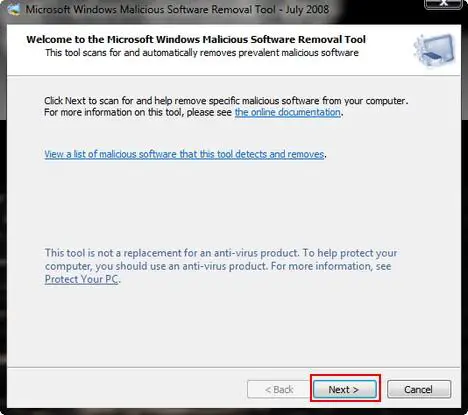
When you see the Welcome window, click Next.
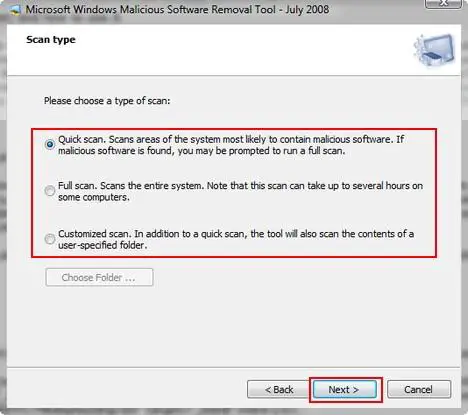
Now you need to select the type of scan you want the tool to perform. You have three possible options: Quick scan, Full scan and Customized scan. If you did not scan your PC before and you don't have a reliable antivirus solution installed, you might want to select Full scan. Once you selected the option you prefer, click Next.
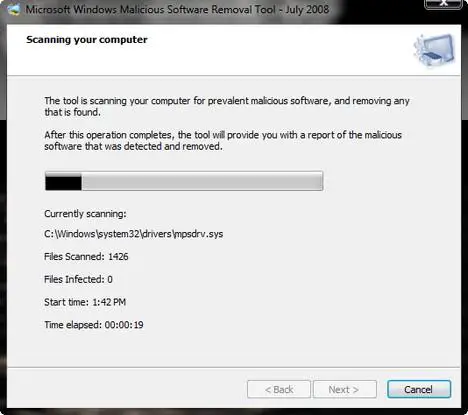
The tool will start to scan your computer and show you the status of the scan.
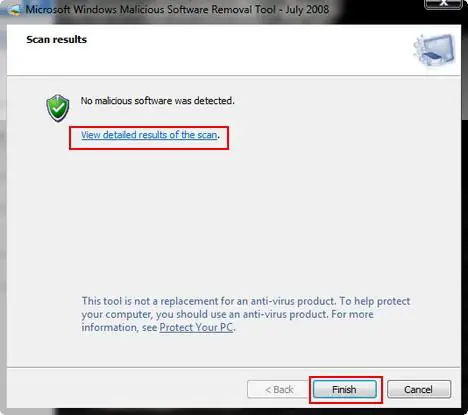
When finished you will see the results. In my case, no malicious software was detected. Now click Finish and the tool will close.
How to use it from the Command Prompt
You can use this tool from the Command Prompt as well. To use it, right click the Command Prompt shortcut and select 'Run as administrator.
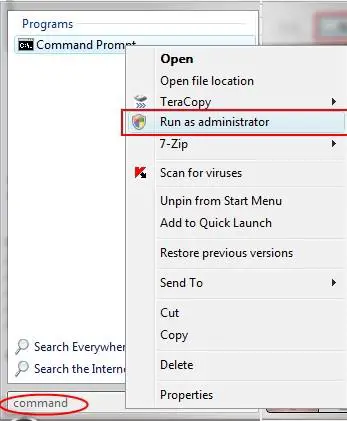
Now type 'mrt.exe ' followed by one of these possible switches:
- /Q or /quiet - runs the tool in quiet mode. This option suppresses the user interface completely;
- /N - runs in detect-only mode. In this mode, any detected malicious software will be reported but it will not be removed;
- /F - performs a full scan of the computer without removing any infections that are found;
- /F:Y - performs a full scan of the computer and automatically cleans all the found infections;
- /? or /help - displays usage information.
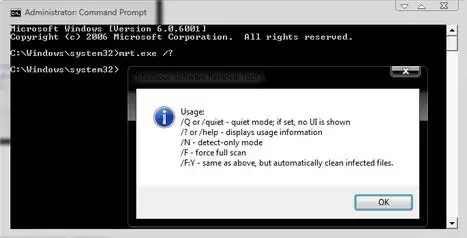
If you are running the tool in quiet mode, you can find the log file mrt.log in the 'C:\Windows\Debug' folder. To easily open this file, you can download the attached shortcut, place it on your desktop and double click on it.
Related articles:
Protect your system from viruses for free
Protect your system from spyware for free
Protect your system from hackers for free
Windows Defender
Windows Firewall
Windows Vista Security Center
How to work with the new Windows Update

This work is licensed under a Creative Commons Attribution-Noncommercial 3.0 License.
Microsoft, Windows and the Windows logo are either registered trademarks or trademarks of Microsoft Corporation in the United States and/or other countries. Microsoft Corporation in no way endorses or is affiliated with www.vista4beginners.com.
All other products mentioned are registered trademarks and/or trademarks of their respective companies.
Comments
Malicious Software Removal Tool
Having read your expalnation of what this tool does what is the point of taking this download if you have a good anti-virus software programme installed like i am running avg pro which like you say is updated daily
MRT
It is supposed to be able to detect and remove rootkits and botnets (especially botnets). Something that other AV software may not do.
MRT
Thanks for the explanation about this tool. very informative.
:-)
Malicious Software Removal Tool
Thanks for the explanation. #2 :) very informative.
NOT!
I downloaded this tool, from an official ms mirror, a secure one.
I executed it in a virtual machine, and 10 min later infected it with a very easy to remove (but potentially deadly) bot.
it never found it. not even when i put it in the root folder, still says not infected, this bot is even in MRT's db. still didnt find it.
Did you miss the part where
Did you miss the part where the article said it seeks out a very limited and specific set of infections.
The tool is not meant to replace a proper antivirus, it is meant to supplement and assist whatever your current antivirus may be.
So if the bot you infected your virtual machine was not on the list of the type this program is meant to find and remove then it is no wonder that it was not detected. Especially since this program is likely not designed to search for malicious software that your regular anti-virus would 'find and remove'
MRT
I appreciate the time you took to explain this piece of software. However there is an aspect that you don’t mention and is hard to find on the web.
Even if I don’t want this software Microsoft continues to try and force me to install it.
I currently do NOT have MRT.exe on my machine (xp pro) yet each month MS lists this as a download that is pre checked so that if I use the express download option it would automatically get installed. I’m a little annoyed at this because I feel the MS Update Center should only update existing software on my system, not install new software. Also, new software should never install automatically. It should always ask permission and allow me to opt out of this and future installs. MRT.exe doesn’t do any of this.
I can, and have, checked the little box that says never ask me again about this file but guess what? Since the date is part of the file name then when the next update comes along it considers the file as something new and so wants to download it again.
Also, I noticed that Vista machines don’t seem to have this little checkbox. On my wife’s vista machine if the MRT is the only download and I uncheck it then the OK button gets grayed out and my only option is to cancel which means that the box is left as checked. It appears that on Vista machines MS is forcing you to accept this download no matter what.
If another company was continually trying install a piece of software that I didn’t want, didn’t ask my permission and doesn’t give me a way to opt out of the install I would call that software either spam or a virus.
accept the install of the
accept the install of the malicious software removal, you'll get a license agreement, select decline and you will have the option to "never ask me for this update again" check box
Very Bad Advice
MRT was designed to remove a very limited set of virus/malware programs that interfere with the normal Windows Update process. Remember back in the day when updates would fail all the time and sometimes crash your system? That's because you were infected and it caused the update to fail, and LOTS of support requests to MS - for something that was not their doing.
The MRT solves that problem. It seeks out specific, highly prevalent malicous software. It is run once a month (during the normal 2nd Tuesday updates) prior to the updates being "installed", usually during the reboot.
The MRT is an essential tool to making sure your Windows Update process completes successfully and does not "brick" your system. No one visiting this site (it's for beginners after all) should disable MRT using the instructions given above.
Very Bad Advice????
You write: "MRT was designed to remove a very limited set of virus/malware programs that interfere with the normal Windows Update process .... The MRT is an essential tool to making sure your Windows Update process completes successfully ... No one visiting this site ... should disable MRT using the instructions given above."
This sounded authorative, at first, but then, hang on, MRT removes ONLY a subset of well known Virus/Malware and 1) There is no mention of the rationale in the details MS give. It sounds like a great rationale to me so why not? 2) Any decent virus/malware program will have already removed these threats (IF they are present) If it/they haven't THAT is the problem. 3) Why doesn't MS make sure AV etc program makers are advised of any viruses they'd like removed ...?
I have, I think, a very good set of malware detection and removal tools (eg Malawarebytes, Spybot) a good antivirus program (Avast) and a fine firewall (Privatefirewall). I also use Firefox (never IE) and have the NoScript addon. I scan periodically using the F-Secure online facility. My "proof" of the efficiency of my security is that I have to date never had any infection. This is in a way irritating as I would love my MS problems to have come from some common virus or malware!
Rather than go to the trouble of designing a special piece of software for a (generally) non-existant problem (assuming most people have decent enough anti-virus etc progs installed) it would have been more efficient to simply check for the presence of specific viruses that would hamper any update process AS A PART OF THAT update process, and then to notify the user IF there was a problem. If there were a problem MS could ask if the user wanted the virus/malware removed by MS or their own AV/malware etc progs. The user could then a) check with their own AV etc progs and if they have failed get a better system, b) never believe MS again if they're none present, c) let MS have it away with their system.
Software companies are businesses not philanthropic charities. Ethics etc are an optional extra. Bearing in mind both the way that MS came to power and has maintained that power, should give everyone pause for thought when blindly trusting that they (the user) can trust that they (MS) will look after their (the user's) interests. What is truer is that that they (the user) can trust that they (MS) will look after their (MS's) interests.
There seems NO LOGIC to justify installing the tool, and none that justifies the WAY that it is promoted and published by MS. In fact logically the conclusion would have to be more foul play from MS.
Post new comment