
How to backup your data
Wed, 09/26/2007 - 21:21 — George
 Many people lose data everyday due to various reasons: virus infections, accidental deletion, hardware & software failures, power failures and so on. To protect yourself from data losses, you can create a backup so that you will easily restore it when needed. Using Windows Vista’s Backup and Restore center, you can easily backup your personal files or the entire system. You can create a manual backup or schedule automated backups which will add the new files or the modified files into your original snapshot.
In this tutorial we will show you how to backup your data. In the following weeks we will also publish a tutorial about restoring your data.
NOTE: Windows Complete PC Backup and Restore is not included in Windows Vista Home Basic or Windows Vista Home Premium.
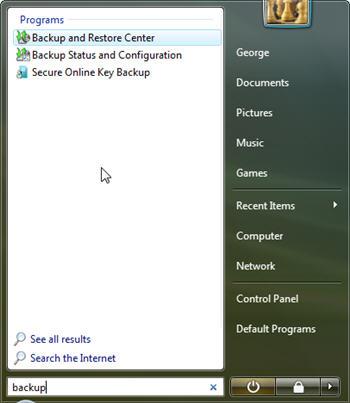
In the search field of the Start Menu type the word "backup" and then click on the Backup and Restore Center shortcut. Alternatively, you can go to Control Panel -> System and Maintenance -> Backup and Restore Center.
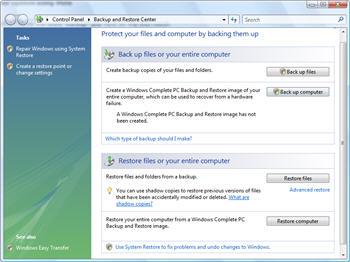
The Backup and Restore Center has two main sections: one for backing up files and one for restoring them.
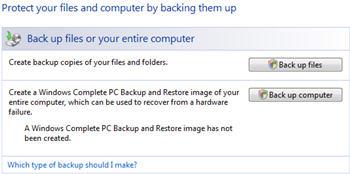
On top of this, the backup section offers another two options: Back up files and Back up computer. The first option will create a backup of your personal files and folders and the second will create a complete backup of your entire computer. It is recommended to create a full back up of your computer just after you have set up your computer for the first time. Windows Vista will take a snapshot of all your programs, settings and files. You can use this snapshot if your computer ever stops working and restore it to the original state.
How to backup your personal files and folders
To start the procedure, click on the Back up files button and the wizard will start.
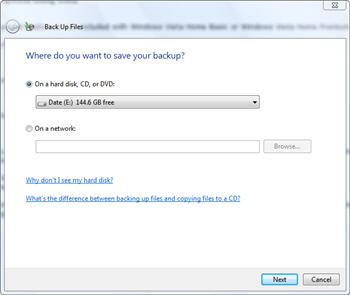
In the Back Up Files window you will have to select where to save your backup. You can select a partition from your hard disk, a CD, a DVD or a shared folder from your network. Select the location you prefer and click on Next.
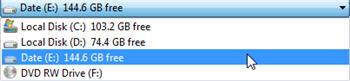
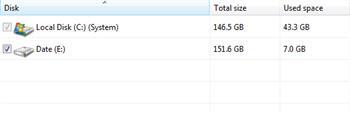
In the next window, you will see a list with all your partitions except the one selected as the location for saving your backup. The partition on which Windows Vista is installed will be selected by default. Now you can choose to include or exclude other partitions from the backup procedure. After you have made your selections, click on "Next".
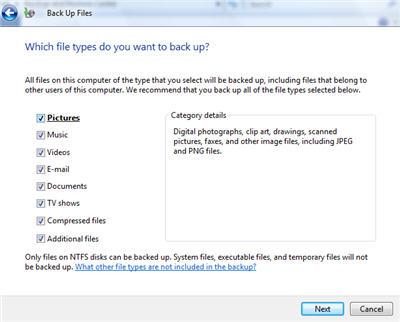
The wizard will now ask you to select the types of files you want to have backed up. You can choose any of the following: pictures, music, videos, e-mail, documents, tv shows, compressed files and additional files. Select the file types you want to include in the back up and click on Next.
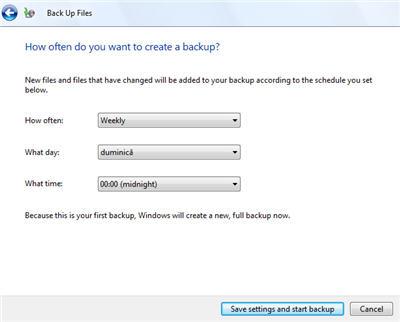
In the next window you will be asked about the frequency of the back up process. You can have daily, weekly of monthly backups. The scheduled backups will include only the new files or the modified files to the initial backup which you are about to complete.
Create the settings you want and then click on Save settings and start backup.
The backup process will start. First it will make a shadow copy, then it will scan the selected partitions for files and folders and then it will create the desired backup.
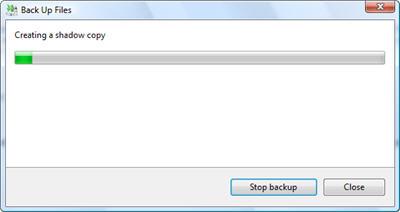
Depending on your system and on how much data you want to backup, the procedure will take from a few minutes up to a few hours. You can stop the backup at any time by clicking on Stop backup.
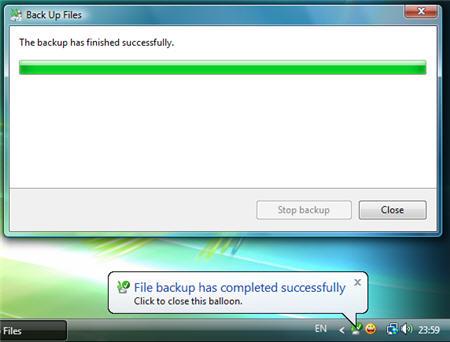
When the backup is completed you will see a balloon tip notification showing up on your screen.
How to reschedule or turn off your automated back up
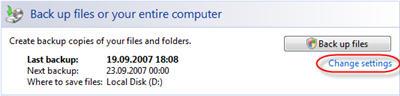
If you want to change the settings of the automatic backup procedure, go to the Backup and Restore Center and click on the Change settings link beneath the Backup files button.
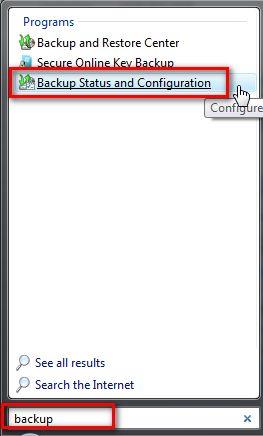
Alternatively, you can use the start menu search box, type "backup" and click on the Backup Status and Configuration shortcut.
The Backup Status and Configuration window will open. Here you will see the latest information about your backups.
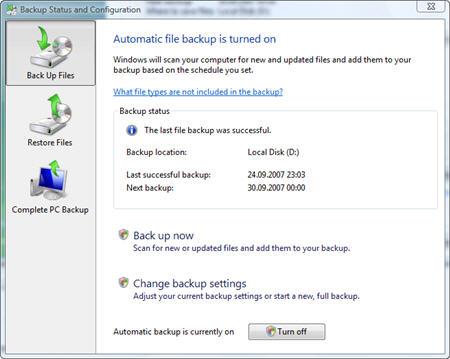
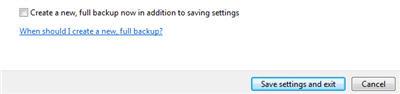
If you want to make a new backup, click on the Back up now button. To change the current settings click on the Change back up settings button. You will notice that if you want to change the settings, you will have to go through all the steps described in the screenshots above: selecting the drives, selecting the file types, selecting the schedule, and finally you will have to choose if you want to create a new backup or you just to save the settings and exit.
If you want to disable the automatic backup, click on Turn off.

Once you have finalized making all the desired changes, close the window.
How to create a complete PC backup
To create a complete backup of your PC, go to the Backup and Restore Center and click on Back up computer to start the procedure.
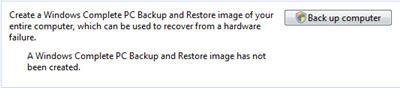
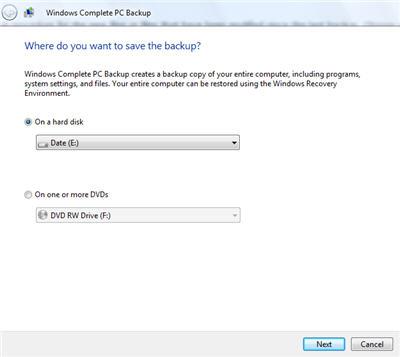
The wizard will start and it will ask you where you want to save the backup. You can select a hard disk or one or more CDs/DVDs. Make sure you have enough CDs/DVDs or sufficient space on your hard disk and then, after you have made your choice, click on Next.
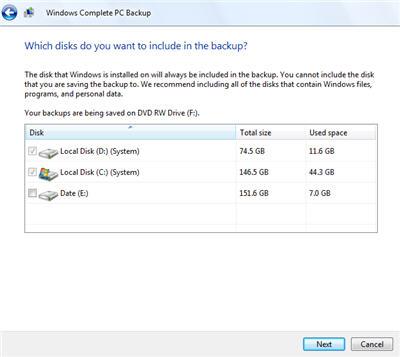
In the next window you will need to select the partitions which you want to include in the backup. Make the appropriate selections and click on Next.
In the last window, the wizard will show you a summary of your backup settings: the backup location and the disks which will be backed up. In the Backup location field it will show you the number of DVDs required or the hard disk space required to save your backup.
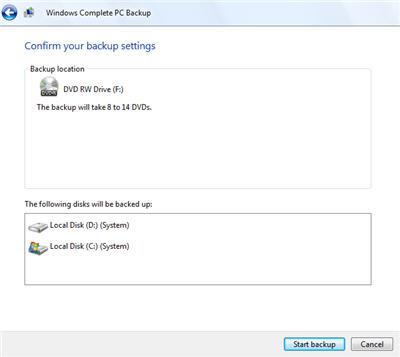
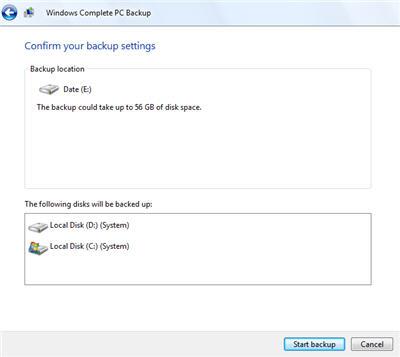
Click on the Start backup button and the procedure will begin.
NOTE: this tutorial was created with UAC turned off. If you have it turned on, you will have to make some additional confirmations for the changes that you want to apply.
Related articles:
How to restore your files
GFI Backup 2009 Home Edition - a worthy alternative to the Backup and Restore Center
System Restore
Backup your Outlook Inbox
How To Backup and Restore Your Windows Speech Recognition Profile

This work is licensed under a Creative Commons Attribution-Noncommercial 3.0 License.
Microsoft, Windows and the Windows logo are either registered trademarks or trademarks of Microsoft Corporation in the United States and/or other countries. Microsoft Corporation in no way endorses or is affiliated with www.vista4beginners.com.
All other products mentioned are registered trademarks and/or trademarks of their respective companies.
Comments
Slow as molasses Toshiba Vista Laptop?
This is a brand new Toshiba Laptop (Satellite) with ample Ram speed (1024 MB RAM), but I am sorry to admit that my 2003 Dell XP desktop with only 512 MB of RAM outruns the machine 5 to 1, or greater? I use the same phone line and Internet provider with both computers.
The obvious differences to a lay person are:
1. Vista vs. XP operating system?
2. Dell's modem is better then Toshiba's?
3. The Toshiba is loaded with games and other trivial software which hogs the memory??
4. .....or Dell's technical configuration is better to begin with??
I contacted Toshiba and was told to backup the laptop completely (which I have to learn first since this is a Vista OP) then the tech offered to totally reconfigure the laptop over the phone for me (can't wait to see how that works with me the novice on the other end)?
Any helpful suggestions are appreciated.
Actually, if you knew more
Actually, if you knew more about your operating system before you shot it down, you would easily know that Home Premium Does have a complete restore. You have to install the option, in the add/remove programs area of the control panel. Also, Vista doesnt come on CD, it comes on DVD & would cost Acer more than 50 cents. First of all, buying volume serial numbers from MS is a heck of a lot cheaper than purchasing OEM DVD's, than add in teh production time, etc, etc
Bottom line is, its the User not the computer, Acer or MS
Vista's backup to external hard drive
I ran the Vista Home Premium backup following these directions: "How to backup your personal files and folders" and the backup finished normally. I backed up to an external hard drive.
On the external, I went into the backup folders (and had to give permission for each folder), then got to the level where I saw 291 zipped folders with names like: Backup files 1, Backup files 2, etc.
I looked into some of the zip folders and was able to see some of the backed up files. Wow, that's not was I was expecting at all in a backup! There's no way to easily see my files without blindly opening every generically-named zipped folder. I was expecting to see a folder tree like I see in Windows Explorer.
Will Vista Home Premium's backup overwrite the changed files when it does the next backup? I can't imagine that it would create another new folder and leave the old folder there. Will it? Has anyone here studied the backup to see how it functions?
Updated comment:
I gave up on the backup program provided with Vista. It kept giving failure errors, so I went with a different backup program. The Vista backup zip files were way too confusing to try to find files I wanted to restore. Thumbs down on the Vista backup program. Thumbs up on this detailed tutorial, though :)
comment on the reply about vista hm prm. backup
I think you messed up on trying to explore some of your backup in vista wrong. Don't try to view your backup from within windows explorer. If you do this them you will see Zip folders because that is how vista files them within a windows explorer view. Instead, try this and then let me know what you think? Put your backup dvd in and go to backup and restore within programs startup menu and choose restore ( you don't have to actually restore anything if you don't want to) to view your folders and files just as they would be in your documents folder and other folder. Hope this made it simple enough. Dude you don't have to add more programs (resource users) to your system to do simple backup/restore when vista is easily capable of this in Home premium. Now for disc imaging download Macrium Reflect free backup. This is the best free and paid imaging I have ever used and I mean the best. I have tried all the so called top guns (ghost,acronis etc.) Just try it free and you will see what I mean. Hope the best. No need to pay for software.......
backup
I made a backup copy for my vista it consisted of 10 cds. if my computer system for some reason is wrecked is this the cd that i use to restore my computer? this vista computer is quite new and my other win XP backup cd consisted of only 2 cds, where did I go wrong if I did? For my own safety I went out and purchased dvd-r cds and i will try to find the area where the backup cds consist of only 2, hope I can find the right place. anyone know?
Windows VISTA & VAIO laptop: missing pc backup option
I am using a VAIO laptop but it doesnt have the full computer backup option. what should I do?
back up
How can I read backup files before I restore them ?? I backed up a number of folders which one of them is corrupt.
I need to identify that folder before I restore the others.
Please advise ?
backup failure
The make of computer system appears irrelevant to backup problems, and must be a Windows problem.
My new system is an HP Pavilion, with Vista Home Premium. Since purchase, on auto or manual requested backup, all I get is "..not successful. Shadow copy could not be created due to insufficient storage available (0x8004231f)".
My system has 150GB installed hard drive, with freestanding 500GB hard drive via USB.
Main drive has 40GB used, plus 5GB set aside for use as 'D' by system(4.9GB used, unable to increase).
Also unsuccessful in creating Recovery Disks using DVD-R disks.
Many forums talk of similar problems with server systems in offices, home laptops and desktops etc., quoting numerous manufacturers, so must be a Windows problem, but seems lot of talk and NIL action.
reply to ur problem to make recovery dvds
OK I had the same problems you are having and if you haven't work them out yet this is what I did and everything worked out for me in the end. First, you will eventually in the long run need those recovery DVDs if you dont have a recovery partition included on your hard drive and you will even need them if you ever have a hard drive crash and burn. So first thing is to try to solve the problem with the burning of those recovery dvds. The things that cause my problems was programs that were running when trying to make the dvds in particular antivirus programs. You shouldn't need much running when making those recovery dvds ( not even internet connection) After you have tried this whether success or not download Macrium Reflect free edition and make an image of your entire drive. This is free and the best software that is easy to work with and I have made over 10 images of vista already without any errors or restore problems. Sure you can buy other software like ghost or acronis but they won't do it half as good. Hope this helps....
I back up DVD to computer
I back up DVD to computer with daniusoft dvd ripper, besides backup full DVD, it can rip DVD with only 3 clikcs http://www.daniusoft.com/dvd-ripper.html.
Post new comment