
How to backup your data
Wed, 09/26/2007 - 21:21 — George
 Many people lose data everyday due to various reasons: virus infections, accidental deletion, hardware & software failures, power failures and so on. To protect yourself from data losses, you can create a backup so that you will easily restore it when needed. Using Windows Vista’s Backup and Restore center, you can easily backup your personal files or the entire system. You can create a manual backup or schedule automated backups which will add the new files or the modified files into your original snapshot.
In this tutorial we will show you how to backup your data. In the following weeks we will also publish a tutorial about restoring your data.
NOTE: Windows Complete PC Backup and Restore is not included in Windows Vista Home Basic or Windows Vista Home Premium.
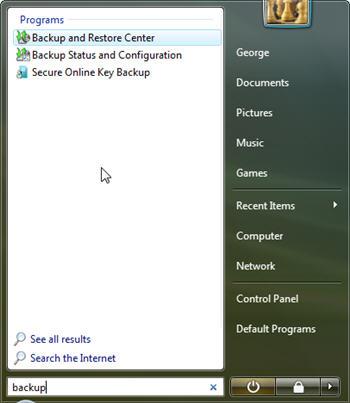
In the search field of the Start Menu type the word "backup" and then click on the Backup and Restore Center shortcut. Alternatively, you can go to Control Panel -> System and Maintenance -> Backup and Restore Center.
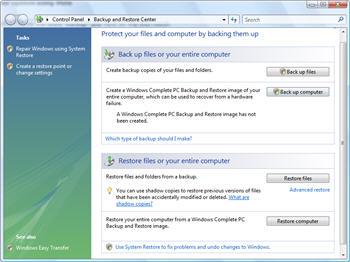
The Backup and Restore Center has two main sections: one for backing up files and one for restoring them.
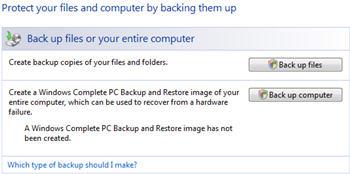
On top of this, the backup section offers another two options: Back up files and Back up computer. The first option will create a backup of your personal files and folders and the second will create a complete backup of your entire computer. It is recommended to create a full back up of your computer just after you have set up your computer for the first time. Windows Vista will take a snapshot of all your programs, settings and files. You can use this snapshot if your computer ever stops working and restore it to the original state.
How to backup your personal files and folders
To start the procedure, click on the Back up files button and the wizard will start.
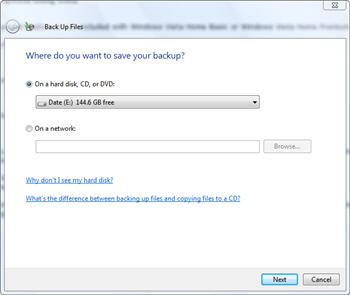
In the Back Up Files window you will have to select where to save your backup. You can select a partition from your hard disk, a CD, a DVD or a shared folder from your network. Select the location you prefer and click on Next.
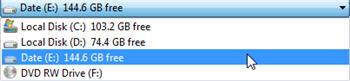
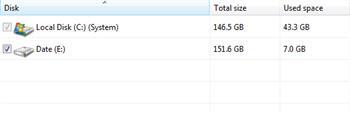
In the next window, you will see a list with all your partitions except the one selected as the location for saving your backup. The partition on which Windows Vista is installed will be selected by default. Now you can choose to include or exclude other partitions from the backup procedure. After you have made your selections, click on "Next".
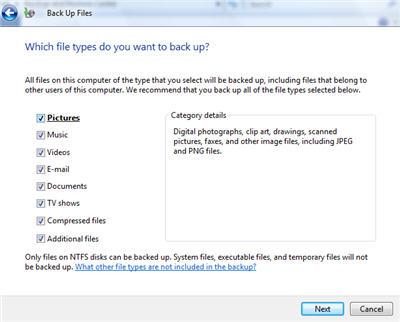
The wizard will now ask you to select the types of files you want to have backed up. You can choose any of the following: pictures, music, videos, e-mail, documents, tv shows, compressed files and additional files. Select the file types you want to include in the back up and click on Next.
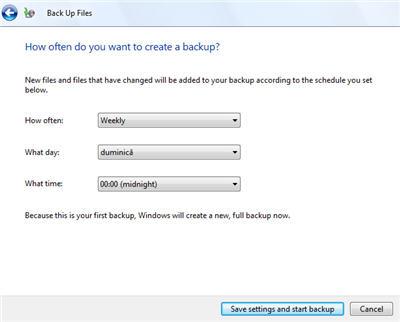
In the next window you will be asked about the frequency of the back up process. You can have daily, weekly of monthly backups. The scheduled backups will include only the new files or the modified files to the initial backup which you are about to complete.
Create the settings you want and then click on Save settings and start backup.
The backup process will start. First it will make a shadow copy, then it will scan the selected partitions for files and folders and then it will create the desired backup.
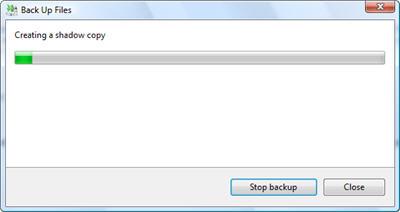
Depending on your system and on how much data you want to backup, the procedure will take from a few minutes up to a few hours. You can stop the backup at any time by clicking on Stop backup.
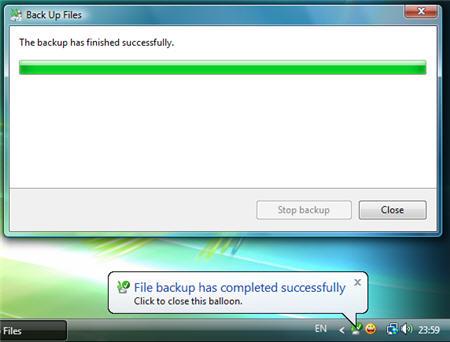
When the backup is completed you will see a balloon tip notification showing up on your screen.
How to reschedule or turn off your automated back up
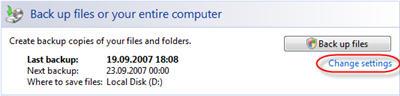
If you want to change the settings of the automatic backup procedure, go to the Backup and Restore Center and click on the Change settings link beneath the Backup files button.
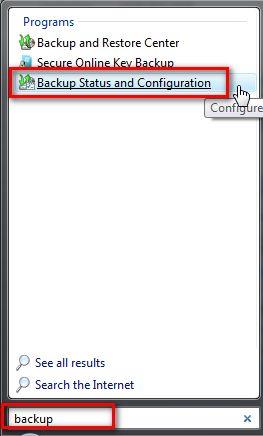
Alternatively, you can use the start menu search box, type "backup" and click on the Backup Status and Configuration shortcut.
The Backup Status and Configuration window will open. Here you will see the latest information about your backups.
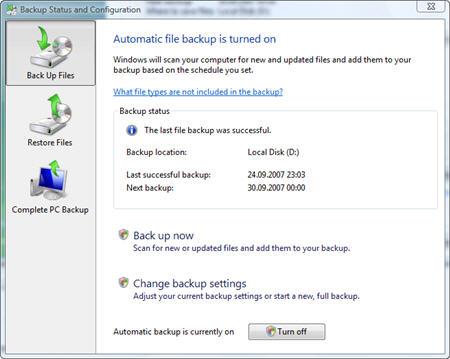
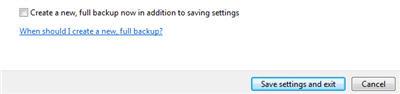
If you want to make a new backup, click on the Back up now button. To change the current settings click on the Change back up settings button. You will notice that if you want to change the settings, you will have to go through all the steps described in the screenshots above: selecting the drives, selecting the file types, selecting the schedule, and finally you will have to choose if you want to create a new backup or you just to save the settings and exit.
If you want to disable the automatic backup, click on Turn off.

Once you have finalized making all the desired changes, close the window.
How to create a complete PC backup
To create a complete backup of your PC, go to the Backup and Restore Center and click on Back up computer to start the procedure.
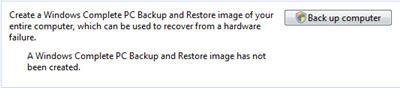
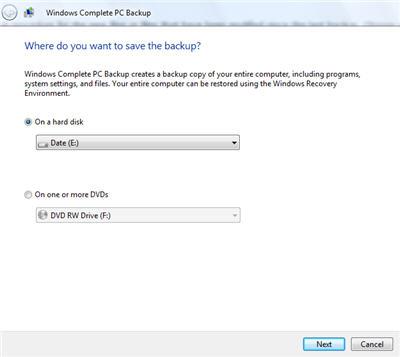
The wizard will start and it will ask you where you want to save the backup. You can select a hard disk or one or more CDs/DVDs. Make sure you have enough CDs/DVDs or sufficient space on your hard disk and then, after you have made your choice, click on Next.
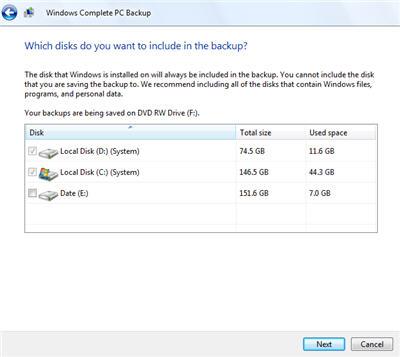
In the next window you will need to select the partitions which you want to include in the backup. Make the appropriate selections and click on Next.
In the last window, the wizard will show you a summary of your backup settings: the backup location and the disks which will be backed up. In the Backup location field it will show you the number of DVDs required or the hard disk space required to save your backup.
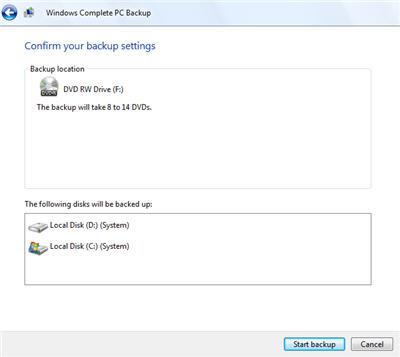
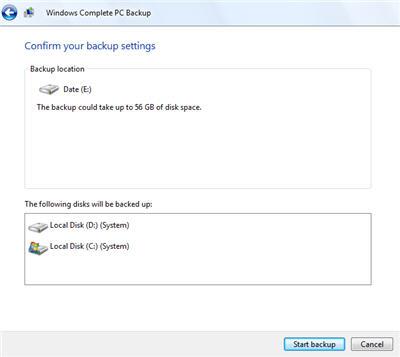
Click on the Start backup button and the procedure will begin.
NOTE: this tutorial was created with UAC turned off. If you have it turned on, you will have to make some additional confirmations for the changes that you want to apply.
Related articles:
How to restore your files
GFI Backup 2009 Home Edition - a worthy alternative to the Backup and Restore Center
System Restore
Backup your Outlook Inbox
How To Backup and Restore Your Windows Speech Recognition Profile

This work is licensed under a Creative Commons Attribution-Noncommercial 3.0 License.
Microsoft, Windows and the Windows logo are either registered trademarks or trademarks of Microsoft Corporation in the United States and/or other countries. Microsoft Corporation in no way endorses or is affiliated with www.vista4beginners.com.
All other products mentioned are registered trademarks and/or trademarks of their respective companies.
Comments
Complete PC Backup
I'm planning to switch my C: hard drive(160GB) to a bigger hard drive(1TB) since space is getting tight. I also don't want to buy a new OS since my Vista Home Basic came with the computer when I bought it. The point is I just want all the contents of my old drive transferred to the new one without installing a new OS. Also, my Vista Home Basic doesn't have the option of Backing up my entire PC(PC Image). I really need your help on this and would greatly appreciate any assistance or suggestions. THANKS!
Backup with Acronis
In this case Backup and Restore from Windows Vista Basic will not be useful. You need to try other solutions such as the ones from Acronis. They have great products for backup and recovery.
shadow copies and backup error
I haven't been able to back up my files for over a month. I continue to get an error stating that the time to create a shadow copy has expired. (vista home premium) any suggestions?
how to back up entrire installations
hey,
i was wandering is there any way that i can back up programms, so that when i restore the systems the programs will be reinstalled. for example, i have a program in my pc for which i dont have the installations cd anymore. is there any way to save those installations in an external hard drive so i can reinstall it?
thank you.
when i try and create an
when i try and create an iamge and save it to my network i get an error message: no mapping between account names and security id's was done could some one help me with this
Vista Backup
I am having trouble getting Vista to make a new full backup. I have not backed up for over a year. I am trying to use DVD+RW's that are taking data through all other burner programs that I have on my system. I have not added any burner programs that may be conflicting. The disks had old data on them that I wiped clean. is that causing the problem?
Thank You
Anonymous wrote "Actually, if
Anonymous wrote "Actually, if you knew more about your operating system before you shot it down, you would easily know that Home Premium Does have a complete restore. You have to install the option, in the add/remove programs area of the control panel."
More details please?
There is no add/remove programs area of the Vista Control Panel
Backup and Restore, put simply, just doesn't work on Vista Home Premium.
Many files are not backed up, and dangerously it leads you to believe that the backup was successful! I have just learnt from this forum that it doesn't do .exe and other files!
Home Premium doesn't even do complete backups.
It is not up to the job of trying to be a professional operating system. A basic requirement of an operating system for the past 50 years has been the task of backing up (& restore if ever needed).
Without this it should not even be released to Beta Testing.
It is not "fit for purpose" (a legal consumer phrase in the UK) and you should get your money back from the supplier.
back up disk format
i'm trying to back up my computer by saving it to DVD, but it tells me it needs to format the DVD. It tries that then it tells me the format was not successful, how can i back up my computer to DVD then?
Vista backup
I was able to retrieve my documents from my "stick" and restore to my hard drive. When I tried to backup to the "stick", the CD drive opened and asked for a CD. How can I backup to the "stick"?
Tx. Rick
back up
I have been backing up my files weekly. Do I continually keep adding disks each week with the current date??
or can I reuse the older ones?
Post new comment